When Apple TV+ fails on Roku, what’s actually happening
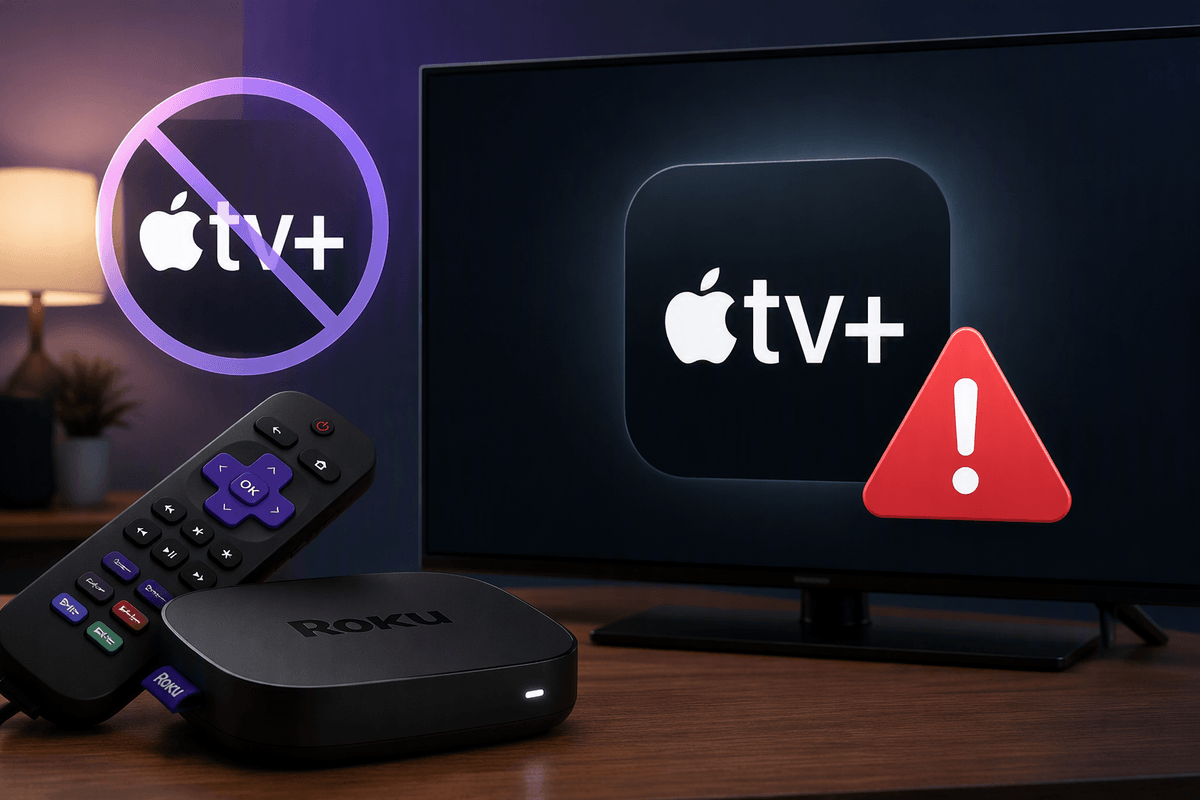
When Apple TV+ fails on Roku, it’s usually one of four layers breaking: the Apple TV service itself, your Apple ID/subscription status, the Apple TV channel/app on Roku, or the connection between Roku and your router/internet. The symptom can look the same—endless loading, a crash, a black screen, or a generic error—even though the cause is different.
A practical way to think about it is “can Roku launch the app, can the app authenticate you, and can it keep a protected stream playing.” Apple TV+ uses account verification and DRM, so a sign-in loop can be an Apple ID prompt issue, while buffering can be a Wi‑Fi problem. Also, some older Roku models or outdated Roku OS versions simply won’t run the latest app reliably, which limits what fixes will work.
Quick checks: outages, account status, and the right Roku
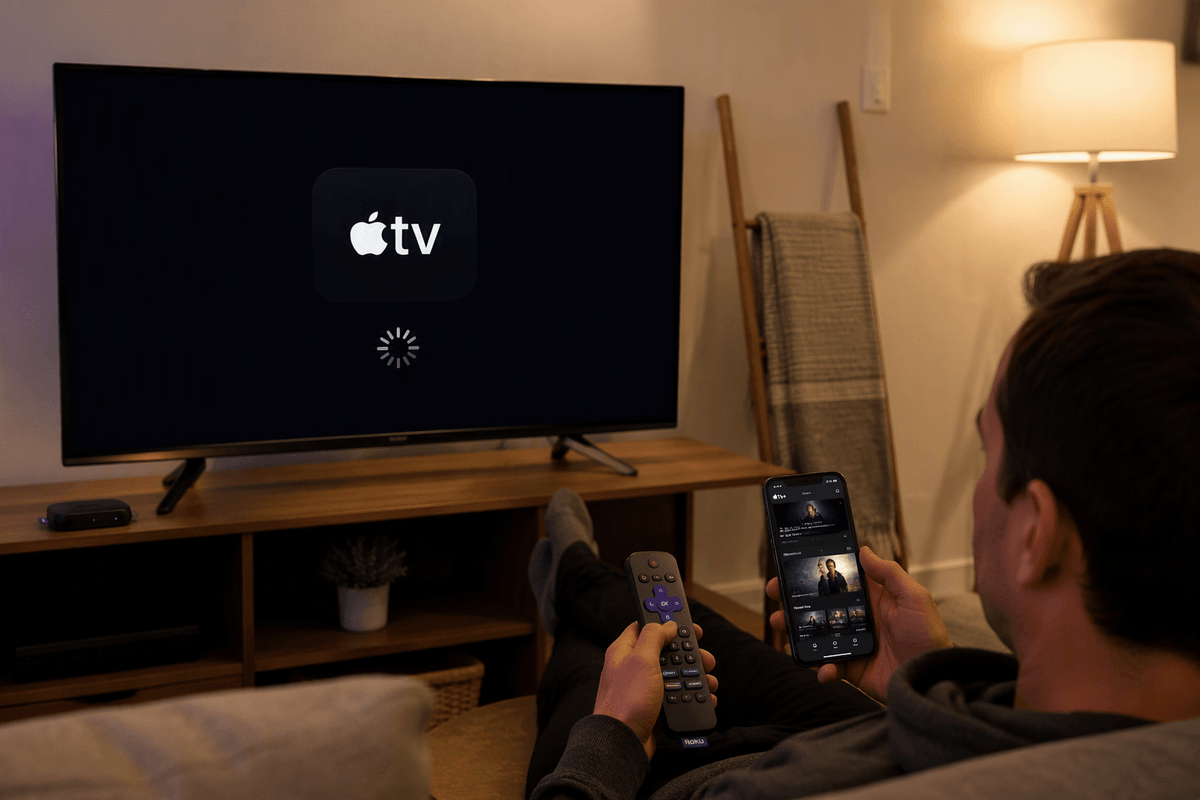
Before changing settings, rule out the stuff you can’t “fix” from your couch. If Apple TV+ is down or having a regional outage, the Roku app may open but fail at playback or sign-in. Try Apple TV+ on a phone/computer using the same Apple ID; if it fails there too, it’s likely service or account related.
Confirm your subscription is active and you’re using the same Apple ID you subscribed with (family sharing and multiple Apple IDs in a household cause a lot of “verify your account” loops). On Roku, double-check you’re launching the Apple TV app (not a similarly named channel) and that your Roku model supports current Apple TV app requirements—very old sticks and TVs can run Roku fine but struggle with newer streaming apps or DRM.
Update Roku OS and the Apple TV app first
The fastest win is getting Roku OS and the Apple TV app onto the same, current “known good” versions. On your Roku, go to Settings > System > System update > Check now. Let it finish completely, even if it says you’re up to date after a quick scan—some updates apply in stages and require a restart.
Then update the Apple TV app itself: highlight the Apple TV app tile, press the * button on your Roku remote, and choose Check for updates. If you’re on a Roku TV, also confirm you’re not in a low-storage situation; an almost-full device can silently fail app updates or corrupt them. Updates don’t fix every issue, but they eliminate a big class of crashes, sign-in prompts that won’t stick, and playback errors caused by older DRM components.
Fix sign-in loops, “verify your account,” and Apple ID prompts
A common failure pattern is the app opens, asks you to sign in, then bounces back to “verify your account” or repeats the Apple ID prompt. Start by signing out inside the Apple TV app (Settings/Accounts area), then restart the Roku (Settings > System > Power > System restart, or Settings > System > System restart) before signing in again. If you’re prompted to “continue on your phone,” keep the phone on the same home Wi‑Fi as the Roku and turn off any iCloud Private Relay temporarily, since those can break the handoff.
If you have multiple Apple IDs in the house, confirm you’re using the one that actually has the Apple TV+ subscription. Family Sharing can work, but if the organizer’s subscription changed recently, the Roku app may keep requesting verification until the account status refreshes. One practical constraint: repeated sign-in attempts can trigger temporary security checks, so if you’ve tried several times, wait 15–30 minutes before trying again.
Network problems that look like app problems
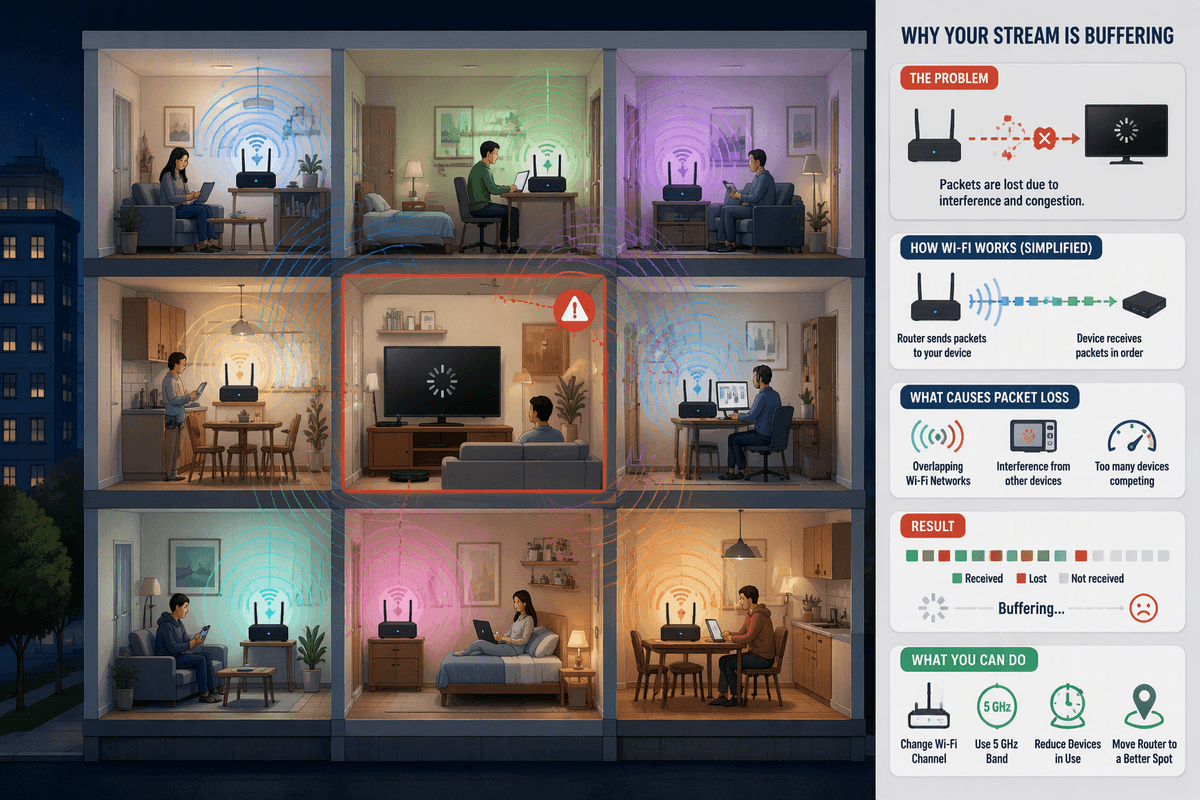
You’ll see a lot of “app” errors that are really your network dropping or changing midstream. Apple TV+ is sensitive to brief Wi‑Fi stalls because it’s continuously re-checking your ability to play a protected stream. If the app loads but playback spins, fails at “starting,” or works for a minute and then kicks you out, treat it like a connection test.
Start simple: open another streaming app on the same Roku and play something for two minutes. If that buffers too, the Roku isn’t the problem. If only Apple TV+ fails, still check Wi‑Fi quality—move the Roku closer to the router, switch from 2.4 GHz to 5 GHz (or vice versa), and temporarily unplug Ethernet adapters or Wi‑Fi extenders that can add instability. A practical limitation: crowded apartment Wi‑Fi can look “fast” on speed tests but still drop packets enough to break streaming.
Restart, then reinstall: the cleanest way to reset the app
When Apple TV+ is acting “corrupted”—crashing on launch, freezing at a logo, or failing after you already updated—do a real restart before you reinstall. Use Roku’s restart, not just turning the TV off: Settings > System > Power > System restart (or Settings > System > System restart). Wait for the home screen to fully reload, then try Apple TV+ once.
If it still misbehaves, remove and reinstall the app to force a clean download. Highlight Apple TV, press * on the remote, choose Remove channel, then restart the Roku again (same menu) before adding it back from Streaming Channels. That extra restart matters because it clears cached files Roku can keep around. The trade-off is time: you’ll need to sign in again, and if your Roku is low on storage, reinstalling may fail until you remove another unused channel.
Black screen, audio-only, or 4K/HDR errors on Roku
You hit Play, the controls appear, but the picture is black—or you get audio with no video. That usually points to a video handshake issue between Roku and the TV/AV receiver, not your Apple ID. First, force Apple TV+ to use a simpler output: on Roku go to Settings > Display type and pick 1080p (or “Auto detect,” then back to 1080p), then try playback again. If that fixes it, the problem is often 4K/HDR or Dolby Vision negotiation.
If you use an AVR/soundbar, bypass it temporarily: plug the Roku directly into the TV, then test. Swap to a different HDMI port, and if it’s a stick, use the included power brick (TV USB power can be unstable under 4K). On Roku, try Settings > System > Advanced system settings > Advanced display settings and turn off HDR always-on features if present. A real constraint: some older TVs claim HDR support but only on specific HDMI ports or with “Enhanced/HDMI 2.0” enabled in the TV’s settings.
When it’s time to contact support (and what to tell them)
If you’ve updated, restarted, reinstalled, and tested another network/app, it’s time to escalate—especially if Apple TV+ fails on multiple devices (Apple account/service) or only fails on your Roku after clean reinstall (Roku/app compatibility). Before you call or chat, write down your Roku model number, Roku OS version, Apple TV app version, and the exact error text/code. Note whether the failure is sign-in, playback start, or mid-stream, and whether it happens on specific titles or all content. Tell them your network type (Wi‑Fi 2.4/5 GHz or Ethernet), any relay use, and whether 1080p works but 4K/HDR fails.