What “your personal data from Apple” actually includes
If you’ve ever wondered what Apple could actually hand you, think of “your personal data from Apple” as records tied to your Apple ID, not a full clone of your devices. A typical export can include account details (name, email addresses, phone numbers), devices associated with your Apple ID, iCloud settings and usage info, and transaction history such as App Store purchases, subscriptions, and receipts. Depending on what you select, you may also see data linked to Apple services you use, like iMessage/FaceTime metadata, support interactions, or activity logs.
What it usually won’t include are things like your iPhone’s entire local storage, every app’s internal data, or neatly packaged versions of your photos and iCloud Drive the way you browse them day to day. Some content is provided as reports, and some is better exported directly from iCloud or the device. The practical trade-off is size and time: a broad request can generate many gigabytes split across multiple files, and downloading it safely takes planning (enough storage, a private network, and time to handle large archives).
Before you start: prepare your Apple ID and security checks
The easiest way to derail a data request is to start it when you can’t reliably sign in. Before you open Apple’s Privacy portal, confirm you know the Apple ID email you actually use, and update your trusted phone number(s) and devices in your Apple ID settings. If you recently changed your password, turned on a new iPhone, or removed an old number, resolve that first so two-factor authentication (2FA) prompts go to the right place.
Plan for the download step, too. Use a private connection (not coffee shop Wi‑Fi), and use a computer with enough free disk space for multiple large zip files plus the unzipped contents. If you share a Mac or Windows PC, set up a separate user account or at least make sure no one else can access your Downloads folder while the archive is there.
Requesting a copy through Apple’s Privacy portal

Most people start at Apple’s privacy portal, where you can request a copy of the data tied to your Apple ID. On a computer, sign in with the same Apple ID you use on your devices, complete the two-factor authentication prompt, and look for the option to get a copy of your data (Apple may label it as a request for “a copy of your data” or “access your data”). You’ll be asked to choose what you want included, confirm a file size for the download packages, and submit the request.
After you submit, don’t expect an instant download. Apple typically needs time to prepare the export, and you’ll usually get an email when it’s ready. Use that moment to be careful: open the portal from a private device, download only over a trusted network, and avoid doing this on a work or shared computer where the zip files could be indexed, backed up, or seen by someone else.
Choosing data types and file sizes without regrets
The checkbox list is where most people either over-collect and end up with a messy download, or under-collect and have to request again. If your goal is privacy visibility, start with account details, devices, Apple Pay (if shown), and purchase/subscription history—those are typically small and immediately useful. If your goal is troubleshooting or account cleanup, add iCloud settings/usage, support interactions, and any service logs offered for the products you actually use. Skip categories you don’t recognize; they can create noise without adding clarity.
When the portal asks for a package size (for example, 1GB, 2GB, 5GB, 10GB), pick smaller chunks if your internet is unreliable or you’ll be downloading on a laptop with limited free space. Larger chunks mean fewer files to manage, but a failed download can waste more time. Remember you’ll need room for both the zip files and the unzipped folders, and some archives expire—waiting “until the weekend” can backfire.
Downloading, unzipping, and reading the exported files
When Apple emails that your export is ready, go back to the privacy portal and download every part in order (Part 1, Part 2, and so on) into a single folder. Treat the downloads like financial documents: use a private network, avoid shared computers, and don’t leave the zip files sitting in your default Downloads folder longer than necessary. If a part fails, re-download that same part rather than trying to “repair” the set—missing one zip can make the whole export confusing to interpret.
Unzip to a new folder you name clearly (for example, “AppleID-Export-2026-08-31”) so you don’t mix it with older requests. Most exports are a collection of folders plus readable files like PDF, CSV, or JSON. Start with anything labeled “Account” or “Devices,” then open purchase and subscription files in a spreadsheet app so you can sort by date and merchant. JSON files can look messy; if you only need answers quickly, use a text editor’s search (Cmd/Ctrl+F) for terms like your email, device model, or a subscription name. Unzipping large archives can take a while and may require temporary disk space you didn’t plan for.
When the portal isn’t enough: iCloud and device-level exports
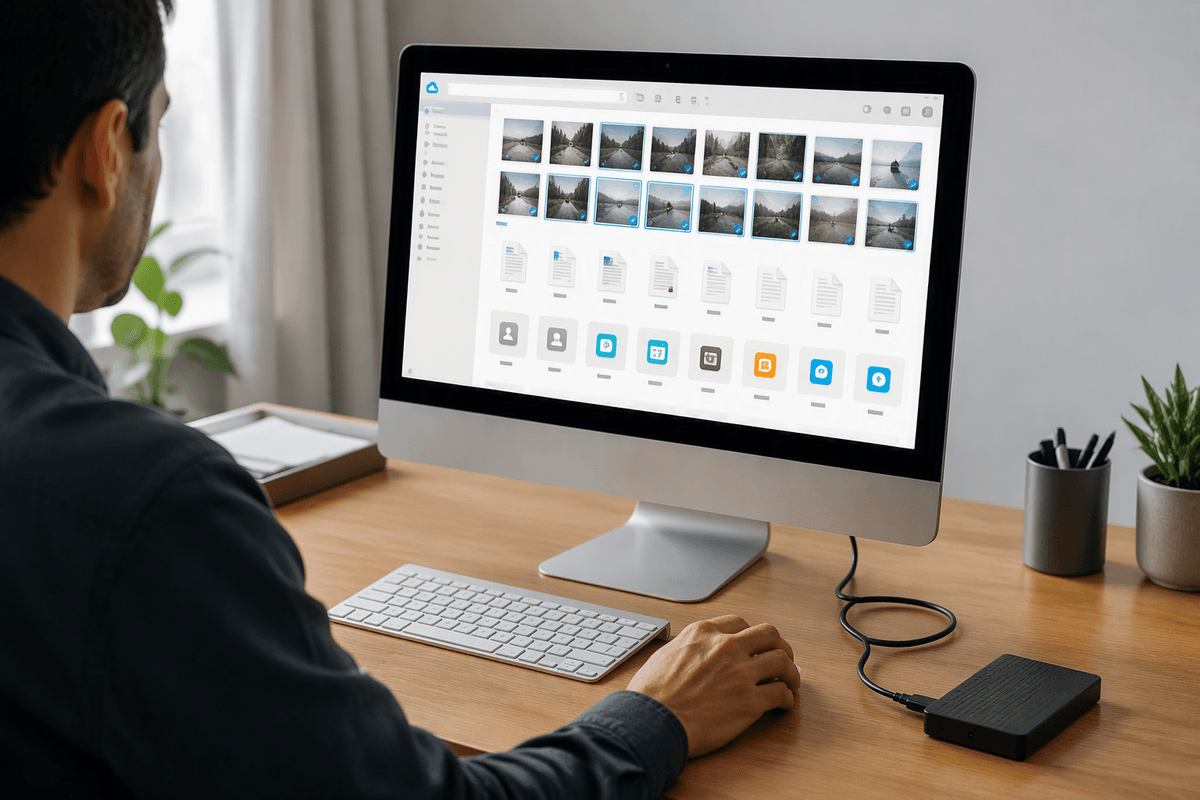
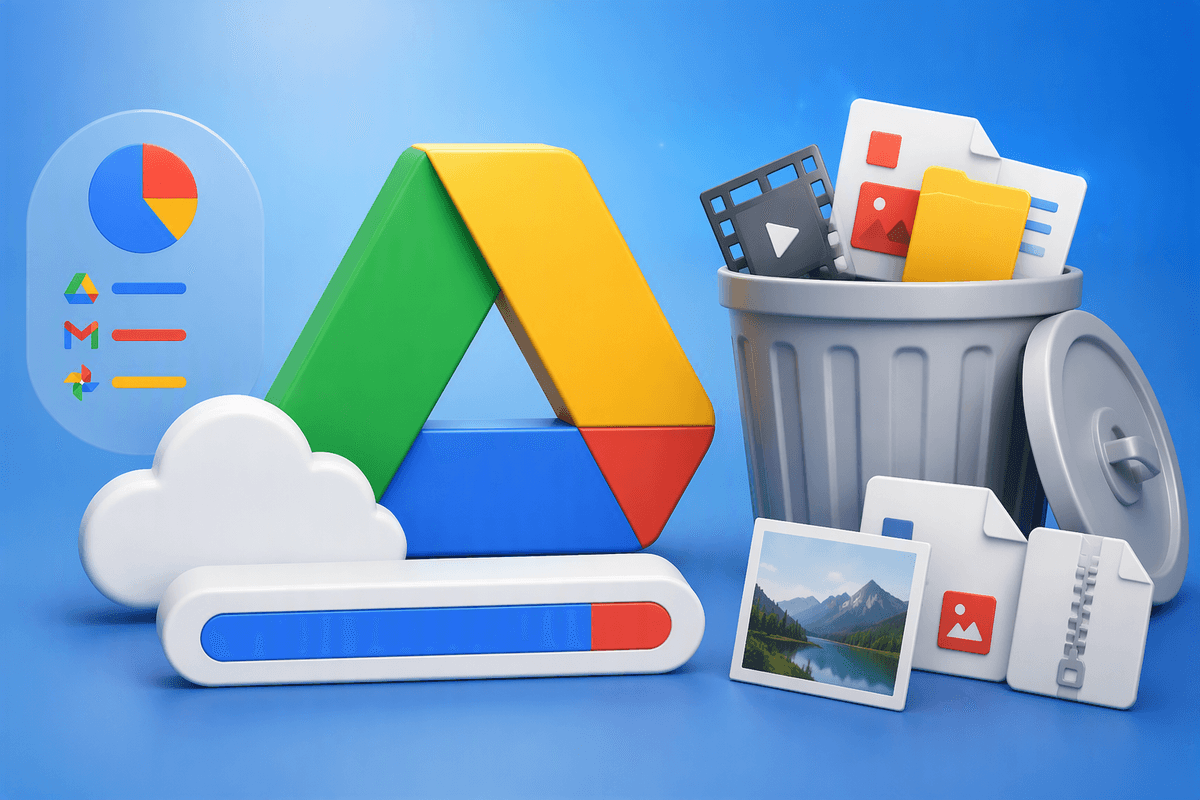
You’ll hit the portal’s limits when you want your content in a usable form, not as a report. Photos and videos, iCloud Drive documents, Contacts, Calendars, Notes, and Mail are often easier to export directly from iCloud.com on a computer, where you can select items and download them in familiar formats. This is also the better route if you’re trying to migrate to another service or make a clean offline backup, because you can see what’s actually stored and spot gaps before you sign out of a device or change accounts.
For anything primarily living on a device, use device-level exports. On iPhone/iPad, you can export a copy of Safari bookmarks, Health data, and some app data through in-app export options; on Mac, you can export Photos libraries, Contacts vCards, and calendars from their apps. Expect friction: large photo libraries can take hours to download, some items won’t batch-export cleanly, and “optimized storage” settings may mean you have to force full-resolution downloads first. If your goal is completeness, budget time and disk space for both steps.
Common problems: missing data, delays, and account mix-ups
You’ll sometimes open the export and swear something is missing. The most common “gap” is expecting iCloud content (Photos, Drive files, Mailboxes) to show up like a normal folder tree; the portal often provides reports or metadata instead, so use iCloud.com or the relevant app export when you need the actual items. If purchases look incomplete, check whether you have more than one Apple ID (old email address, work/school Managed Apple ID, or a Family Sharing organizer account) because each account produces a separate export.
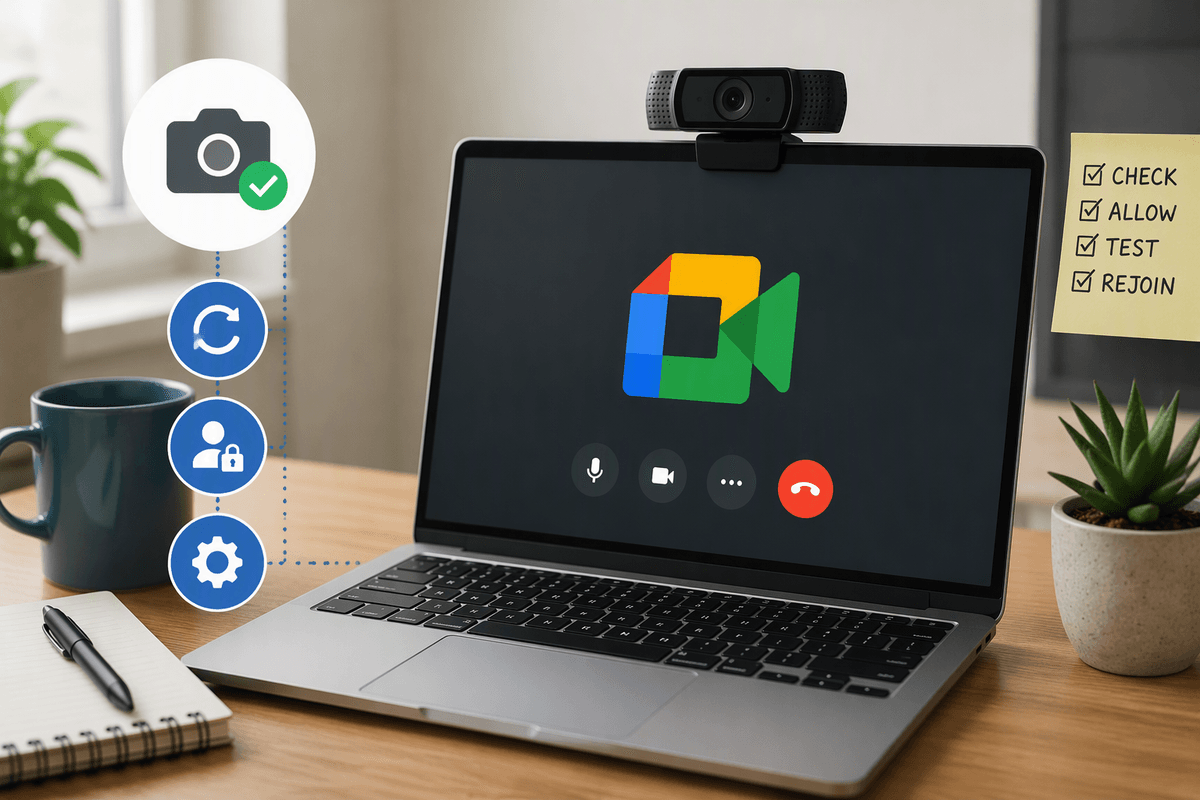
Delays are normal, especially for large requests or when you pick many categories, and the ready-to-download links can expire. If you aren’t getting the “ready” email, sign in to the portal directly and check spam/junk folders, then confirm your Apple ID email is still receiving messages. If two-factor prompts are going to the wrong device or number, fix your trusted devices first; otherwise you can lock yourself into a loop where you can’t download what you requested.
Storing and using your Apple data safely afterward
Once you’ve found what you needed, move the export out of Downloads and into a folder you control, then limit who can open it. On a Mac, put it in an encrypted disk image (Disk Utility) or at least a password-protected user account; on Windows, use BitLocker (or a similar full-disk option) and keep the folder out of cloud-sync directories unless you’re sure that’s what you want. Delete the unzipped working copy when you’re done—those files are the most exposed.
If you’re keeping it for records, save one “clean” copy and make notes separately (for example, which devices were still linked, or which subscriptions you forgot about). Be careful with sharing: receipts, device identifiers, and support logs can be enough for account recovery scams. The practical downside is storage overhead—encrypted copies and backups can easily double the space you need.