Why Google Drive fills up faster than you expect
You check Drive and see “almost full,” even though you don’t remember uploading much. The surprise usually comes from how Google storage is shared across Drive, Gmail, and Photos under one account limit. A few big items can tip you over fast: video files, backups from your phone, shared folders where you’re the owner, and large email attachments sitting in your inbox for years. On top of that, Drive can keep older versions of files and items in Trash still count until they’re permanently deleted. The result is a slow creep that suddenly feels like a wall.
Check what’s taking space: fastest ways to find culprits
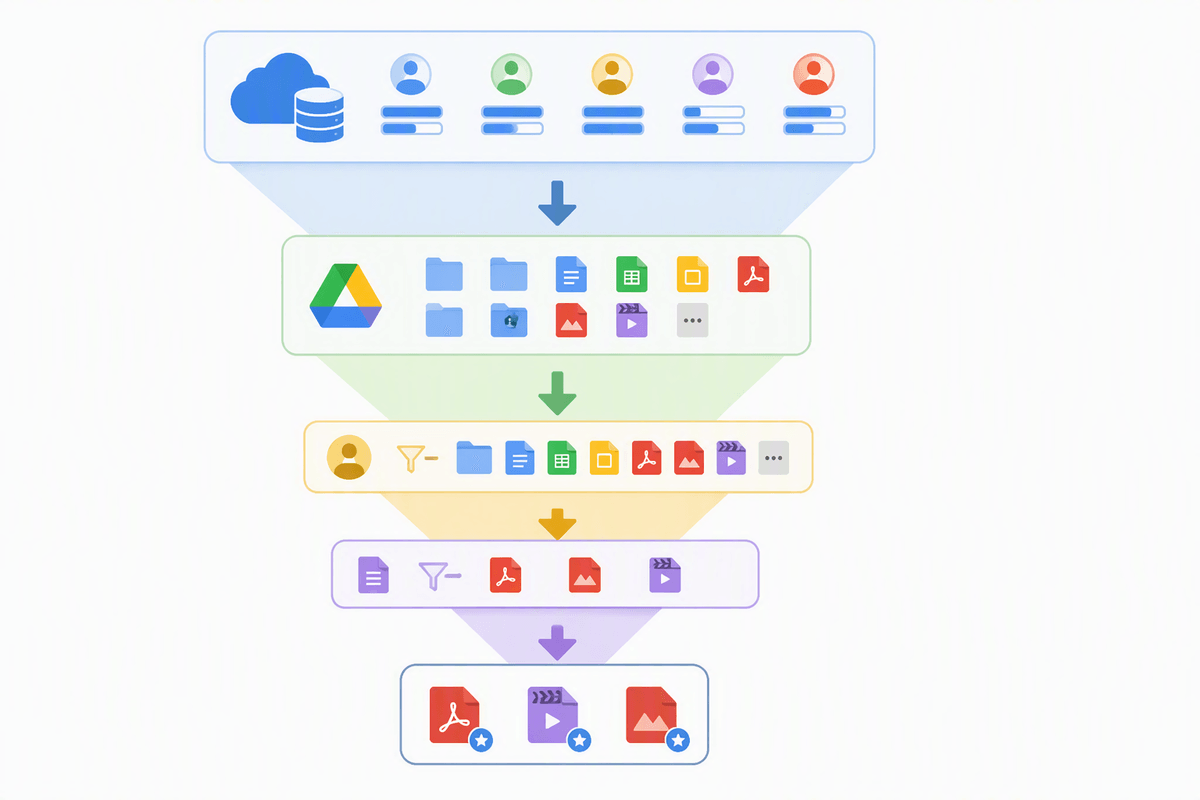
The quickest reality check is the storage breakdown for your whole Google account. Open Google One storage (or search “Google storage” while signed in) and you’ll see how much is coming from Drive vs Gmail vs Photos. If Drive is the main chunk, go straight to Drive’s “Storage” view (left sidebar) and sort by “Storage used.” That list surfaces the usual culprits in minutes: old videos, installers, forgotten ZIPs, and oversized PDFs.
Then confirm what’s actually yours to fix. In Drive, use the search filters for “Owned by me” and “Type,” because files shared with you don’t count unless you own them. Also check the “Backups” area (especially if you switched phones) and scan for unusually large Google Docs editors files—those can have big version histories. Expect a little friction: sorting is fast, but deciding what’s safe to delete takes a careful second pass.
Delete smarter: large files, duplicates, and forgotten uploads
Once you’ve sorted by storage used, start with the biggest “easy wins.” Download anything you might need later (especially client deliverables or personal originals), then delete large videos, installers, and old exports you can recreate. If a file lives in multiple folders, remember Drive isn’t duplicating it—deleting that one item removes it everywhere it appears.
Duplicates usually come from repeated uploads, email-to-Drive saves, or team members exporting the same deck as PDF over and over. Use search to spot patterns: type a filename keyword (like “final”, “export”, “(1)”, “copy”), filter by type (PDF, video, ZIP), then sort by “Last modified” to find stale copies. For photos and videos, look for “Uploads” folders from older phones or apps; those are often safe to prune after you confirm they’re already in Google Photos or another backup.
Work in batches, not one-by-one. Delete 10–20 large items, re-check the storage meter, and keep a short list of anything you’re unsure about so you don’t stall out on decisions.
Understand Trash, versions, and hidden storage gotchas
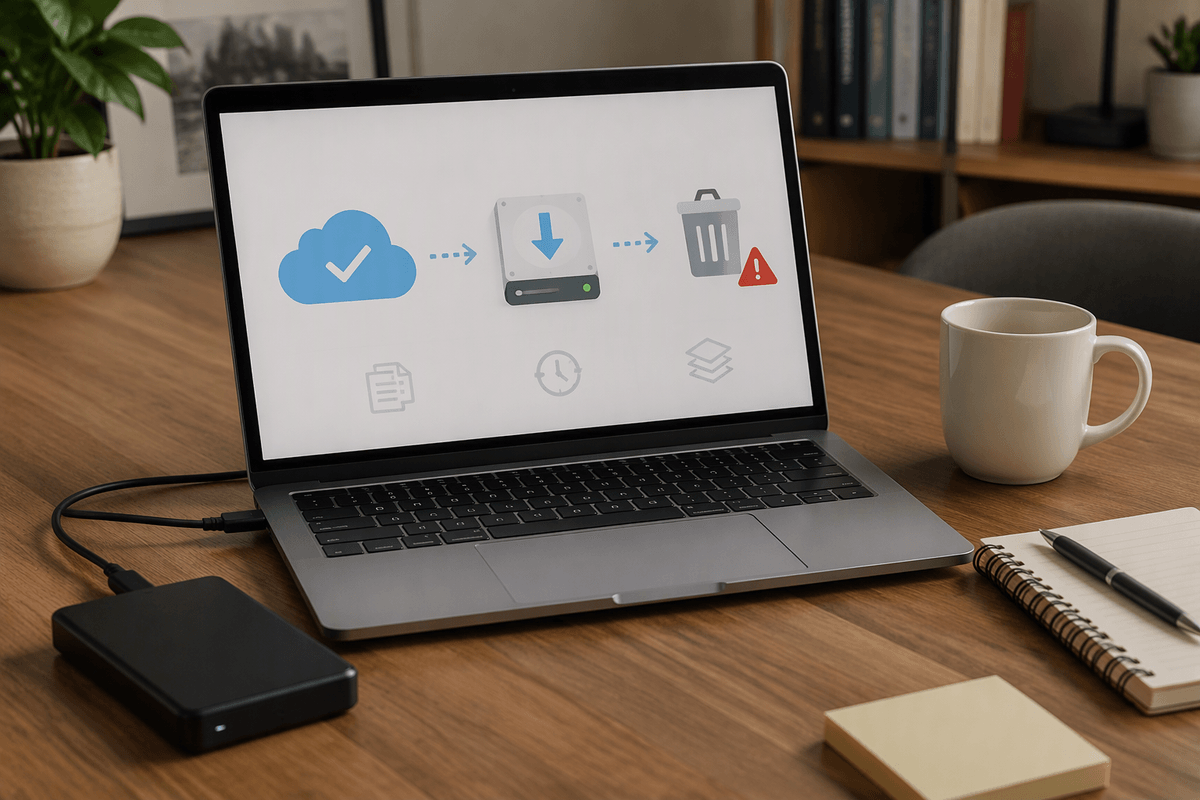
You delete a bunch of files and Drive still looks full because “deleted” isn’t always gone yet. Drive Trash continues to count toward storage until you empty it, and each user has their own Trash—clearing yours won’t clear a collaborator’s. After a big cleanup, open Trash and permanently delete the large items first, then empty the rest.
Version history is the other quiet space-eater. For Google Docs/Sheets/Slides it’s usually small, but for uploaded files (like PSDs, videos, ZIPs) replacing a file can keep older versions that still consume storage. Right-click the file, check “Manage versions,” and remove bulky old versions you don’t need. Expect a trade-off: once you delete versions or empty Trash, recovery gets harder, so do a quick download of anything you might regret losing.
Clean up Gmail and Photos if Drive still looks fine
You might find Drive looks relatively clean, yet your account is still near the limit. That’s usually Gmail or Google Photos. In Gmail, search for big attachments and delete in bulk: try has:attachment larger:10M, then bump it to larger:20M or larger:50M to surface the worst offenders. Also check in:anywhere so you catch mail sitting in Spam and Trash, then empty both—Gmail Trash counts until it’s cleared.
For Photos, confirm what quality setting you’re using and what counts against storage. Then go to Google Photos’ storage management tools to find large videos, blurry shots, and screenshots you don’t need. The practical catch: pruning Photos is slower than deleting Drive files because you’re making “keep vs delete” decisions, and large videos are easy to miss in a normal scroll. After you delete, empty Photos Trash too, or the space won’t come back yet.
Move, compress, or archive: keeping files without paying more
You’ll hit a point where you can’t delete much more without losing something you actually need. That’s when moving and archiving beats more pruning. For finished projects, download a folder to your computer (or an external drive) and keep one “final” export plus the source files you’d truly struggle to recreate. For sharing, move the deliverable to another cloud you already use (Dropbox, OneDrive, iCloud) and update links in the places people actually click—project notes, a client email, or a team doc—so you don’t keep multiple copies “just in case.”
Compression helps, but only for the right file types. ZIPs can shrink folders of documents, but photos and videos often won’t get much smaller because they’re already compressed; converting a video does save space, but it costs time and can reduce quality. A simple approach: archive big originals elsewhere, keep smaller working copies in Drive, and add dates to folder names so you can find the archive later without re-uploading everything.
Keep it from filling up again with simple habits
The easiest way to stay under the limit is a small routine: once a month, open Drive’s Storage view and sort by “Storage used,” then delete or download/archive the top few items. When you finish a project, move it into an “Archive (YYYY)” folder and keep only one final export plus the few source files you can’t recreate. Turn off “keep forever” versions on big uploaded files by occasionally checking “Manage versions” on anything you replace often (ZIPs, videos, PSDs).
Watch the three-way split, not just Drive. Every couple of weeks, run Gmail searches like has:attachment larger:20M and empty Trash/Spam, and in Photos, remove large videos you don’t need. The practical cost is time: 10 minutes of maintenance beats a stressful 2-hour cleanup when uploads start failing.