Why go wireless without replacing your speakers?
You probably don’t hate your speakers—you hate the wires. Maybe the TV wall-mount looks clean until you notice the speaker cable snaking to a corner, or you want music in a back room where running new wire means drilling, renting restrictions, or a messy baseboard workaround. “Going wireless” can solve those layout problems while keeping the sound you already like, because the speakers themselves don’t become obsolete just because the signal delivery changes.
The trade-off is that wireless usually adds at least one box (and one more power outlet), plus a few decisions about range and delay. Some setups are nearly invisible once installed; others are a little fiddly, especially if you need lipsync-friendly TV audio or dependable whole-home playback.
Check what you have: passive, powered, TV, or stereo
Start by identifying what kind of speakers you’re trying to “free.” Passive speakers have two bare-wire or binding-post terminals and need an amplifier somewhere in the chain. Powered (active) speakers plug into the wall and usually have RCA, 3.5mm, optical, or HDMI-ARC inputs; they may already include volume control and sometimes Bluetooth. This one detail determines whether you’re shopping for a wireless link plus an amp, or just a streaming adapter that feeds an existing input.
Then look at the source. If the goal is TV audio, note what outputs you actually have (optical, HDMI-ARC/eARC, or analog). TV use is where latency matters most, and not every “wireless audio” gadget is lipsync-safe. If the goal is stereo music, check whether you already own an AV receiver or integrated amp with open inputs—because adding wireless can be as simple as plugging in a Bluetooth/Wi‑Fi receiver, rather than replacing anything. The constraint is power: wireless moves the signal, not the need for an outlet near the electronics.
Two main paths: wireless speaker links vs streaming receivers
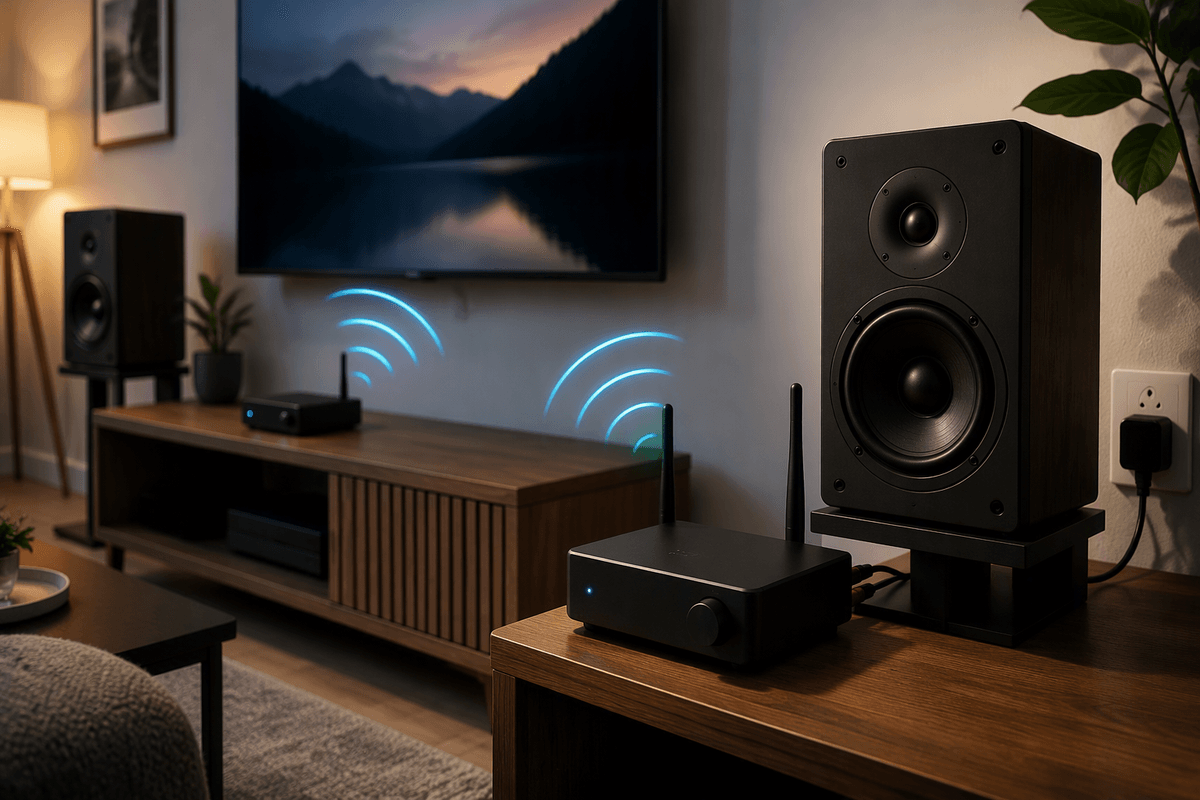
Most “wireless speaker” upgrades fall into two practical paths, and they solve different problems. A wireless speaker link is a point-to-point bridge: you put a transmitter near your TV, preamp, or receiver, and a receiver module near the speakers (often near an amp). This is the path you take when the headache is the long speaker run across a room. It’s also the path that can work with almost any source, because it just replaces the cable.
A streaming receiver changes where the music comes from. Instead of “TV/phone to a wireless box to speakers,” you add a Wi‑Fi or Bluetooth receiver to an existing amp or powered speakers and stream directly to it. This is usually the cleanest option for music and multi-room, but it doesn’t magically make rear speakers wireless for home theater, and Bluetooth range/quality can be the limiting factor. The cost difference is real: streaming gear is often affordable, while reliable low-latency link kits can get pricey, and both still need nearby power.
Choosing the right adapter: Bluetooth, Wi‑Fi, or RF kits
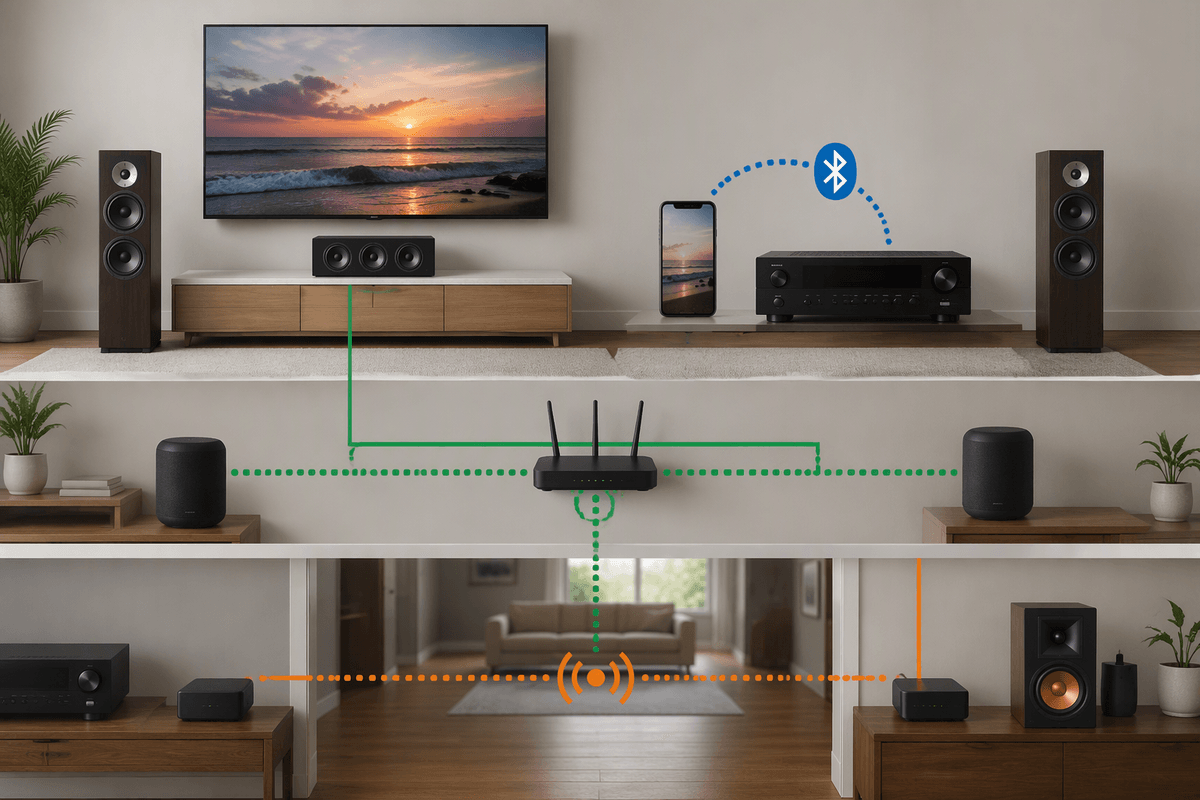
You’ll usually choose between Bluetooth, Wi‑Fi streaming, and dedicated RF “wireless speaker” kits based on what you notice day to day: do you want quick phone playback, dependable whole-home music, or a cable-free way to get sound across the room. Bluetooth receivers are the simplest and cheapest add-on for an amp or powered speakers, but they’re range-limited and can be flaky through walls. They’re also the most likely to introduce noticeable TV delay unless both the TV and receiver support a low-latency codec—and many don’t.
Wi‑Fi streamers cost more, but they’re better for reliability, sound quality, and multi-room control because playback isn’t tied to your phone staying nearby. The catch is compatibility: you may need the same ecosystem across rooms, and TVs don’t always hand off audio cleanly to a Wi‑Fi streamer.
RF link kits are the “replace the long cable” option. They can be stable over distance, but you’re typically paying for low latency and low dropouts, and you still need power (and usually a small amp) near the speaker end.
Where the amplifier goes once the signal is wireless
You’ll get fewer surprises if you treat “wireless” as moving the audio signal, not replacing the amplifier. Passive speakers still need speaker-level power, which means an amp has to live either on the source side (traditional receiver in a cabinet) or on the speaker side (a small amp sitting near the speakers). If you choose a wireless speaker-link kit, the cleanest layout is usually transmitter by the TV/receiver, then receiver module plus a compact stereo amp close to the speakers, with short speaker wires from amp to speaker. That keeps the thick cable run off the floor, but it trades it for a power requirement near the speakers.
If you choose a streaming receiver (Bluetooth or Wi‑Fi), the amplifier typically stays where it already is. You plug the streamer into an open input on your integrated amp or AV receiver, and your existing speaker wiring remains unchanged. Powered speakers are the exception: their “amp” is built in, so the wireless box simply feeds their line-level input. The practical constraint either way is outlets and furniture: hiding an amp near speakers often costs you a shelf, a power strip, and a bit of heat management.
Setup that actually works: placement, pairing, and cable runs
The setups that feel “wireless” in daily use usually follow one rule: keep the wireless hop short, and keep the analog runs sensible. Put the transmitter where your real sources live (TV, receiver, turntable preamp), not where it’s merely convenient. Then place the receiver module where it can “see” the transmitter through as little dense stuff as possible—inside a closed metal cabinet or behind a TV can reduce range fast. If you’re using Wi‑Fi streaming, give the streamer a stable network spot (often closer to the router than the speakers), and use Ethernet if you already have a nearby jack.
Pairing is easier when you treat it like labeling cables: pair once, then don’t move things. After initial setup, power-cycle both ends and confirm it reconnects automatically before you start hiding boxes. For cable runs, aim for short speaker wire from amp-to-speaker, and avoid coiling extra length near power bricks. The constraint is real: a “wireless” speaker-end still needs an outlet, and sometimes that outlet dictates where the hardware can actually live.
Avoid common pitfalls: latency, hum, dropouts, and volume control
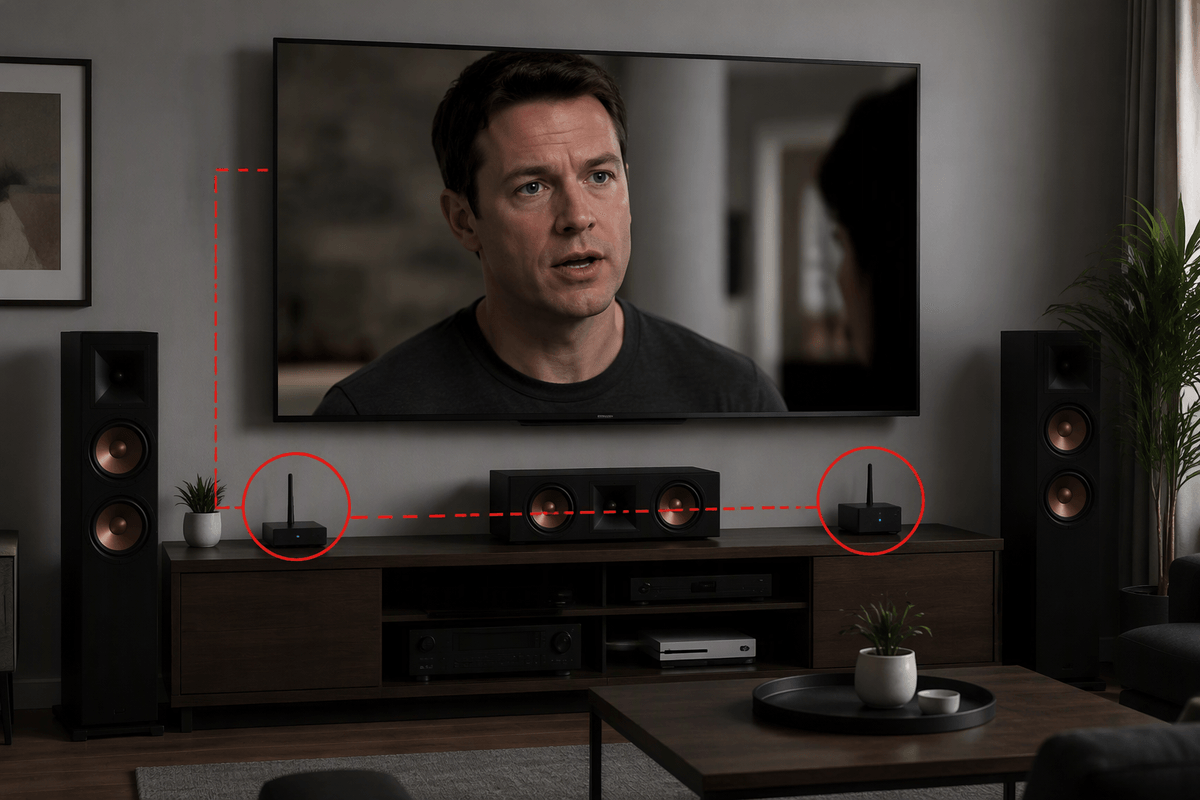
You’ll notice problems fastest with TV. If voices don’t match lips, don’t keep “tweaking”—you usually need a different path. Bluetooth is the most common culprit because many TVs fall back to higher-latency codecs; even “low latency” only works when both ends support the same codec. For TV, optical or HDMI-ARC into a purpose-built wireless link (or a receiver with wireless surrounds support) is typically more predictable than phone-style Bluetooth streaming.
Hum is almost always a wiring or power issue, not “bad speakers.” Keep RCA/3.5mm analog cables short, avoid running them parallel to power cords, and plug the transmitter, receiver, and any small amp into the same power strip when possible to reduce ground-loop risk. Dropouts usually come from placement: move modules out of cabinets, rotate antennas, and prefer 5 GHz Wi‑Fi (or Ethernet) for streamers if your network is busy.
Volume control trips people up. Decide where it lives—TV/phone, streamer app, preamp, or the amp—and set one device as the “master” to avoid double attenuation and channel imbalance at low levels.
A practical finish: the simplest good setup for most homes
For most homes that want “wireless” without drama, keep the speakers wired and make only the source wireless: add a Wi‑Fi streaming receiver to an existing amp/AV receiver (or to powered speakers) and call it done. You get reliable day-to-day playback, better range than Bluetooth, and an easy path to multi-room later. If your main goal is TV sound across the room, skip Bluetooth and use a dedicated low-latency wireless link plus a small amp near the speakers, accepting the trade: you’ll hide a power strip and a couple small boxes somewhere.