Pick a theme based on your site’s real job
Most theme mistakes start with shopping by looks instead of function. Before you browse demos, write down what your site must do on a normal day: publish articles, sell a few products, book appointments, collect leads, host a portfolio, or support a membership. A blog-first site needs clean typography, category navigation, and fast archives; a service site needs clear calls-to-action, flexible page layouts, and trustworthy contact paths; an online store needs WooCommerce-ready templates and predictable product pages.
Be honest about who will maintain it. If you can’t (or won’t) touch code, favor themes that use the WordPress Customizer or Site Editor well and don’t require five bundled plugins to match the demo—those add cost, updates, and breakpoints over time.
Start with requirements: layout needs, content types, growth plans
Picture the pages you’ll create repeatedly, not the one-time homepage. List the layouts you need without workarounds: a simple blog post with a sidebar (or none), a landing page with a hero and testimonials, a services page with reusable sections, a contact page with a map, or a product page that doesn’t fight you. Then list your content types: long-form posts, case studies, events, staff profiles, FAQs, podcasts, or digital downloads. A theme that only looks good for “Pages” can feel cramped once you start publishing varied content at a steady pace.
Growth plans change the definition of “good enough.” If you expect more authors, add categories, launch a newsletter, or introduce WooCommerce later, prioritize consistent templates, strong navigation patterns, and a header/footer system you can extend. This is also where constraints matter: some themes assume you’ll buy a companion plugin, rely on a page builder for basic layouts, or require extra image work to match the demo. Those aren’t dealbreakers, but they are ongoing time and maintenance costs.
Where to search: WordPress.org, shops, and marketplaces
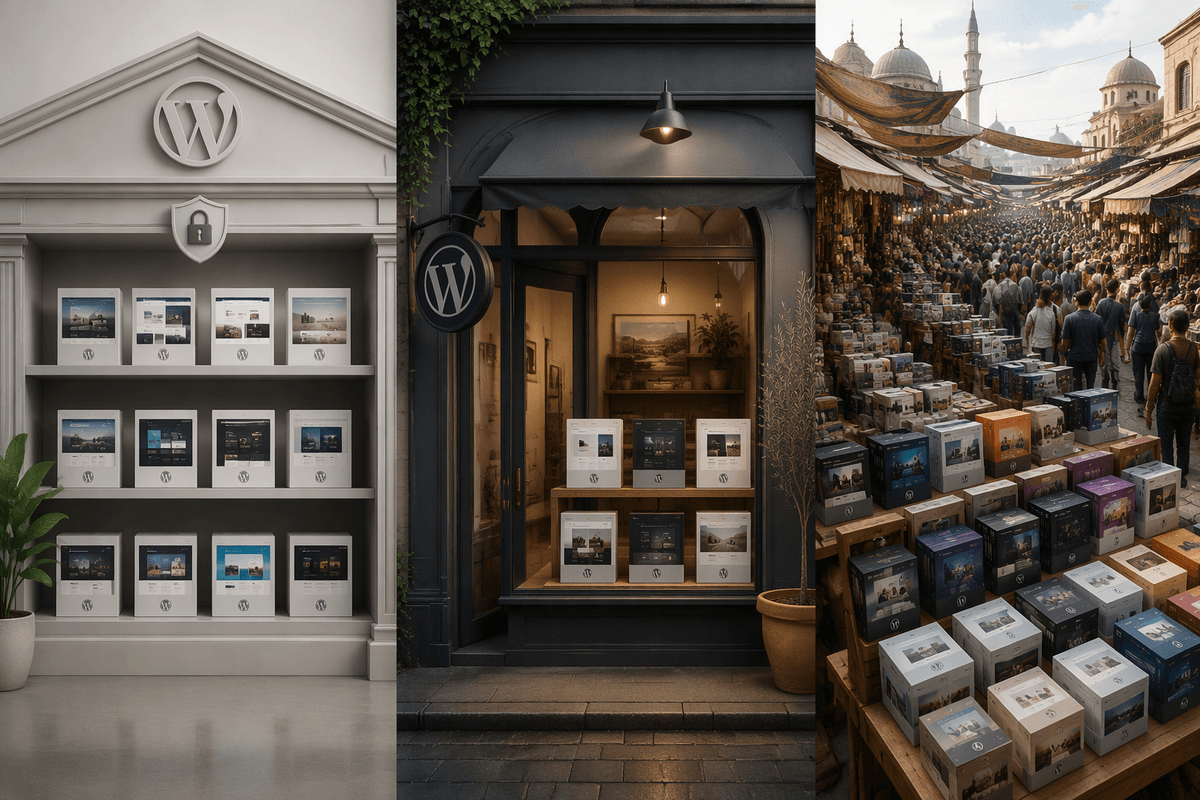
You’ll usually find themes in three places, and each has different incentives. The WordPress.org directory is the safest starting point for many small sites because it’s centered on free themes that must follow baseline review rules, and you can quickly check update history, active installs, and support threads before you download anything.
Independent theme shops are the next step when you want a specific design system, starter templates, or priority support. The trade-off is commitment: you’re buying into that developer’s update cadence, documentation quality, and pricing model (annual renewals are common). Large marketplaces offer the widest variety, but they also amplify extremes—some themes are well-built and well-supported, while others lean on heavy bundled plugins to sell the demo look. Wherever you browse, filter for “recently updated,” check whether support is included (and for how long), and avoid listings that hide basic details like required plugins or page builder dependence.
Judge the design demo: what you can and can’t change
Demos are designed to look finished, so treat them like a staged apartment: you’re evaluating the structure, not the furniture. Click beyond the homepage. Open a blog post, a category archive, search results, and the 404 page. These “unsexy” templates are where weak themes show up—odd spacing, unreadable typography, cramped comment areas, or missing navigation. Also check responsive behavior by narrowing your browser window; if the menu, headings, or images feel jumpy, you’ll fight that later.
Then separate what’s theme-controlled from what’s content and plugins. Fonts, colors, header/footer layouts, and global spacing are usually adjustable. But the demo’s perfect image crops, icon sets, sliders, and fancy blocks may come from extra plugins or a page builder template library. If the theme requires multiple bundled plugins to resemble the demo, assume ongoing update work and occasional styling breaks when those plugins change.
Performance and code quality checks before you fall in love

The prettiest demo can be the slowest theme on your actual hosting. Before you commit, run a quick speed check on the demo URL using PageSpeed Insights or GTmetrix, then sanity-check what’s driving the weight: huge sliders, video backgrounds, multiple icon fonts, or “animation on everything.” You’re not chasing a perfect score; you’re looking for avoidable bloat that will carry into every page. If the theme’s demo homepage loads several megabytes of assets and dozens of requests, expect more work (image compression, caching, disabling features) just to reach “fast enough.”
Code quality is harder to see, but there are practical signals. Look for a clear changelog, consistent versioning, and documentation that explains how features are implemented (not just how to click buttons). In the theme files or description, watch for heavy reliance on bundled plugins, shortcodes for core layout, or “all-in-one” feature lists that overlap with standard plugins. Those choices can lock content into the theme and make future switches expensive.
Compatibility: plugins, WooCommerce, builders, and long-term updates
You’ll feel compatibility issues fastest when you add the plugins you actually need: SEO, forms, caching, security, and backups. Check the theme’s documentation for explicit support (not just “works with all plugins”), then scan recent support threads for patterns like “menu broke after update” or “editor styles don’t match the front end.” If the theme bundles a “required” page builder or a proprietary blocks plugin for basic layouts, assume ongoing maintenance and occasional styling fixes when those dependencies update.
For WooCommerce, look for purposeful templates: product grids, product pages, cart/checkout styling, and clean account pages. “WooCommerce compatible” can mean anything from minimal CSS to a full set of shop layouts. Also consider the editing model. Block themes should behave predictably in the Site Editor; classic themes should clearly support the Customizer and not fight Gutenberg. Finally, weigh update reality: a theme that hasn’t shipped fixes in months can become the bottleneck when WordPress, WooCommerce, or your builder releases a breaking change.
Validate your shortlist: staging tests, accessibility, and support signals
Once you have two to four candidates, install each on a staging site (or a fresh local WordPress install) and test with your real stack: your SEO plugin, forms, caching, and any must-have blocks. Import one demo if offered, but also build a plain page and a plain post so you can see the “default” spacing, heading sizes, and button styles without demo content hiding problems. Click through the basics that break most often: menus, search, pagination, widget areas (if used), and core blocks like Columns, Gallery, and Query Loop.
Do a quick accessibility pass even if you’re not an expert. Check keyboard navigation (can you reach the menu and buttons?), visible focus styles, color contrast on links and buttons, and whether headings follow a sensible order. Then look for support signals: a changelog with recent fixes, documentation that matches the current editor, active support threads with clear responses, and a refund policy. The cost here is time—plan an hour per theme—but it’s cheaper than migrating later.
Make the final pick with a simple decision checklist
You’re choosing the theme you can live with, not the one with the best homepage. Use a quick checklist and score each finalist 1–5: (1) Does it support your main pages and content types without a builder doing all the work? (2) Does the “plain” post/page look good before you customize? (3) Is the demo reasonably fast, without obvious bloat you can’t disable? (4) Do your must-have plugins and WooCommerce (if relevant) work without styling glitches? (5) Are updates frequent, docs current, and support responsive? If two themes tie, pick the simpler one with fewer required plugins.