Start with a setup that won’t fight you later
You’ve probably had the “why didn’t it do that?” moment—Assistant hears you, but the result is off because the basics aren’t locked in. Start by signing into the same Google account on your phone, smart speaker, watch, and car. Then turn on Voice Match on every device you talk to, so reminders, calendar, and messages go to you (not whoever spoke last). In Google app settings, confirm your language, home/work addresses, and preferred music and podcast services. The small cost is 10 minutes of tapping now, but it prevents weeks of inconsistent behavior later.
Use the right trigger words and speak in patterns
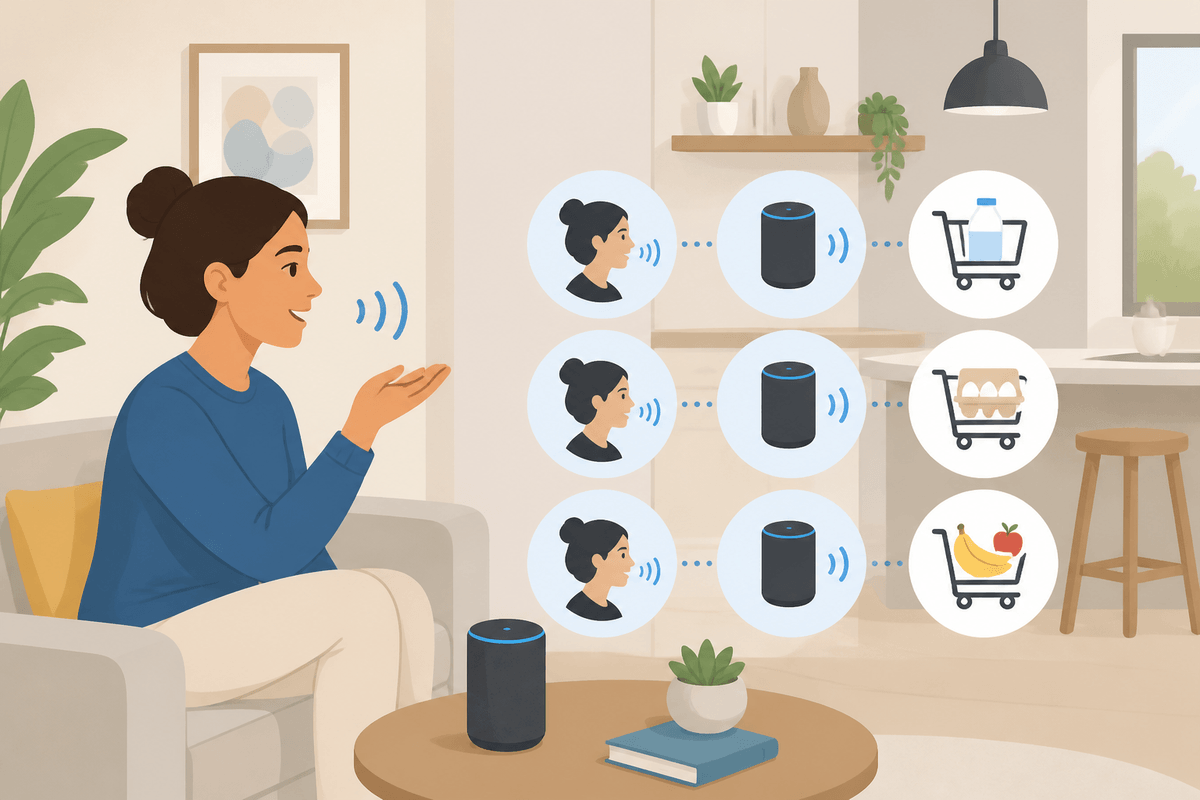
You can get better results by talking to Assistant the way it already understands work. Start with a clean trigger (“Hey Google”) and a short verb. “Call…,” “Text…,” “Navigate to…,” “Set a timer…,” and “Remind me…” tend to land the first time because they map to clear actions. When you need precision, add one detail at a time: “Remind me tomorrow at 8 AM to pay rent” works more reliably than a long story about your day.
Patterns matter more than perfect phrasing. If you often do the same thing, keep your wording consistent: “Add milk to my shopping list” and “Add eggs to my shopping list” trains you, not the system, but it reduces your own hesitation. The real constraint is noise and naming—if you have three “Living room” devices or a loud kitchen fan, even a great command can misfire, so rename devices clearly and speak once, then pause.
Stop digging through apps: make Assistant your shortcut
You already know the feeling: your phone is in your hand, but you’re still hunting—Gmail for a tracking number, Maps for an address, a delivery app for the ETA, then back to Messages to tell someone. Instead, treat Assistant like the “one line” into those apps. Try compact asks that jump you to the right screen or answer: “What’s my next meeting?”, “Show my reminders,” “Navigate to Home,” “What’s the weather at 6 PM?”, “Where’s my phone?”, “Play my ‘Focus’ playlist,” or “Call the dentist.” The win isn’t magic; it’s skipping the tapping and context switching.
When something doesn’t work, the fix is usually specific: grant the missing permission (contacts, location), set the default app (music, maps), or use a clearer name (“Dr. Patel Office” instead of “Doctor”). Some shortcuts still hit limits—results can vary by app support, and noisy environments can force you to repeat yourself—but the time saved adds up fast when you use the same few commands daily.
Routines: the fastest way to feel “smarter” daily
You know the little frictions that pile up: you wake up and need weather, commute time, and your first meeting; you leave the house and want lights off and Do Not Disturb on; you get home and want music, a timer, and the thermostat set. Routines turn that bundle into one phrase. Start with something you’ll use every day: “Good morning” to read calendar and reminders, then play news or a playlist; “I’m leaving” to start navigation and send a quick “On my way” text; “Bedtime” to set an alarm, turn off lights, and lower volume.
Build routines around outcomes, not features. Keep them short at first, then add one step per week so you notice what broke. The practical constraint is that routines depend on device names, app permissions, and home devices staying reachable—rename one light or revoke a permission and the whole flow can stumble, so treat routines like a small system you maintain.
Smart home controls that actually respond the first time
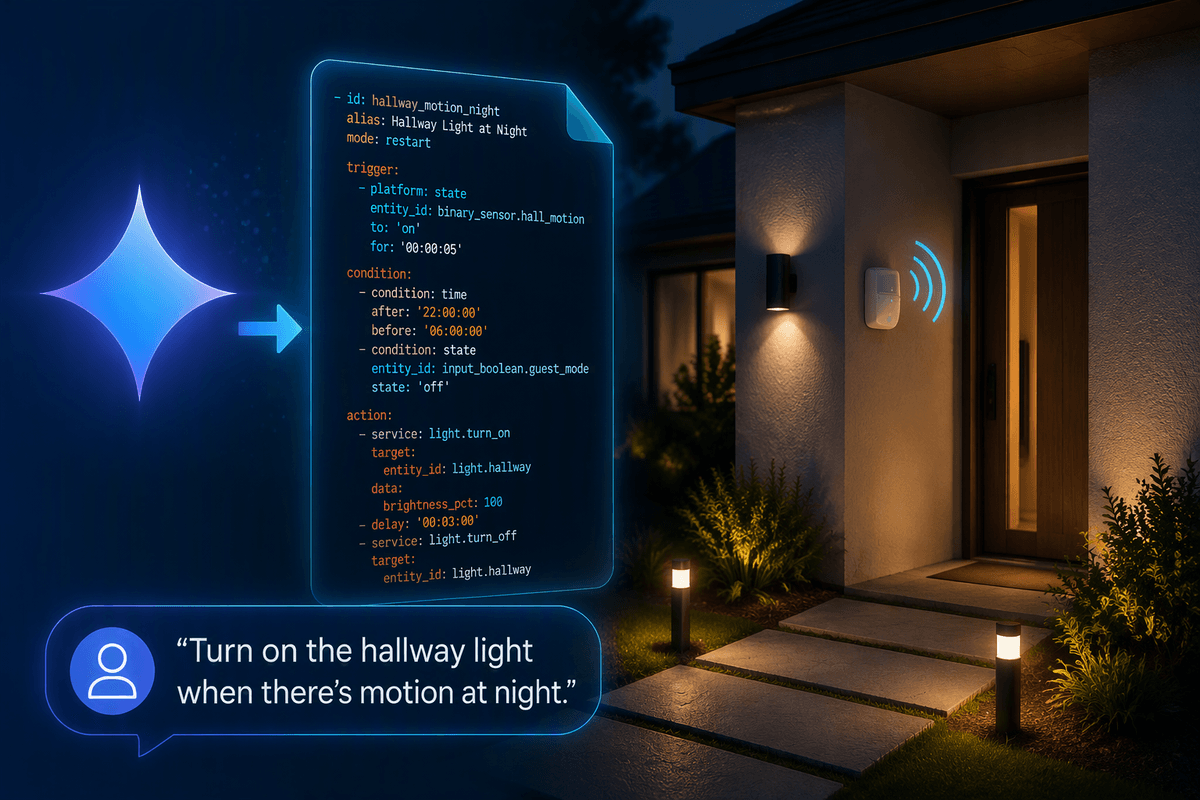
You’ve likely said “turn off the lights” and watched nothing happen because Assistant didn’t know which lights you meant. Reliability starts with naming and rooms. In Google Home, give every device a distinct, speakable name (“Sofa Lamp,” not “Light 1”), assign it to the correct room, and avoid duplicates like three different “TV” devices. Then use room-aware phrases: “Turn off the living room lights,” “Set the bedroom lights to 30%,” or “Set kitchen lights warm white.” For thermostats and plugs, be equally specific: “Set thermostat to 72,” “Turn on coffee plug.”
Expect a few practical snags. Wi‑Fi dropouts, sleepy hubs, and cheap bulbs can add a 2–5 second delay or miss commands entirely. If you’re repeating yourself, improve the network first (stronger router placement, fewer dead zones), then simplify: fewer brands, fewer bridges, clearer device names.
Productivity wins: reminders, lists, calendar, and notes
You’re juggling the usual things—groceries, a callback, a meeting change—and the fastest win is letting Assistant capture the thought the moment you have it. Use reminders for time- or place-based nudges: “Remind me at 3 PM to submit timesheet” or “Remind me when I get home to change the air filter.” For lists, keep one default shopping list and stick to a consistent phrase: “Add tortillas to my shopping list.” Calendar works best when you give a title plus a time anchor: “Add ‘Dentist’ to my calendar Tuesday at 10 AM,” then confirm the correct calendar if you use work and personal.
Notes are the catch-all when you don’t know where something belongs: “Take a note: parking is level 4, blue section.” The constraint is follow-through: if notifications are off, or the wrong device is signed in, these “wins” disappear, so verify you’re getting reminder alerts on the phone you actually carry.
Privacy, history, and avoiding accidental oversharing
You’ll eventually say something near a speaker that wasn’t meant for the room, so set guardrails while things are calm. Turn on Voice Match everywhere you use Assistant so personal results (calendar, contacts, messages) stay tied to your voice, and consider turning off personal results on shared speakers in kitchens and living rooms. Check “Hey Google” sensitivity and pick a safer lock-screen setting on your phone so it can’t read out messages when it’s on a table.
History matters because it affects both convenience and comfort. In your Google Account, review Assistant/voice activity occasionally, delete what you don’t want kept, and decide whether auto-delete fits you. The trade-off is real: tighter privacy settings can mean more “Who is this?” prompts and less context in follow-up questions.
A simple weekly tune-up to keep Assistant useful
By the end of a week, Assistant usually isn’t “worse,” it’s just drifted: a new app became the default, a permission got denied, a device got renamed, or you added a smart bulb that lives in the wrong room. A five-minute check keeps it feeling dependable instead of random.
Open the Google Home app and confirm new devices are named clearly and assigned to the right room. Then test your top three phrases (one routine, one smart-home command, one reminder) and fix the one that fails—usually permissions, default apps, or Voice Match on a specific device. Finally, glance at Assistant/voice activity and delete anything you don’t want saved; it’s a small privacy cost to keep control.