What Gemini changes about building Home Assistant automations
You can treat Gemini like a fast junior teammate for Home Assistant: it can turn a plain-English goal into a first draft of triggers, conditions, actions, and templates in minutes. The big change is speed at the “blank page” stage—getting from idea to a structured automation skeleton without remembering every YAML key or Jinja detail.
The generated YAML can look correct while quietly referencing the wrong entity IDs, mixing up trigger types, or missing edge cases like restarts and delayed actions. Gemini doesn’t know your exact entity registry, naming habits, or what “safe” means in your house, so you still need a verification loop before you enable anything that controls heat, locks, or water.
Get your setup ready: data, entities, and constraints

You’ve probably seen the failure mode: the YAML is “valid,” but it won’t run because light.kitchen is actually light.kitchen_ceiling, or the motion sensor reports on/off when you assumed motion/clear. Before you ask Gemini for anything, grab the raw facts it can’t guess: the exact entity IDs involved, the states they produce, and any key attributes (brightness, temperature, battery, device_class). Developer Tools → States is your friend—copy/paste from there instead of retyping names.
Then write down constraints like you would for a contractor: “only after 10pm,” “don’t run if guest mode is on,” “never unlock a door automatically,” “if Home Assistant restarts, don’t resume a delayed action,” “rate-limit notifications to one per 10 minutes.” Helpers (input_boolean, input_number, timers) are often worth adding up front because they make the logic simpler and the automation easier to test. The practical cost is a little setup time now, but it saves hours of chasing flaky behavior later.
Turn a vague goal into a precise automation brief
Requests that sound simple can still produce messy YAML, especially with something like “Turn on the hallway light when there’s motion at night.” A cleaner Gemini brief starts with four details: the exact trigger and entity, the conditions that must be met, the action and its settings, and the rules for stopping or resetting. “At night” needs a precise definition, such as 10:00 PM–6:00 AM or sun.sun below the horizon. “Motion” also needs a specific signal, such as binary_sensor.hall_motion changing to on, rather than a vague reference to occupancy.
Real-world exceptions belong in the brief from the start. Include rules such as ignoring motion when input_boolean.guest_mode is on, leaving an already-active light’s brightness unchanged, keeping the light on for three minutes after the last movement, or preventing another trigger within 30 seconds. More conditions mean more testing, but that upfront work is still easier than debugging an automation that runs correctly while doing the wrong thing.
Ask for YAML (or UI steps) you can actually trust
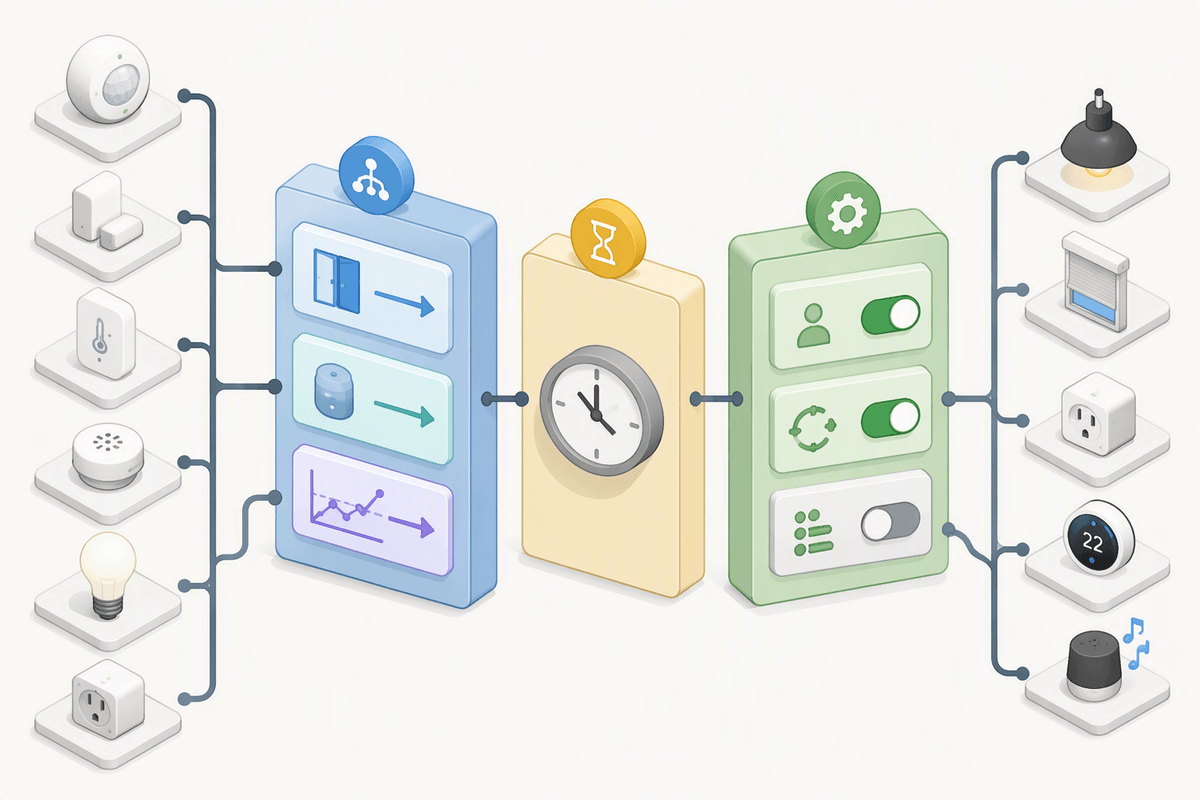
You’ve seen the pattern: Gemini outputs something that “looks like Home Assistant YAML,” but it’s missing the tiny details that decide whether it runs. Ask for those details explicitly. Tell it your HA version (and whether you use automation YAML, blueprints, or the UI editor), then require: exact trigger types (state vs device vs numeric_state), explicit for: where you want delays, and a clear mode choice (restart, single, queued) with a one-sentence justification. If templates are involved, ask it to keep them minimal and to show the expected input/output with a concrete example state.
Make it generate “auditable” output, not just output. Request a checklist under the YAML: entities used, assumed states/attributes, and edge cases (restart during delay, sensor flapping, manual override). If you prefer the UI, ask for click-by-click steps using the Automation Editor fields, plus the exact template snippets to paste. The practical friction is you’ll spend an extra minute prompting, but you’ll save ten minutes of hunting for a silent wrong assumption.
Debugging and hardening: from first draft to reliable
The first time you paste Gemini’s YAML into Home Assistant, treat it like a hypothesis, not a solution. Before enabling, run it through Settings → Automations → “Trace” by manually triggering it and watching each step: did the trigger fire from the state you expected, did a condition short-circuit, did an action call the right service with the right data? If a template is involved, copy it into Developer Tools → Template and test it against real entity states, not imagined ones.
Hardening usually comes down to three fixes: add debouncing (for: on noisy sensors), add guardrails (check someone is home, or a helper like input_boolean.sleep_mode), and pick the right mode so overlapping triggers don’t fight each other. Use helpers to track “last run” or “manual override,” and add a short logbook.log or persistent notification while you’re tuning.
You’ll spend an evening running odd scenarios—restart during a delay, sensor flapping, manual light switch presses—but that’s what turns a clever draft into something you can forget about.
Privacy, cost, and when to keep it local
It’s easy to paste real household data into a prompt without thinking: entity names that reveal rooms, notification targets, presence sensors, door locks, even snippets from logs. Treat anything you send to a cloud model as potentially retained and reviewed under that provider’s policies. A simple habit helps: describe devices generically (“front door lock,” “bedroom motion”) until the final step, then swap in the exact entity IDs locally. For sensitive automations, keep the prompt focused on structure (“state trigger + conditions + choose block”) and avoid sharing history, schedules, or GPS-driven rules verbatim.
Cost shows up in two places: money and latency. If you rely on Gemini interactively, you may pay per request and you’ll feel delays when you’re iterating quickly. That’s fine for drafting, but it’s a weak point for runtime decisions. Keep execution local: Home Assistant should run the automation; Gemini should only help you write it. If an automation affects safety or security (locks, garage, heat, water), or needs to work during internet outages, treat cloud help as optional and design the final logic so it stands on its own.
A repeatable workflow for faster automations going forward
The fastest path is a loop you reuse: capture facts (entity IDs, states, attributes), write a one-paragraph brief (trigger/conditions/actions/stop rules), then ask Gemini for either YAML or UI steps plus an assumptions checklist. Paste the draft, run it in Trace, and validate every template in Developer Tools before you enable it. Keep a scratchpad of “known good” patterns—motion lighting with a timer helper, notification rate-limits, manual override, debounce—and have Gemini adapt those rather than inventing from scratch.
Version-control your automations (even a simple Git repo or snapshots) so rollbacks are painless, and log aggressively while tuning. The constraint is discipline: the extra five minutes of briefing and testing is what keeps you from losing an evening to a single wrong entity or a flaky sensor.