Start here: what changes when the Home button disappears
The first thing you notice on a Home-button-free iPad is that “escape” moves from a click to a swipe. Going Home, opening the app switcher, and starting multitasking are all built around the bottom edge of the screen, so your thumb becomes the button. That can feel slippery at first because the same area is used by apps for their own controls, and cases or screen protectors can make the edge less responsive.
Also, a few familiar actions relocate: Control Center and Notification Center live in different top corners, and screenshots use the top button with volume up instead of Home. The good news is you’re rarely stuck—there’s almost always a second way out, like the app switcher gesture or asking Siri to “go Home.”
Learn the core gestures that replace Home and multitasking
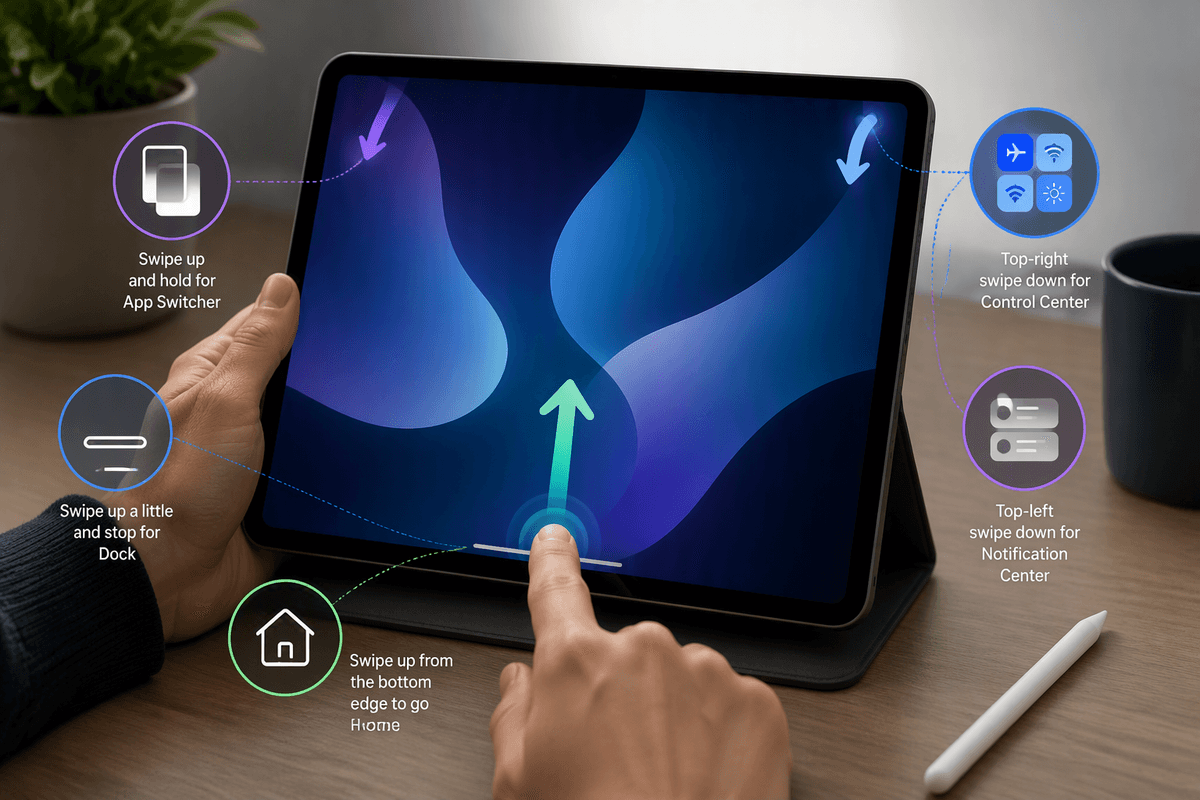
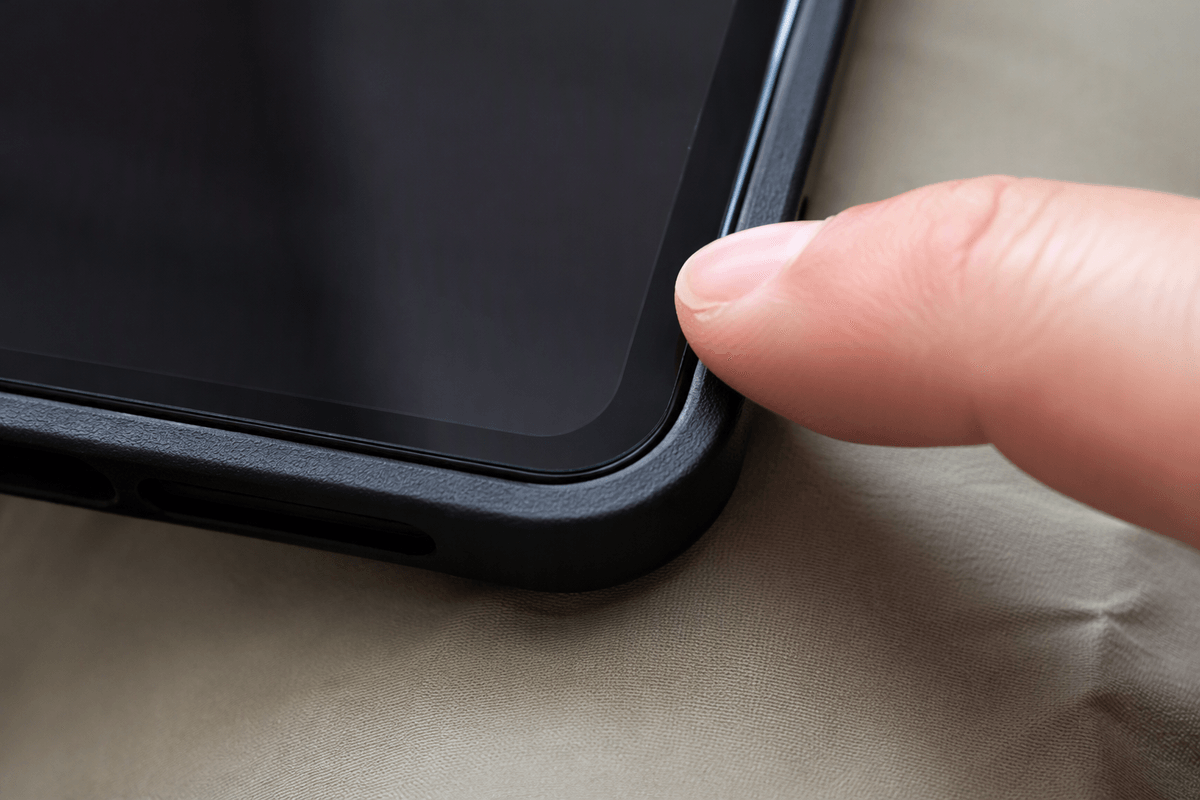
Most of your day-to-day navigation comes down to three bottom-edge moves. To go Home, swipe up from the very bottom edge and let go once the app shrinks away. If you keep starting too high, you’ll just scroll inside the app, so start with your finger touching the bezel area (or as low as your case allows) and swipe through the glass.
To open the app switcher, do the same swipe up but pause for a half beat when your finger is about a third of the way up the screen. You’ll feel the timing quickly: swipe-and-release is Home; swipe-and-hold is multitasking. For the Dock, swipe up just a little and stop; the Dock appears without leaving the app, which is useful when you want to drag something to another app. A practical limitation: thick cases can block your finger from starting low enough, so you may need a slightly firmer swipe from the bottom-center.
Control Center vs Notification Center: swipes that feel similar
You’ll probably mix up the two top-edge swipes at first because they start in almost the same place. On iPads without a Home button, Control Center comes from the top-right corner (where the battery and Wi‑Fi icons are). Notification Center comes from the top-left area. If you’re aiming for Control Center, start your finger right in the corner and swipe down; if you start too far toward the middle, iPadOS may interpret it as a Notification Center pull instead.
Two practical habits help. First, look for your target: quick toggles and sliders (brightness, volume, Wi‑Fi) means you landed in Control Center; a date/time header and a stack of alerts means Notification Center. Second, don’t fight it—if the wrong panel drops down, just swipe it back up and try again from the correct corner. A screen protector edge or a raised case lip can make corner swipes harder, so use the very tip of your finger and a slightly more deliberate pull.
Master app switching: Slide Over, Split View, and drag-and-drop
You’ll feel faster on a gesture iPad once you stop treating app switching like an “exit” and start treating it like a shuffle. Open the Dock with a short swipe up and stop, then press and hold an app icon and drag it. Drop it into the middle of the screen to create Split View, or drop it onto the right or left edge until you see a narrow column to create Slide Over. Slide Over is best for quick checks (Messages, Calendar, Music) because it floats above your main app; Split View is better when you truly need two apps at once.
Drag-and-drop is the glue that makes multitasking feel practical: drag photos from Photos into Mail, text from Safari into Notes, or a file from Files into a chat. The main constraint is space—two apps side by side can feel cramped, and some apps don’t support Split View in every screen. If a drag seems to “snap back,” pause your finger for a moment so iPadOS can recognize your intent before you let go.
When gestures don’t work: common misses and quick fixes
You’ll occasionally do the “right” gesture and still get the wrong result, and it’s usually about where you started. If a swipe up just scrolls the page, your finger began too high; reset by touching the very bottom edge (almost against the bezel) and swiping in one smooth motion. If you keep landing on Home when you wanted the app switcher, exaggerate the pause: swipe up, hold for a half second, then release when the cards appear. For the Dock, make the swipe shorter and stop sooner—going too far turns it into a Home gesture.
Corner pulls have their own misses. If Control Center won’t appear, start in the absolute top-right corner on the battery/Wi‑Fi icons and pull straight down; cases often block that corner, so use your fingertip. If you get Notification Center instead, swipe it back up and try again from the corner. When an app feels “stuck,” don’t wrestle with it: swipe up and pause for the app switcher, then flick the app card away to force close it, or hold the top button and ask Siri to “go Home.”
Make navigation easier with settings and accessibility shortcuts
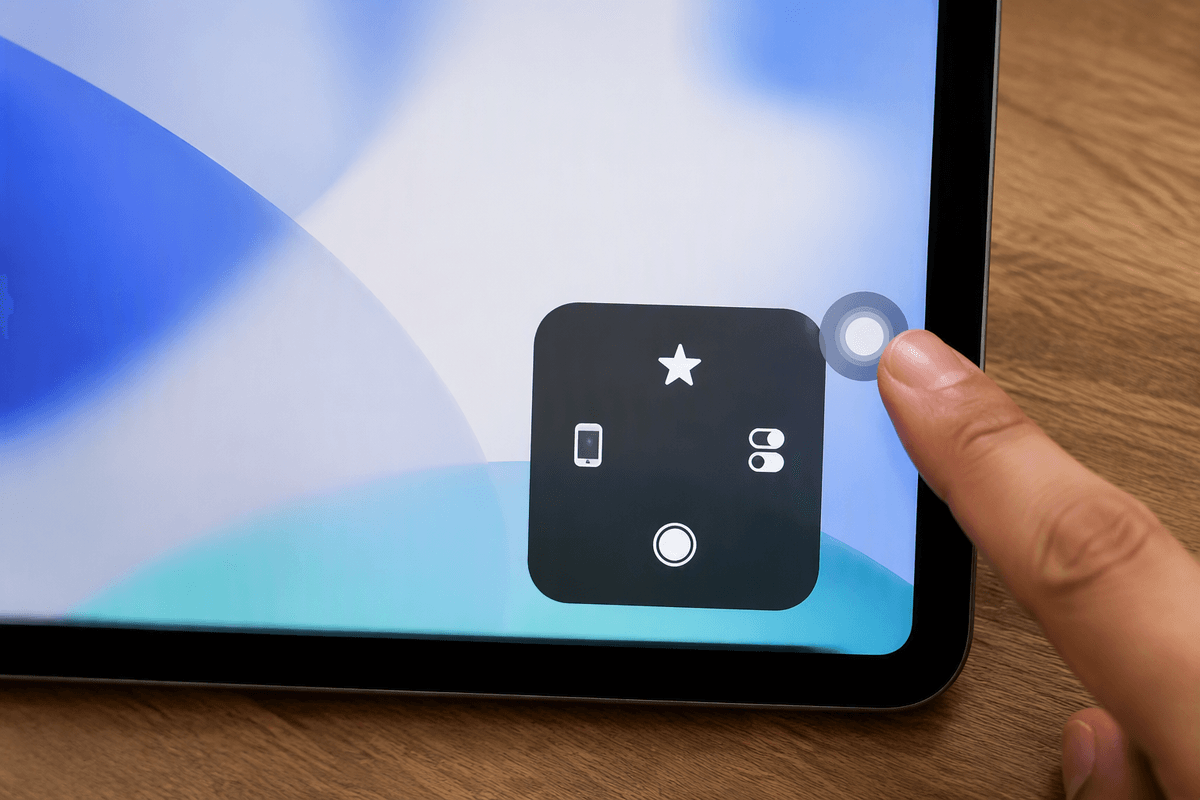
If you want gestures to feel less “precise,” adjust the environment around them. In Settings, you can make text and buttons easier to hit by increasing text size and using Display Zoom (when available), which reduces the need for tiny, edge-case swipes in cramped app layouts. If corner swipes are unreliable because of a case lip, try using a slightly lighter grip so your thumb can reach the top corners cleanly, or consider a case with a lower edge around the screen.
For a more dependable escape hatch, turn on AssistiveTouch (Settings > Accessibility > Touch). It adds an on-screen button you can tap for Home, App Switcher, Control Center, screenshots, and even Restart—handy when your hands are wet, you’re wearing gloves, or the screen isn’t reading edges well. The trade-off is clutter: the button sits on top of apps, so you may need to set it to fade when idle or park it near an edge.
Also worth enabling: Back Tap (if your iPad supports it) or a Keyboard Shortcut habit. A connected keyboard makes Command+H (Home) and Command+Tab (switch apps) feel instant, and it’s often faster than fighting a missed swipe.
A short practice routine to build muscle memory fast
Pick one app you use a lot and do a two-minute loop. Start on Home, open the app, then swipe up to go Home ten times, focusing on starting from the very bottom edge. Reopen it and do ten app-switcher reps: swipe up, pause, and pick the same app card again. Then practice “top corners” five times each: pull down Control Center from the top-right, dismiss it, then pull down Notification Center from the top-left and dismiss it.
Finish by opening the Dock, dragging a second app into Slide Over, and swiping Slide Over away and back once. If you miss a gesture, slow down instead of swiping harder; speed comes after accuracy.