What “using Alexa and Cortana together” can mean today
When people say they want to “use Alexa and Cortana together,” they usually mean one of three things: a direct handoff (asking Alexa to open Cortana, or vice versa), shared information (calendar, email, tasks), or a workflow that spans devices (start something on a Windows PC and finish it on an Echo). Those are very different levels of integration, with very different setup steps and failure points.
Today, the practical target is often “two assistants with overlapping data,” not a seamless bridge. Cortana’s consumer footprint has shrunk in many places, and features can vary by region, account type, and device. Even when something works, it may be limited to a narrow command set, require specific languages, or break after app updates—so it helps to define exactly what outcome you want before chasing old linking guides.
First, check whether Alexa–Cortana linking is still available
The fastest reality check is inside the Alexa app: open More → Skills & Games, then search for “Cortana.” If the Cortana skill doesn’t appear (or won’t enable) on your Amazon account in your region/language, the old “Alexa, open Cortana” handoff guides aren’t usable for you. Broad Alexa–Cortana integration was effectively ended in September 2021, so many how-tos you’ll find are describing a setup path that no longer exists.
If you do see it, treat it as a narrow, legacy bridge rather than a full pairing. Microsoft’s current documentation frames it mainly around adding items to Microsoft To Do through a Cortana skill that’s still labeled Preview and limited to US English with personal Microsoft accounts. Even then, expect extra friction: Cortana’s standalone Windows app was retired in spring 2023, so troubleshooting can turn into account-permissions work instead of “just link the assistants.”
If direct linking isn’t an option: the practical “two assistants” setup
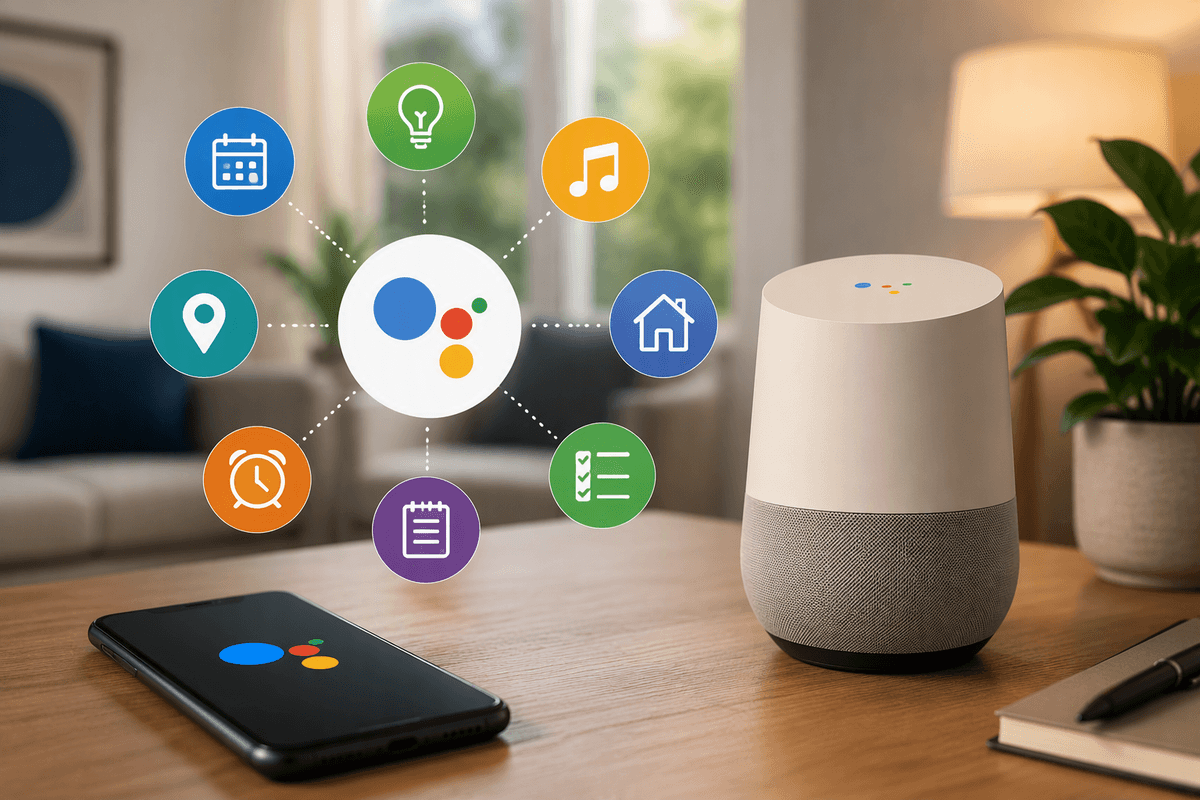
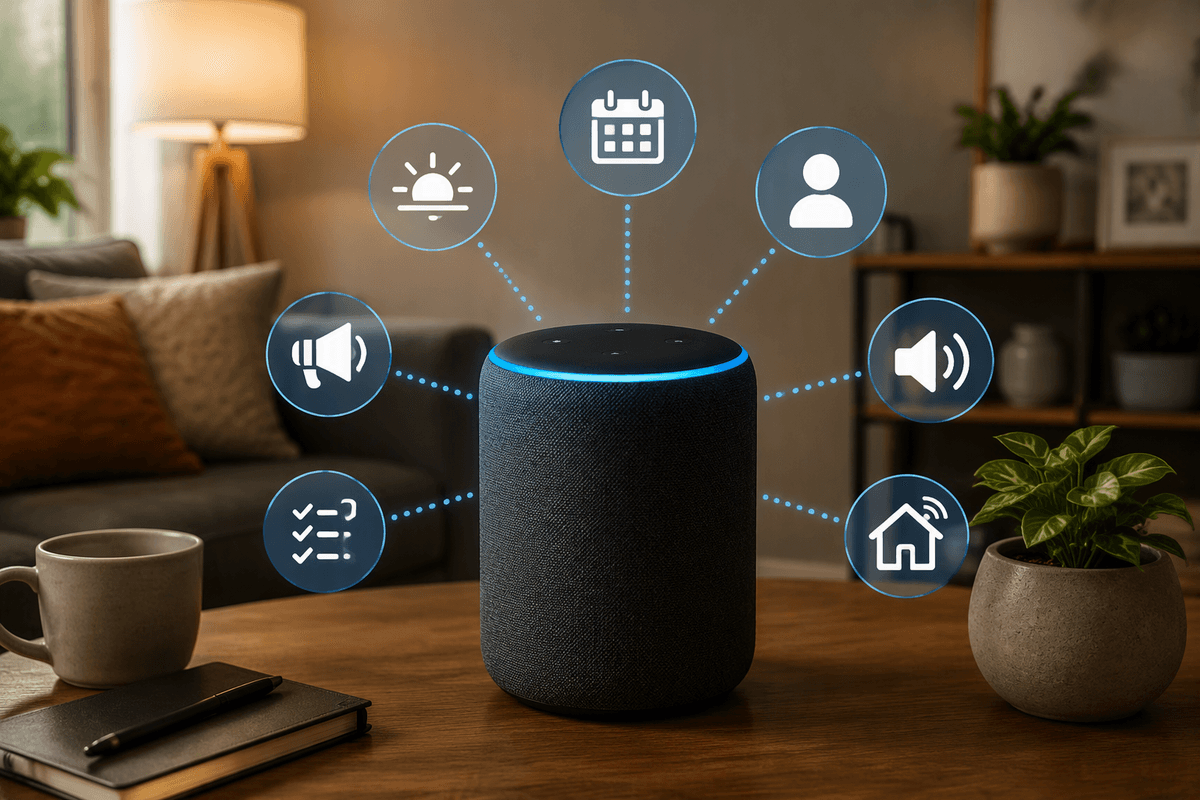
If the Cortana handoff isn’t available, the most reliable setup is to stop trying to “chain” voice assistants and instead give each one a clear job on the device it already controls well. Use Alexa for smart-home voice control (lights, plugs, thermostats, timers, announcements) on Echo devices, and treat Windows as its own surface for work and notifications (Outlook/Teams/Calendar, files, and quick searches). You’re not aiming for a single conversation that jumps between them; you’re aiming for consistent outcomes across the same accounts.
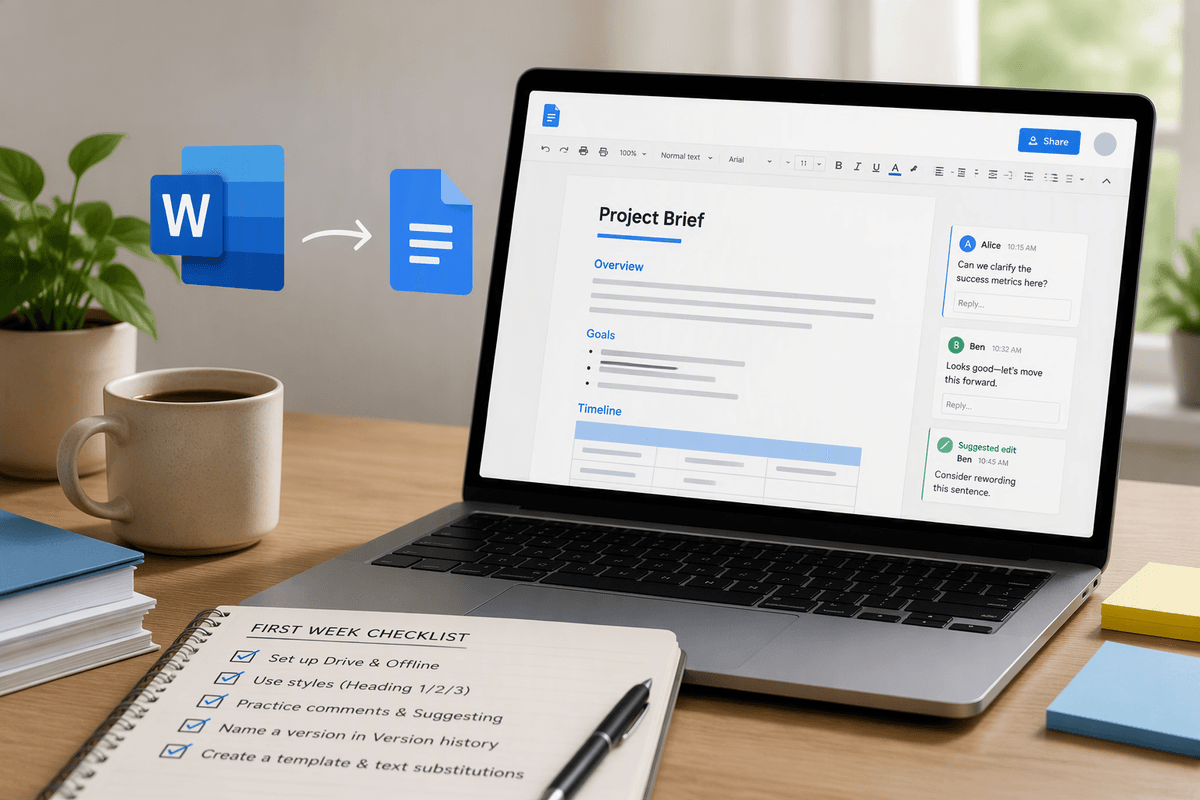
In practice, that means signing into Alexa with the Amazon account you’ll keep long-term, then separately signing into Microsoft apps on Windows with the same Microsoft account you want reflected everywhere. If you have multiple Microsoft accounts (work plus personal), decide which one “owns” your tasks and calendar, because cross-account access is where things break. The limitation is real: without a supported bridge, you’ll sometimes repeat a command on the other device—less elegant, but far less fragile.
Connect Microsoft services to Alexa to replace most Cortana use cases
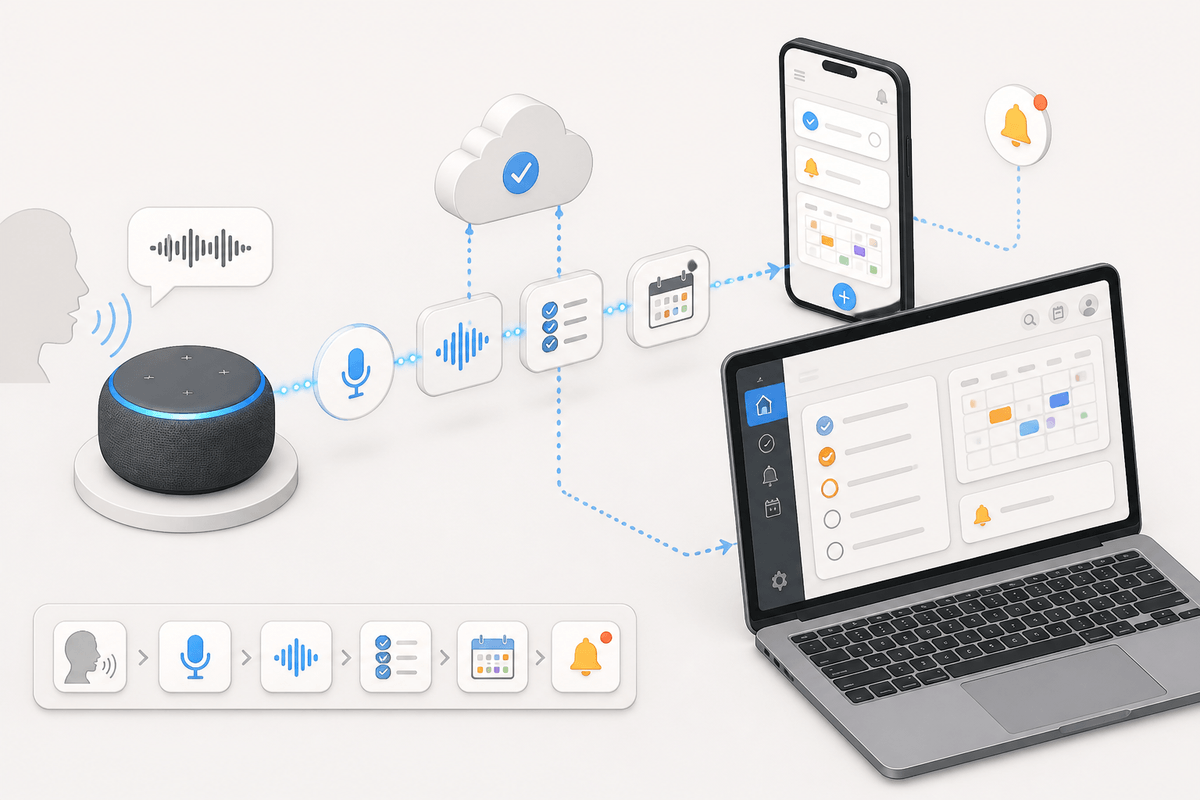
A familiar pain point is realizing you didn’t actually need “Cortana on an Echo” so much as your Microsoft data available by voice. In the Alexa app, look for built-in options to link Microsoft accounts under Settings (for calling/messaging or account linking) and use Skills where they still exist for Microsoft-owned services. The most common replacement pattern is simple: keep Outlook and Teams notifications on your PC or phone, but use Alexa for quick capture—shopping, reminders, and especially tasks—so you can later sort them properly in Microsoft To Do or Outlook.
Be deliberate about which Microsoft account you connect. Many people have a work account (Microsoft 365) and a personal account, and Alexa integrations—when available—often support only personal accounts or have reduced features with work tenants. That mismatch is where “it connected but doesn’t show my calendar” comes from. Also plan for occasional re-authentication: password changes, MFA prompts, and admin policies can silently break a voice workflow, so keep a non-voice path (phone shortcut, pinned To Do) for the same action.
Use Alexa Routines and skills to mimic cross-assistant workflows
A common workflow people miss is “tell my PC something via voice,” like starting a focus block, logging a task, or setting a reminder that shows up where they work. With Alexa, the closest substitute is building a Routine that triggers a predictable chain: a custom phrase (“start work mode”), then a smart-home state (lights, thermostat), then an action like adding an item to a list or To Do (if that integration works for your account), and finally a confirmation announcement so you know it actually ran.
Skills can fill gaps, but treat them as interchangeable parts rather than a single bridge. If one skill is flaky, swap it for a different target (email yourself, add to an Alexa list you review on your PC, or drop it into a notes app you already use). The practical limitation is latency and authentication: skills can fail silently when tokens expire or MFA is required, so build routines that still leave you with a visible breadcrumb—an announcement, a light flash, or a timestamped list entry you can verify later.
When you need real automation: third-party bridges and trade-offs
If you truly need one voice action to trigger something on a Windows PC (or to write into a specific Microsoft workflow), you usually end up using a bridge rather than “linking assistants.” Common approaches include IFTTT applets, Home Assistant (often via Nabu Casa for easier Alexa exposure), Node-RED, or a lightweight webhook service that Alexa can call. The pattern is straightforward: Alexa triggers a Routine → calls a webhook/skill → the bridge runs an action (flip a virtual switch, send a notification, hit a Power Automate flow, write to a service).
The trade-offs are practical, not theoretical. Many bridges are cloud-dependent, so latency and outages become part of your “automation.” Some require monthly fees, a home server, or extra hardware. Authentication can be the biggest ongoing cost: tokens expire, MFA breaks unattended runs, and security settings change after updates. If you go this route, treat it like a small system you’ll maintain—document it, keep a fallback manual path, and avoid chains with too many links.
Privacy, permissions, and failure-proofing your setup
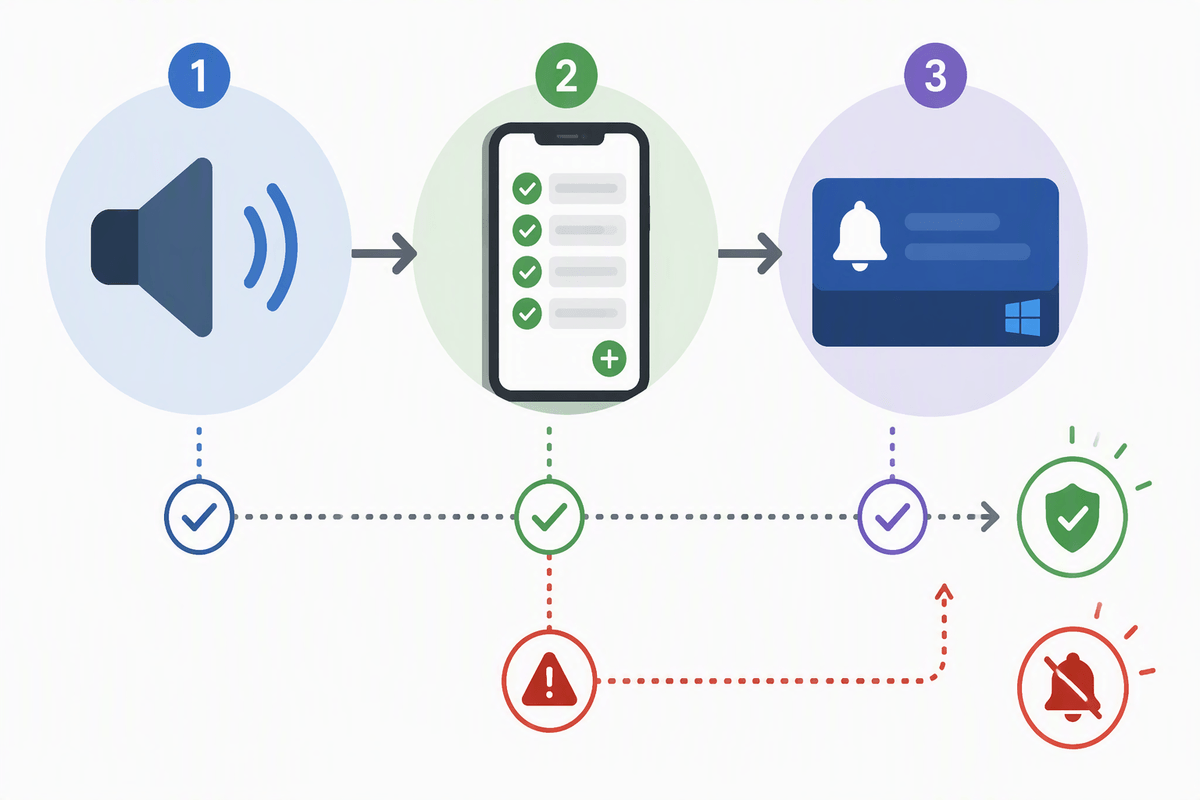
A practical “together” setup usually means granting multiple accounts permission to talk to each other: Amazon (Alexa), Microsoft (Outlook/To Do), and sometimes a bridge like IFTTT, Home Assistant, or a webhook host. Minimize the blast radius. Use the fewest connected services you can, prefer one primary Microsoft account for tasks/calendar, and avoid linking a work tenant unless you understand your employer’s policies and can handle MFA and conditional-access prompts. If a skill asks for broad mailbox access when you only need task capture, that’s a reasonable reason to skip it.
Failure-proofing is mostly about avoiding silent failure. Keep at least one “verification breadcrumb” per workflow: an Alexa announcement, a list entry you can see on your phone, or an email/notification you can confirm on Windows. Expect re-auth every so often after password changes, MFA updates, or app updates, and schedule a quick monthly check of the two or three voice actions you rely on most—before you trust them during a busy week.
Choose a “division of labor” that won’t break next month
You’ll get the most reliable “together” experience by assigning each assistant a narrow, stable role. Let Alexa own the home: device control, timers, routines, announcements, and quick capture to an Alexa list (or To Do only if it consistently works for your account). Let Windows and Microsoft apps own the work surface: calendar, email, files, and anything that needs rich context, typing, or tenant policies.
Avoid designs that depend on a single third-party skill staying perfect. Prefer workflows that still work if a link breaks: “capture by voice, process on PC,” not “voice command must file into the exact folder/project.” The cost is a little duplication and a periodic re-login, but the payoff is fewer surprise failures after updates.