What Windows Search can (and can’t) find quickly
You type a few letters and sometimes Windows finds what you want instantly, and other times it feels like it’s guessing. Windows Search is usually fastest at finding installed apps, common settings, and files that are indexed (typically your Desktop, Documents, Pictures, and parts of OneDrive). It’s also good at recent items, because those are already “known” to the system.
It’s slower or unreliable when you’re searching places that aren’t indexed, like many network drives, external USB folders, or random locations you rarely use. It can also miss file contents for certain formats, or show web suggestions when you only want local results. The trick is knowing what Search is optimized for—and when you should switch tools or change indexing so it stops feeling random.
Pick the right search box: Start, Explorer, or Settings
You’ve got three “search boxes,” and using the wrong one is where things start feeling inconsistent. Use the Start menu search (tap the Windows key, then type) when you want to launch an app, open a recently used document, or jump to a basic setting fast. It’s the quickest general-purpose option, but it can drift into web results if your query looks like a question.
Use File Explorer search when you know you’re looking for a file or folder, especially if you can start in the right location first (like a specific project folder or USB drive). Explorer search respects the current folder and lets you narrow results without guessing. Use Settings search when the “thing” you want is a toggle or system option (Bluetooth, Display, Storage). It won’t find files, but it’s often faster than hunting through menus.
Find apps and settings without drowning in web results
You hit the Windows key, type “bluetooth,” and suddenly half the screen is web stuff you didn’t ask for. For apps and built-in settings, keep your searches short and specific: “word,” “excel,” “snipping,” “storage,” “display,” “wifi.” If you type a whole question (“how to turn on bluetooth”), Start search is more likely to treat it like a web query.
If web results keep crowding out local matches, change the behavior instead of fighting it every time. In Windows 11, go to Settings > Privacy & security > Search permissions and turn off cloud content (and, if you want, Search highlights). In Windows 10, check Settings > Search > Permissions & History for the same idea. The trade-off is you lose quick web answers, but local apps and settings become much cleaner and faster to pick.
Search for files like you mean it: filters that work

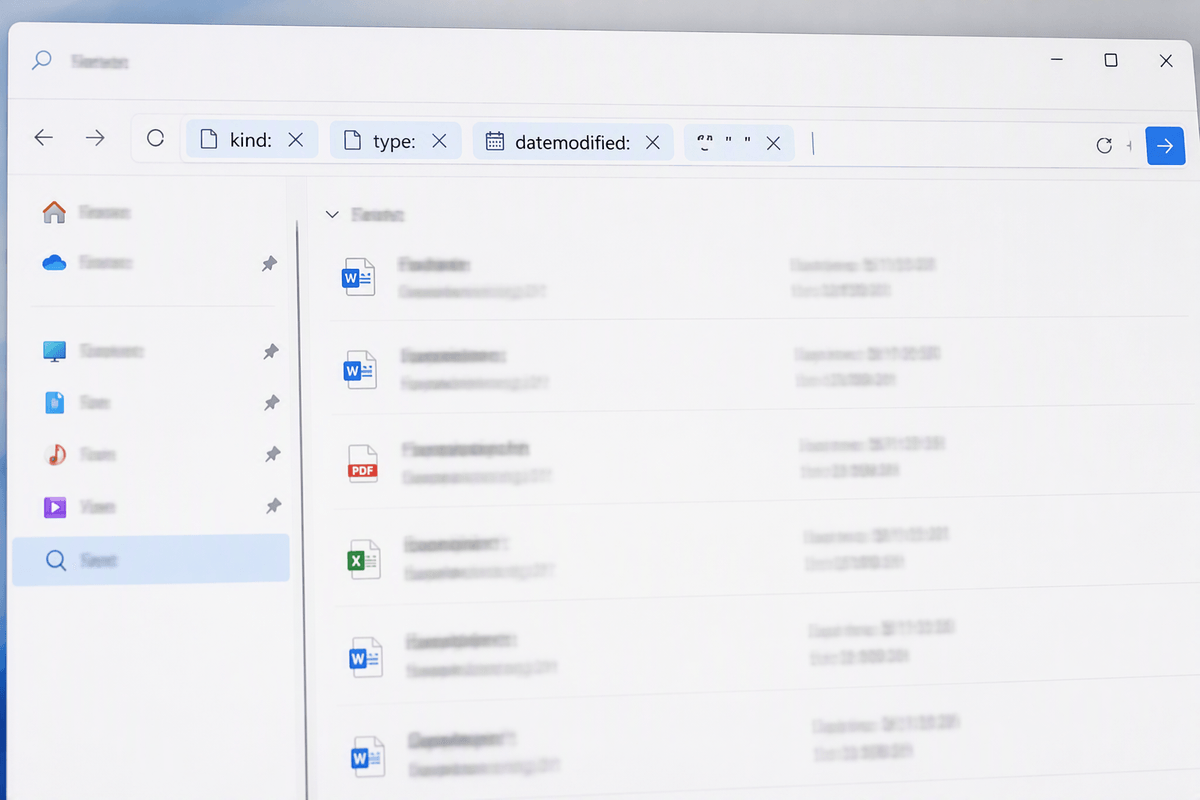
You remember the filename “somewhere,” but not the folder, and that’s where Explorer search earns its keep. Start in the closest folder you can (Documents, a project folder, or a USB drive), click the search box in the top-right, then narrow fast with filters. Try kind:document (or kind:picture), type:pdf (or docx, xlsx), and datemodified:this week. If you know part of the name, wrap a phrase in quotes (“meeting notes”) to avoid a messy grab bag.
When you’re hunting by content, add content:budget or content:“client name” to search inside indexed files. That last part matters: content searches can be slow on non-indexed locations and some file types won’t scan well without extra filters, so expect USB and network folders to take longer unless you point Explorer at the right folder first.
Make file search faster by fixing indexing choices
You’ve probably seen this pattern: searching in Documents is instant, but searching in a work folder you use every day feels like it’s crawling. That’s usually indexing. Windows keeps a “catalog” of file names (and sometimes contents) for certain locations, and searches are fast when your files are in that catalog.
To fix it, open Settings and search for “Indexing options,” then look for the list of included locations. Add your real-world folders (a Projects folder, a school folder, a local OneDrive folder you actually use) and remove places you never search. Also check Advanced > Rebuild if results are consistently missing after big moves or restores. The practical cost: adding large folders (especially with lots of PDFs) can cause noticeable background disk activity for a while, and content indexing will make searches better but can slow older laptops during the initial catch-up.
Search beyond your PC: OneDrive, network drives, and USBs
You’ve got a file “somewhere else,” and Windows Search suddenly feels less magical. For OneDrive, the best case is when your files are available offline on the PC: Explorer search can index and scan them like normal folders. If a file is online-only, you may see it in OneDrive, but searching its contents from Explorer can be hit-or-miss until it’s downloaded. If you’re in a hurry, open the OneDrive folder in Explorer and search there, or use OneDrive on the web when you only remember keywords.
Network drives and shared folders are the common pain point. Many aren’t indexed by your PC, so content searches can be slow and incomplete. Start in the exact share (not “This PC”), then use tight filters like type:pdf and datemodified:this month. USB drives behave similarly: name searches work, but content searches can crawl, and some sticks are simply slow.
Power moves: shortcuts, operators, and saved searches
You’re usually a couple of tiny habits away from “Search is broken” turning into “Search is predictable.” For Start search, hit the Windows key and type, then use the arrows + Enter to launch without touching the mouse. In File Explorer, press Ctrl+L to jump to the address bar, type a folder path, then Ctrl+E (or Ctrl+F) to land in the search box and keep your hands on the keyboard.
Operators make your searches feel less like guessing. In Explorer, combine filters like kind:document type:pdf datemodified:this month, and use quotes for exact phrases (“Q3 forecast”). A minus sign can help in some cases (budget -draft) but it’s not as reliable as sticking to the built-in filters. When you run the same hunt every week, save it: do the search inside the right folder, then use “Save search” so it’s one click next time. The limitation is saved searches depend on that folder structure staying put.
When results are missing: a quick search troubleshooting checklist
You search, you know the file exists, and it’s just not there. First, confirm you’re using the right box: Start search won’t reliably hunt deep folders, so switch to File Explorer and begin in the most likely parent folder. Check spelling and try a shorter chunk of the name, then add type:pdf or kind:document to cut noise. If you expect a content hit, open the file once (downloads online-only OneDrive files) and try content:“keyword” again. Still missing? Go to “Indexing options,” make sure the folder is included, and run Advanced > Rebuild—expect the PC to work in the background for a while.