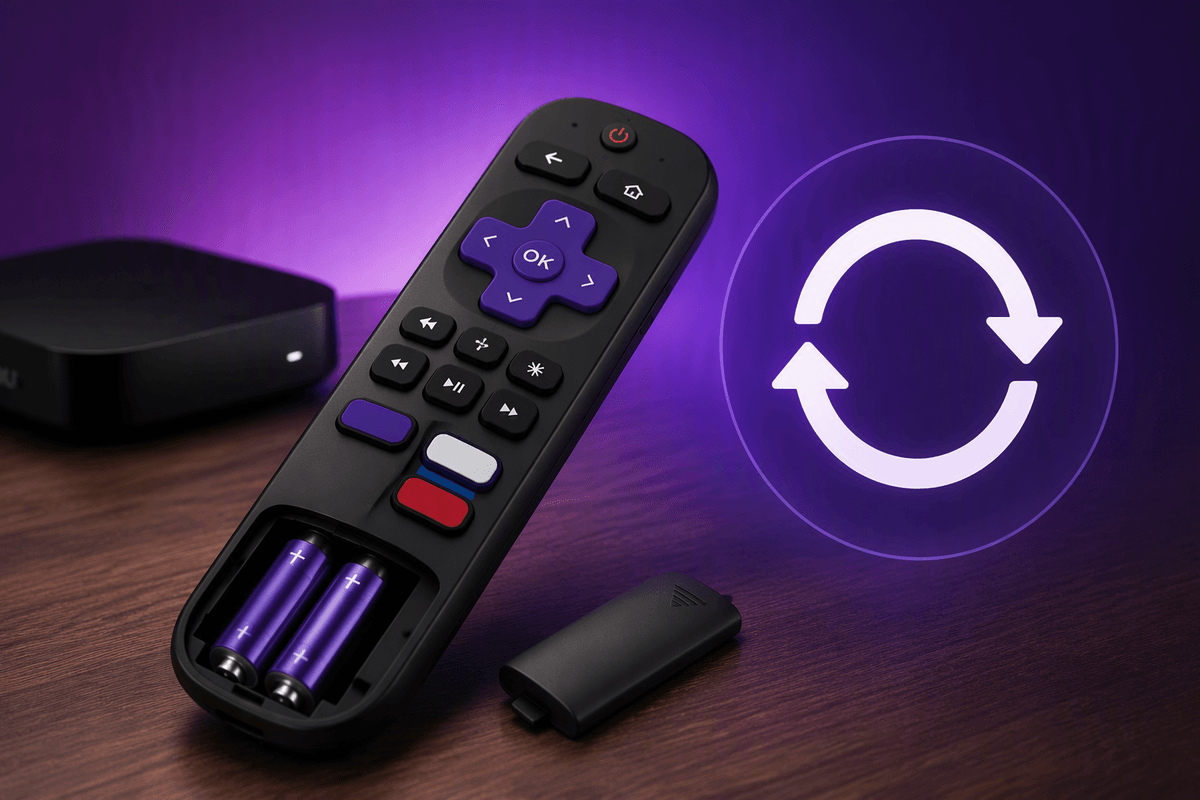
Why Roku remotes stop working and what “reset” means
A Roku remote usually “stops working” for a few boring reasons: dead or weak batteries, the remote losing its pairing, the Roku player freezing, or the signal path getting blocked or disrupted. Some remotes need a clear line of sight to the TV, while others talk over Wi‑Fi, so the failure can look the same even when the cause is different.
“Reset” can mean two different things. Resetting the remote is about power-cycling it and re-pairing it to the Roku. Resetting the Roku device is rebooting the player/TV (or in rare cases doing a factory reset), which can fix a stuck Bluetooth/Wi‑Fi connection—but it also takes a few minutes and can interrupt streaming settings.
First, figure out which Roku remote you have
Most “reset” instructions depend on whether your remote is an IR (infrared) remote or a Roku Voice Remote (wireless). A quick tell: if you can control the Roku only when you point the remote at the TV/player, it’s almost always IR. If it works without aiming, and you’ve seen an on-screen pairing message before, it’s a voice/wireless remote.
Flip the remote over and check the battery area. Many voice remotes have a small pairing button inside the battery compartment or on the back. IR remotes usually won’t. Another clue is the buttons: voice remotes commonly have a microphone/voice button (or a mic icon), while basic IR remotes don’t. This matters because voice remotes can lose pairing like a Bluetooth device, while IR remotes can’t “unpair”—they mainly fail from batteries, blocked line-of-sight, or using the wrong TV input.
Quick checks that solve most remote issues fast
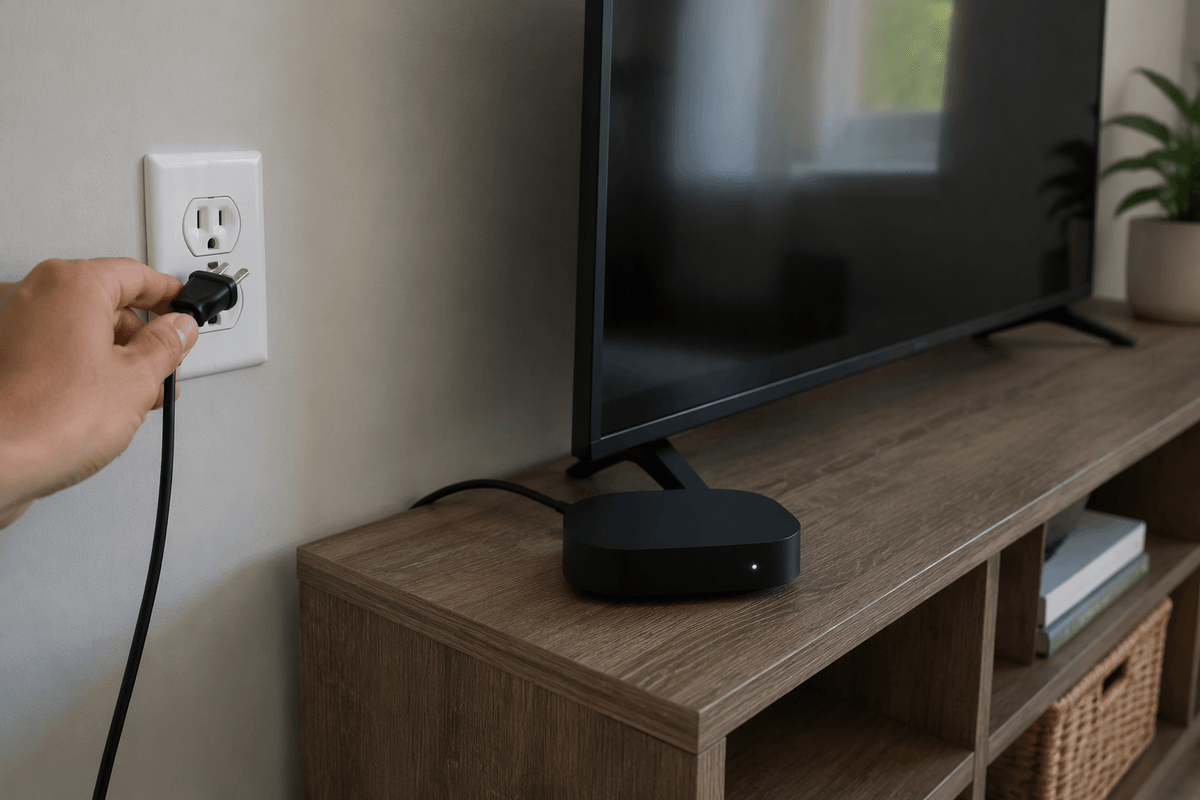
The fastest wins are basic, but they catch most “dead remote” cases. Start with fresh batteries (not ones you’ve “tested in something else”), and make sure they’re oriented correctly. If you have a voice remote, pop the batteries out for 10 seconds, put them back in, and watch for a pairing light or any on-screen prompt. Then reboot the Roku itself: unplug the Roku player (or TV) from power for 30 seconds and plug it back in. This clears a frozen Roku that can look like a remote problem.
If it’s an IR remote, confirm you’re on the right TV input (HDMI 1 vs HDMI 2 is a common gotcha) and remove anything blocking the front of the TV/player. Bright sunlight aimed at the TV area or a soundbar directly in front of the IR receiver can weaken the signal. If it’s a voice remote, move closer to the Roku, avoid USB 3.0 devices/cables near the player, and don’t overlook the practical cost: swapping batteries and power-cycling can take 5–10 minutes, but it’s still much faster than deeper pairing steps.
How to reset and re-pair a Roku voice remote
When a Roku Voice Remote stops responding, treat it like a wireless device that needs a clean restart and a fresh pairing. Start close to the Roku (within a few feet). Remove the batteries from the remote for 10–15 seconds, then put in fresh batteries. Give the Roku a quick reboot too: unplug the Roku player (or TV) from power for 30 seconds, plug it back in, and wait until the home screen is fully loaded.
Now re-pair. Open the battery door (or look on the back) and find the small pairing button. Press and hold it for about 3–5 seconds until the pairing light starts flashing (some remotes flash green). Keep the remote near the Roku while it searches; pairing can take up to a minute. If nothing happens on-screen, try once more after the Roku finishes loading, and make sure you’re pairing to the correct Roku (important in homes with multiple Roku TVs/players). If the pairing light never comes on, the remote may not be getting solid power—batteries, contacts, or the remote itself are the usual culprits.
Reset steps for IR remotes and Roku TV remotes
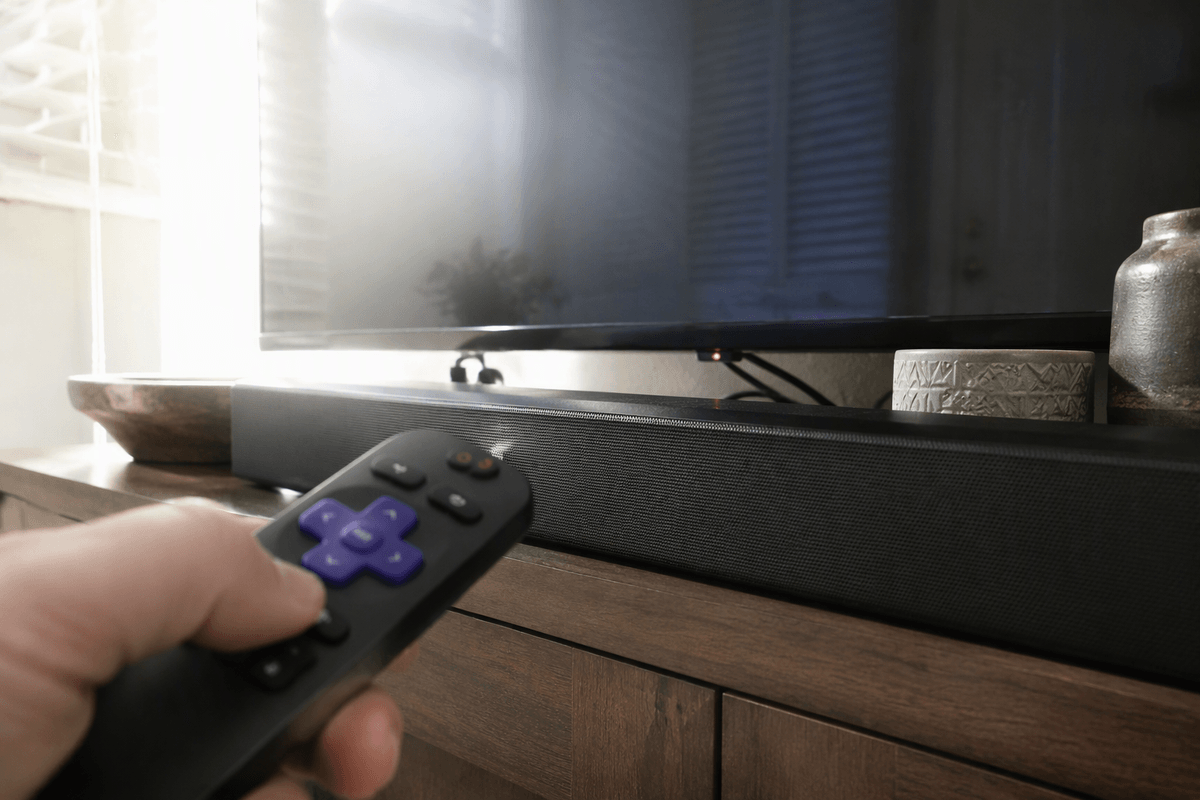
If your remote is IR (no pairing button), there isn’t a true “re-pair.” Your reset is basically restoring a clean signal path. Put in fresh batteries, then power-cycle the TV/player: unplug it for 30 seconds and plug it back in. Stand 6–10 feet away, aim at the Roku TV’s IR window (often along the bottom edge) or the front of the Roku box, and test a few buttons. If it works only up close, something is blocking or washing out the IR signal—move a soundbar, remove anything covering the TV’s lower bezel, and avoid direct sunlight hitting the receiver area.
For Roku TV remotes that control both power/volume and Roku menus, confirm the TV is actually receiving IR by using your phone camera: look through the camera while pressing buttons and you should see the remote’s IR LED flicker. No flicker usually means batteries, dirty contacts, or a failing remote. The practical downside: IR troubleshooting can be fiddly because tiny alignment changes and room lighting can matter.
When pairing fails: fix Wi‑Fi, interference, and HDMI issues
Pairing can fail even when the remote is fine, because the Roku isn’t in a good state to “hear” it. Start by confirming the Roku is actually awake and on the right input: if the TV is on HDMI 2 but your Roku is on HDMI 1, you won’t see the pairing prompt and it will feel like nothing is happening. If you have a Roku Streaming Stick, reseat it and power it from the wall adapter (not the TV’s USB port), then reboot the Roku again and try pairing within a few feet.
Wireless voice remotes can also get knocked around by interference. Temporarily unplug USB 3.0 drives, docks, or long HDMI cables near the Roku, and move the Roku away from a soundbar or router if they’re stacked together. If your Roku is struggling on Wi‑Fi (buffering, drops, very slow menus), fix that first: restart the router, and if possible use 5 GHz or Ethernet. The catch is time and access—Wi‑Fi and cable repositioning can take longer than a reset, especially in a tight TV cabinet.
Knowing when to replace the remote (and best alternatives)
If you’ve done fresh batteries, a full power-cycle, and (for voice remotes) two good pairing attempts close to the Roku, replacement becomes the practical move. Replace sooner if the pairing light never comes on, buttons only work when you squeeze the battery door, the remote randomly reboots, or the IR test shows no flicker even with clean contacts. A worn remote can waste more time than it’s worth.
The easiest fallback is the Roku mobile app (works over Wi‑Fi), which is great while you wait on shipping—but it won’t help if the Roku isn’t on your network yet. For a long-term fix, buy the exact Roku Voice Remote model that matches your player/TV, or use a simple universal IR remote for basic navigation.