Why small automations with OpenClaw matter day to day
You already do dozens of tiny “glue” tasks each day: rewriting a rough note into something shareable, pulling three numbers into a quick update, or turning a vague request into a draft reply. None of these is hard, but they interrupt focus and pile up. OpenClaw is most useful when you hand off those low-stakes steps while you keep the final say.
Think “assist, not autopilot.” You give a clear input (paste the note, forward the email thread, attach the sheet), plus a simple rule (“keep it under 6 bullets,” “don’t invent details,” “flag anything uncertain”). The trade-off is you still need a quick review pass, and the setup takes a few minutes, but the time savings compound fast across a week.
Before you automate: pick tasks worth handing off
You’ll get the best results by choosing tasks with clear inputs, a predictable shape, and an easy way to verify output. If you can paste it in, point to one file, or forward a thread, that’s a good sign. If the “right” answer depends on hidden context in your head, shifting priorities, or someone else’s tone, expect more back-and-forth.
A simple filter: would a reasonable coworker get 80% right from the same materials? If yes, delegate the first pass. Examples: turning meeting notes into action items, sorting an inbox into a few buckets, drafting a reply you’ll approve, or pulling recurring metrics into a short update. Skip anything high-stakes (billing, legal language, HR decisions) unless you’re prepared to double-check every detail, because the cost of one wrong line can erase the time you saved.
Task 1: Turn messy notes into clear summaries and action items
Notes tend to end up scattered across notebooks, chats, and half-finished documents—handy at the time, but awkward to turn into something the whole team can use. OpenClaw works well for cleaning up that raw material into a concise recap and action list, provided the source notes stay at the center. Paste everything together, then set a few clear boundaries: five summary bullets, action items with an owner and due date when stated, and a separate section for open questions or missing information.
The most important rule is simple: don’t fill gaps with guesses. A decision or deadline that never appears in the notes should be marked as missing rather than quietly added. A quick review of names, dates, and commitments is still worthwhile, particularly when the source is full of shorthand. That small check preserves accuracy while removing the tedious blank-page rewrite and turning scattered notes into something ready to share.
Task 2: Triage your inbox and draft replies you can approve
You know the feeling: five minutes between meetings, 37 unread messages, and half of them require the same kind of response you’ve typed a hundred times. OpenClaw can do the first pass by sorting a batch into simple buckets (need reply, FYI, schedule, billing, spam) and drafting short replies you can approve. Forward a thread or paste the email, then set constraints like: “Reply in my tone: friendly, direct,” “Ask one clarifying question if needed,” and “If dates or amounts are missing, say so—don’t guess.”
Keep it low-stakes: confirmations, status updates, polite declines, and scheduling nudges. The practical downside is you still have to verify names, attachments, and promises, and you’ll want a rule like “never agree to pricing/terms” so one overeager draft doesn’t create cleanup work.
Task 3: Build quick reports from spreadsheets and recurring metrics

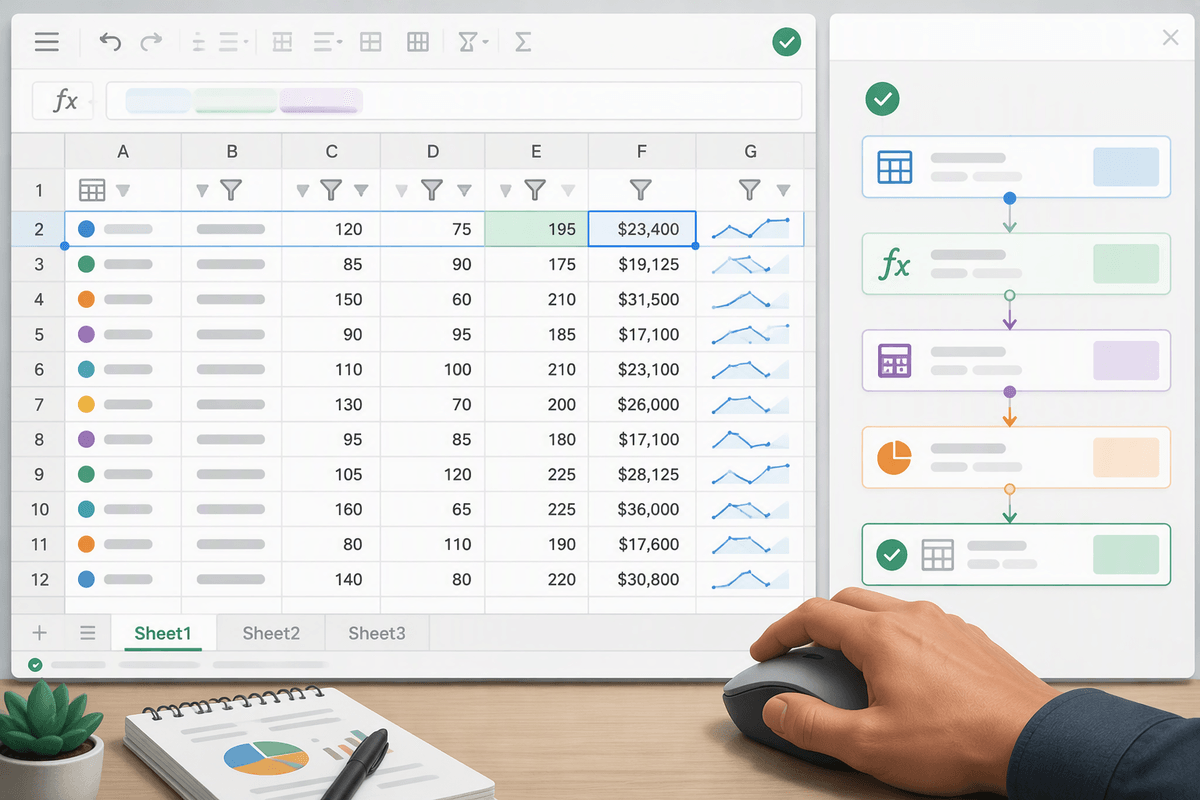
You probably have a spreadsheet you open every week just to answer the same questions: How many orders came in, what changed since last week, which projects are behind, what’s the total spend so far? OpenClaw is useful here because the input is concrete and the output is easy to check. Give it the sheet (or a pasted range), tell it which columns matter, and specify the format: “3-sentence summary, then a table of top 5 changes, then risks.”
The guardrails are simple: “Only use provided numbers,” “show your calculations,” and “call out missing rows or blank cells.” You’ll still want to spot-check totals and make sure filters didn’t exclude anything important. Also plan for some setup friction: messy headers, merged cells, and inconsistent labels (“NYC” vs “New York”) can cause wrong groupings unless you normalize the data first.
Task 4: Create reusable checklists and SOPs from how you work
“How we do this” knowledge often lives in scattered places: a few Slack messages, a half-remembered sequence, or last month’s version of a document. OpenClaw can turn one solid example into a reusable checklist or SOP. Start with the strongest artifact available—an email thread, completed ticket, or screen-by-screen note—and ask for numbered steps, required inputs, a clear definition of done, and common failure points. For workflows that differ between beginners and experienced users, separate the instructions into two versions.
Good guardrails keep the result grounded. Tell the model not to introduce tools the team doesn’t use, flag steps that depend on tribal knowledge, and mark anything requiring human approval. The first draft still needs some cleanup: vague instructions such as “update the system” need concrete details about which system, which field, and what value belongs there. Once those gaps are fixed, later runs become much quicker and the workflow becomes easier to repeat.
Make it dependable: prompts, guardrails, and review habits
You’ll trust OpenClaw more when you treat your prompt like a tiny spec: input, output shape, and boundaries. A reliable pattern is: “Here’s the source text/data. Produce only this format. Use exact names/dates as written. If anything is missing or unclear, list it under ‘Open Questions.’” Add one or two examples when you can (“Use this reply style: …”), because tone and brevity are easier to copy than to describe.
Guardrails are mostly about avoiding silent mistakes. Use rules like “Don’t invent numbers,” “Quote the line you’re basing each claim on,” or “Highlight anything you’re not 100% sure about.” For email and docs, add “Never commit to pricing, legal terms, or deadlines.” For spreadsheets, require “Show calculations” and “State filters applied.” These constraints make outputs slightly less polished, but they make errors visible.
The review habit that saves you is a fast checklist: scan for names, dates, amounts, and commitments; verify any summary sentence against the original; then do a final “would I send this?” pass. Budget 30–90 seconds per item. If you’re spending longer, the task may be too high-stakes, or the input needs cleanup before automation pays off.
Where to start this week without overhauling your workflow
Pick one place where tiny tasks pile up: meeting notes, email replies, or that weekly spreadsheet update. Start with a single template prompt you can reuse, then run it on three real items, not a perfect demo. For notes: “5 bullets + action items + open questions.” For email: “Draft a reply, ask one question, never agree to terms.” For metrics: “3-sentence summary, show calculations, list missing data.” Keep a 60-second review rule; if it takes longer, tighten the input or lower the stakes. After a week, keep the one that saved you time twice.