Start with the settings most people never revisit
Most PS5s stay on “good enough” defaults forever, and that’s why small annoyances pile up: the console boots to the wrong place, downloads fight your rest mode, and the screen looks a little off without you knowing why. Start by opening Settings and checking a few basics you’ll actually feel daily. Set your home screen behavior (where the cursor lands and what opens first), then confirm System > Power Saving so Rest Mode supplies power to USB only if you need it. Finally, run Screen and Video’s HDR calibration and make sure your TV is set to the correct HDMI input mode—this takes minutes, but it’s the kind of “quiet fix” you notice every session.
Dial in system basics: accounts, privacy, and quick access
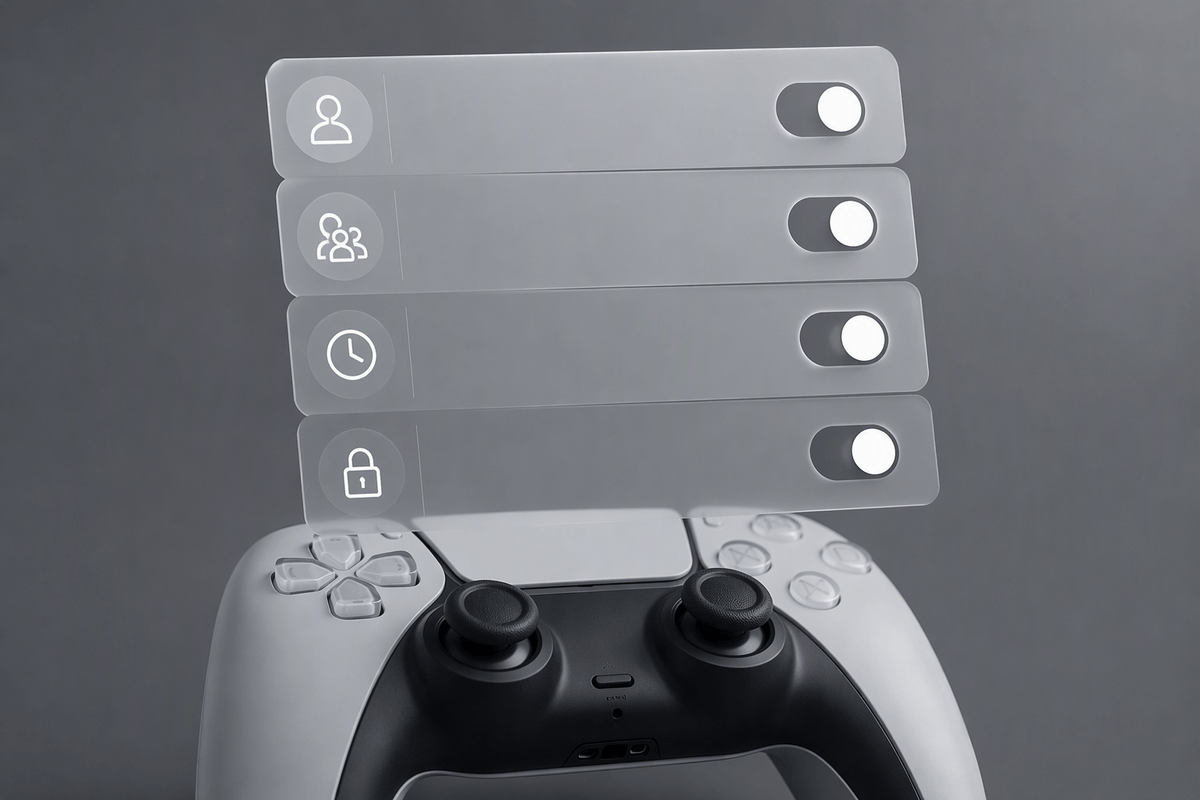
The first time you add a second account is usually when things get messy: shared saves, surprise purchases, or your friends list showing more than you intended. Go to Users and Accounts and confirm which profile is your “home” one, then turn on a sign-in passcode (or require a login at startup) if anyone else uses the console. In Payment and Subscriptions, remove old cards you don’t need and enable purchase confirmation so a quick button-mash can’t buy a game.
Privacy is worth fixing once, because defaults are often broader than people expect. Under Privacy, set who can see your real name, friends list, and gaming history, and decide whether you want party invites from friends only. Then make the PS5 faster to use: in Notifications, turn off trophies and spammy pop-ups you don’t care about, and in Control Center customize the quick menu so Sound, Accessories, Downloads/Uploads, and Power are one tap away. It’s a small setup cost that saves time every night.
Make your storage strategy before the SSD fills up
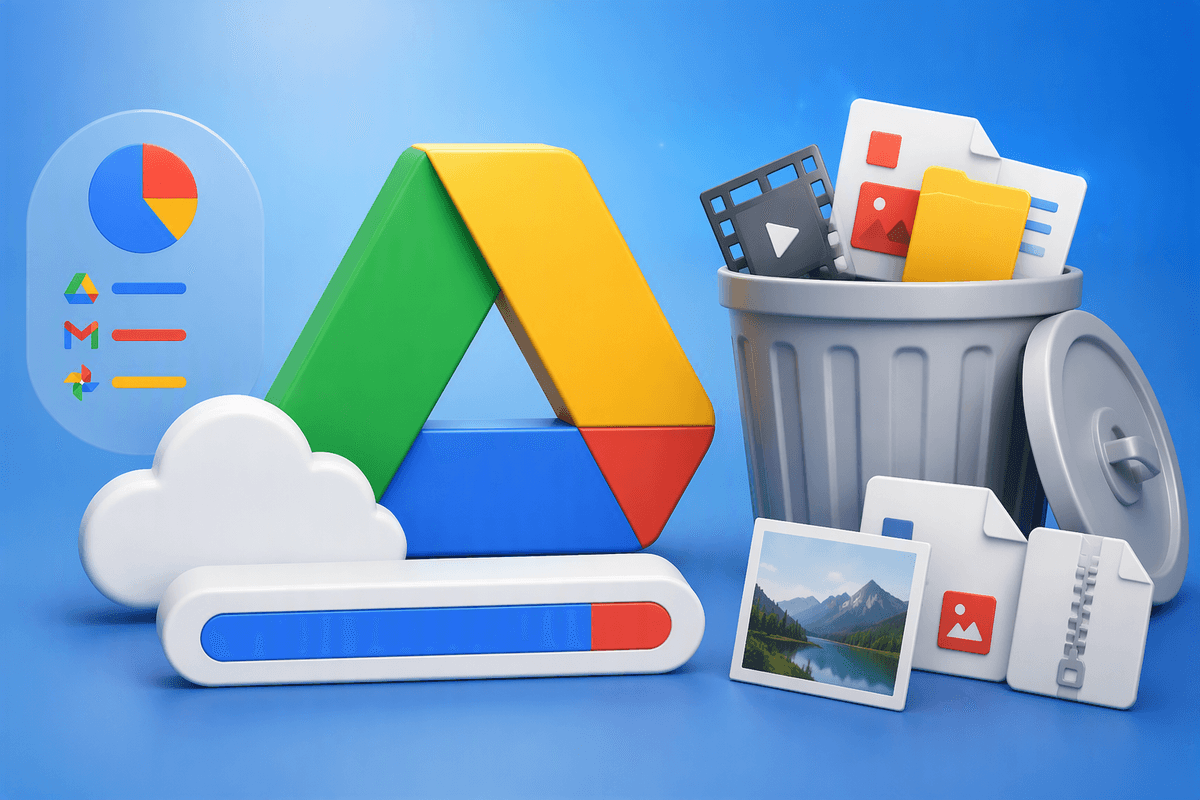
You’ll feel the storage squeeze earlier than you expect: a few big games, a couple of capture-heavy weekends, and suddenly updates won’t install. Open Settings > Storage and decide what “lives” on the internal SSD (your current rotation and anything with frequent patches), and what can be moved off when you’re done. Don’t wait for the low-space warning—set a habit: when you finish a game, delete it and keep the save (saves are small), or move it to USB storage if you might return.
USB extended storage is the cheap, practical archive for PS4 games and PS5 games you’re not actively playing. The trade-off is simple: you can store PS5 games there, but you must copy them back to the SSD to play, which takes time. If you want “install it once and forget it,” plan for a compatible M.2 SSD expansion instead, plus the small cost and effort of opening the console and installing it.
Get better performance without making games look worse
You’ll usually notice “bad performance” as stutter, input lag, or the camera feeling a little mushy—not as a clear setting that says “fix me.” Start with the PS5’s global defaults: go to Settings > Saved Data and Game/App Settings > Game Presets and set Performance Mode or Resolution Mode to Performance. Many games will automatically choose their smoother 60fps (or higher) option without you hunting through each in-game menu, and the visual hit is often smaller than people expect.
Then reduce avoidable lag. In Settings > Screen and Video, set 120Hz Output to Automatic if your TV supports it, and turn on ALLM (Auto Low Latency Mode) so the TV switches into Game Mode when you launch a game. If you see occasional flicker or black screens when starting games, that’s a real-world compatibility snag with some HDMI setups; try a different HDMI port labeled for 4K/120, use the included HDMI cable, or disable 120Hz per game if needed. Finally, keep VRR set to Automatic on supported displays—when frame rates dip, it smooths the feel without making the picture soft.
Upgrade the feel: DualSense, audio, and chat settings
The PS5 can run perfectly and still feel “off” if the controller and audio aren’t tuned. Start with the DualSense: in Settings > Accessories > Controller (General), set Vibration Intensity and Trigger Effect Intensity one step down from Default if your hands get tired or you play lots of shooters. You keep the texture of the feedback without the fatigue, and battery life improves a bit. If a game’s adaptive triggers feel like they’re fighting you (common in racing or bow mechanics), lower it globally and then re-enable it only in the few games where it adds to the experience.
Audio is the other big quality-of-life win. In Settings > Sound, confirm your output device and run the 3D Audio setup for headphones (and for TV speakers if you use them). Then fix chat so it stops hijacking everything: set your preferred Balance (Game/Chat) and pick a default “Output to Headphones” option so parties don’t suddenly route through the TV. If you use a headset mic, spend 30 seconds on Adjust Microphone Level—too hot sounds worse than too quiet, and background noise suppression can clip your voice if you overdo it.
Use PS5 features that save time during real life
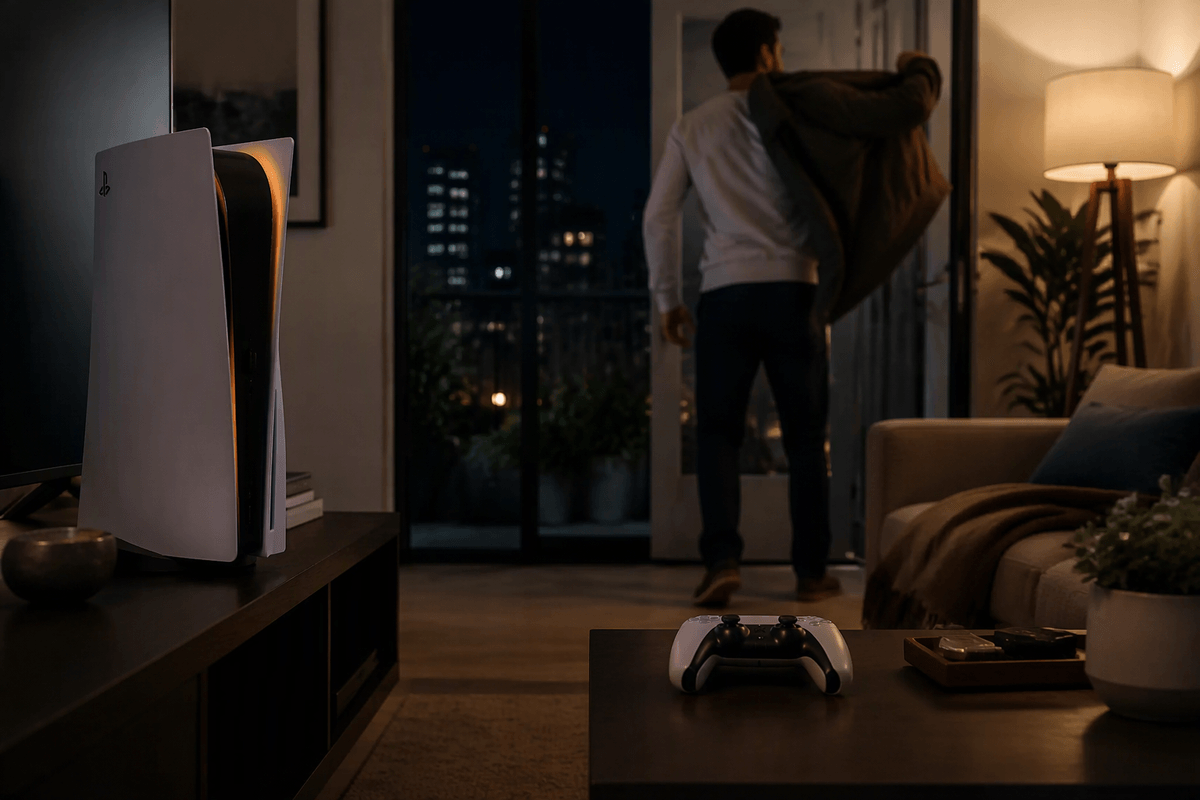
The time-savers show up when you’re squeezing in a quick session between work, family, or a late-night wind-down. Start with Rest Mode as your “set it and forget it” tool: in Settings > System > Power Saving, allow the PS5 to stay connected to the internet so updates and cloud sync happen while you’re away (and set a download window if you share bandwidth). Under Saved Data and Game/App Settings, make sure auto-upload is on for your main profile so you don’t lose progress when you hop to another console or need a repair.
Then use the features that cut friction on busy nights. Pin Downloads/Uploads and Accessories in Control Center so you can pause a big update, check controller battery, or swap headsets in seconds. Turn on HDMI Device Link if you want the TV and console to power together, but know it can misfire with some soundbars or receivers and turn things on when you didn’t mean to. Finally, keep Capture settings modest—shorter clips and manual captures—because saving everything quietly eats storage and adds cleanup later.
A simple monthly checklist to keep everything smooth
Most months, the PS5 only needs a five-minute “reset” so little problems don’t stack up. Open Storage and clear space: delete finished games, move anything you’re not playing to USB, and check Captures for accidental clip hoarding. Then check Downloads/Uploads for anything stuck, and leave the console in Rest Mode once so updates and cloud saves can finish cleanly. In Accessories, confirm your controller firmware is current, and give the DualSense sticks a quick check for drift or grime before it gets annoying. Finally, skim Notifications and Privacy once—new games sometimes add noisy pop-ups and sharing defaults you don’t want.