Cryptomining malware: the quiet drain on your devices
Your laptop fan suddenly runs nonstop, the case feels warm even when you’re “just checking email,” and everything from spreadsheets to video calls stutters. That pattern often gets blamed on aging hardware, a bad update, or “too many tabs,” but illicit cryptomining is a common quiet cause. Instead of stealing files right away, it steals computing power—keeping your CPU or GPU working harder than it should so someone else can earn something.
The damage is usually indirect: slower performance, shorter battery life, higher electric bills, and more wear on fans and components. On shared office PCs, it can also create a constant drag that looks like “the network is slow” or “the server is overloaded.” The tricky part is that miners try to blend in by using only part of your system, so the device may still work—just never quite feels idle.
What illicit mining software does after it gets in
A miner that lands on a machine usually does three things fast: it makes itself hard to remove, it looks for the best “engine” to run (CPU, GPU, or both), and it tries to stay just below the level where people complain. Many miners create a background service or scheduled task so they restart after a reboot. Others hide inside a browser extension, a “helper” app, or a process name that resembles a real Windows or macOS component. On managed laptops, you may also see it run only when the screen is locked or when the device is on AC power.
Once running, it connects out to a mining pool (or a relay server) and starts submitting work, which is why you’ll often see steady CPU usage and periodic outbound network traffic even when nobody is actively using the device. Some variants also spread laterally by scanning for shared passwords, exposed admin ports, or cloud keys on the same network. The practical catch is that even a “low-and-slow” miner still costs you time and reliability, and cleanup can be disruptive if it has added persistence across multiple user accounts.
Common infection paths: email, browsers, updates, and cloud keys
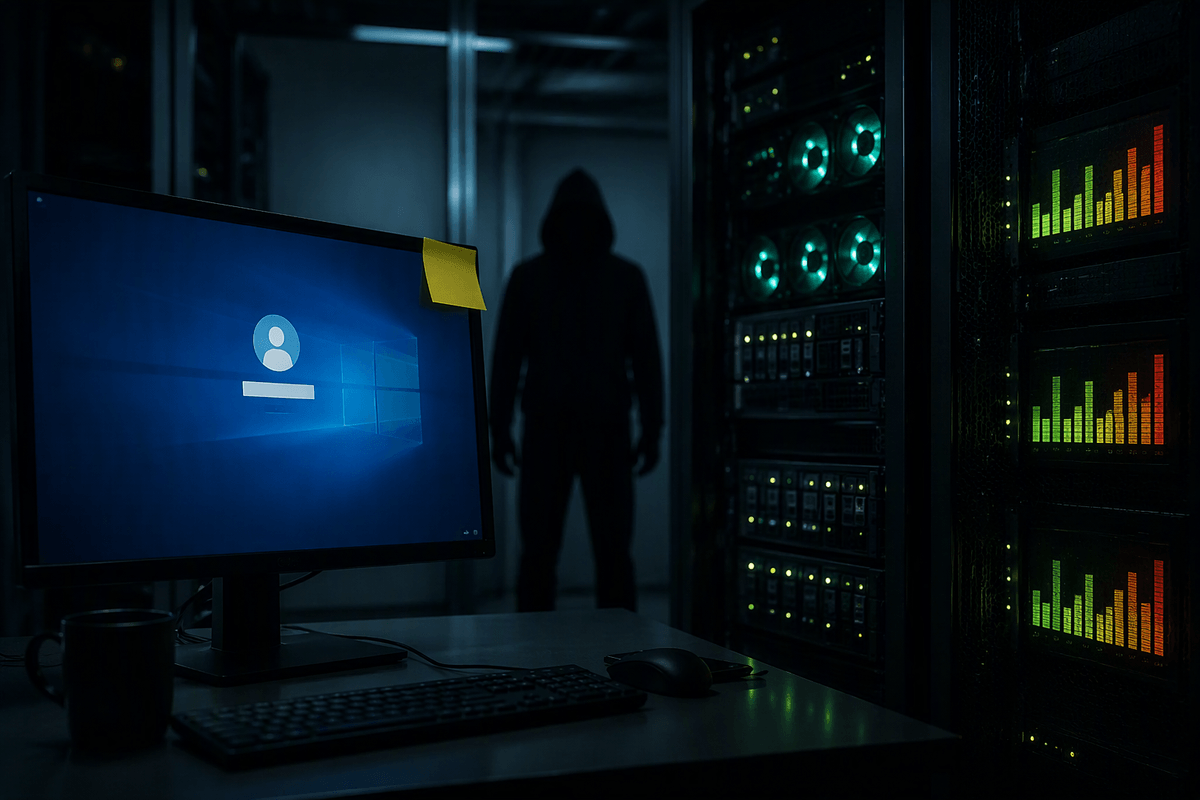
A lot of cryptominers arrive the same way other malware does: through something that looks routine. Email is still a top path in small teams—an invoice attachment, a “scanned document” link, or a zip file that contains a shortcut or script instead of a real PDF. The miner itself may not be in the message; the click just pulls down a second-stage installer. Shared PCs are hit harder because one user’s mistake becomes everyone’s slowdown.
Browsers are the other common doorway. Malicious ads, compromised sites, and shady “free” download pages can trigger drive-by downloads or push you into installing a fake update. Extensions are a frequent weak spot: a legitimate extension can be sold or updated into a miner later, and users rarely review extension permissions. The most expensive outbreaks often start in the background on servers: exposed Remote Desktop, default passwords, or leaked cloud keys in code repos let attackers drop miners into virtual machines that run 24/7—where you won’t notice the fan, but you will notice the bill.
Symptoms you can spot before you run any tools
You usually notice cryptomining first as a “never idle” device. The fan spins up minutes after boot, the chassis stays warm, and performance drops in bursts—typing lags, video calls glitch, and simple apps take longer to open—despite only light use. Battery life often gets noticeably worse, and on desktops you may see higher power draw or more frequent thermal throttling (sudden slowdowns when the system gets hot).
On shared PCs and small-office networks, the pattern is often time-based: things feel fine in the morning, then crawl after lunch as more machines are on, or a single “hot” workstation drags file shares and remote sessions. Another tell is consistency: CPU/GPU load seems high even when the screen is locked, or the slowdown returns immediately after a reboot. One practical limitation is that these symptoms also match legitimate causes—Windows updates, cloud sync, antivirus scans, or a dying fan—so treat them as a reason to check, not proof by themselves.
Confirming cryptomining without chasing false positives
You can confirm mining without guessing by looking for “steady load plus a destination.” Open Task Manager (Windows) or Activity Monitor (macOS) and sort by CPU, then by GPU if you have it. A miner usually shows long, flat usage (not short spikes) and it comes back after you end the task or reboot. Don’t trust the name alone—right-click to view the file location and check whether it’s running from a user profile, temp folder, or an odd subfolder under AppData/Library instead of a normal Program Files/Applications path.
Then validate the network side. While the high-CPU process is active, check which app is making outbound connections (Resource Monitor on Windows; a network monitor your endpoint tool provides on macOS). Mining often looks like persistent connections to unfamiliar hosts on ports associated with Stratum (commonly 3333, 4444, 5555, 7777) or repeated TLS connections to random-looking domains. A practical constraint: Windows Update, cloud backup, and antivirus scans can look “busy,” so confirm with timing—pause sync, wait for updates to finish, and see whether the same process still pins CPU/GPU when the machine should be idle.
Containment and cleanup: what to do once you suspect it
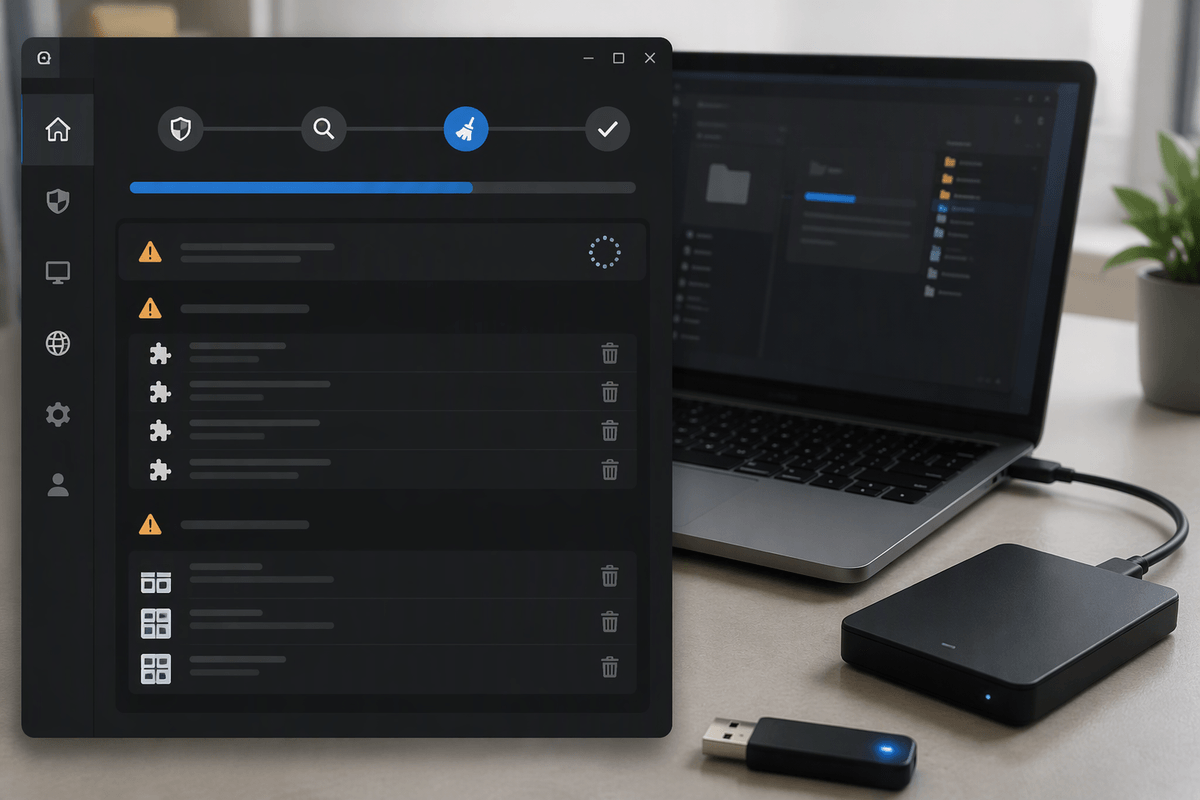
The moment you suspect mining, treat it like an active leak of power and access. If it’s a work device or shared PC, disconnect it from Wi‑Fi/Ethernet (or move it to a guest VLAN) before you start poking around, so it can’t keep talking to a pool or spreading to other machines. If you have multiple “hot” devices, pick one as a reference and isolate the worst offender first. Take a quick photo or note of the suspicious process name, file path, and any unusual outbound hosts—those details help you clean other systems later.
For cleanup, start with the simplest low-risk steps: uninstall any recently added apps, remove unknown browser extensions, and roll back suspicious “helper” tools or fake updaters. Then run a full scan with your endpoint protection (or Microsoft Defender) and, if available, an on-demand second opinion scanner. If the miner returns after a reboot, check startup items, scheduled tasks, and new services. A real constraint: thorough cleanup can mean downtime, and for business laptops it’s often faster and safer to back up essentials and reimage than to “hunt” persistence for hours.
Preventing cryptojacking: the few controls that matter most
Most miners get in through the same weak habits, so focus on a few controls you can actually keep up. Patch browsers, operating systems, and common runtimes quickly, and remove “free” utilities and unused extensions—especially anything asking for broad permissions. For shared PCs, run as standard users, not local admins, and lock down who can install software. On small networks, protect remote access (no exposed RDP, strong passwords, MFA) and rotate any cloud keys that might live in scripts or repos. Keep one lightweight baseline: alert on sustained high CPU/GPU plus unknown outbound connections.