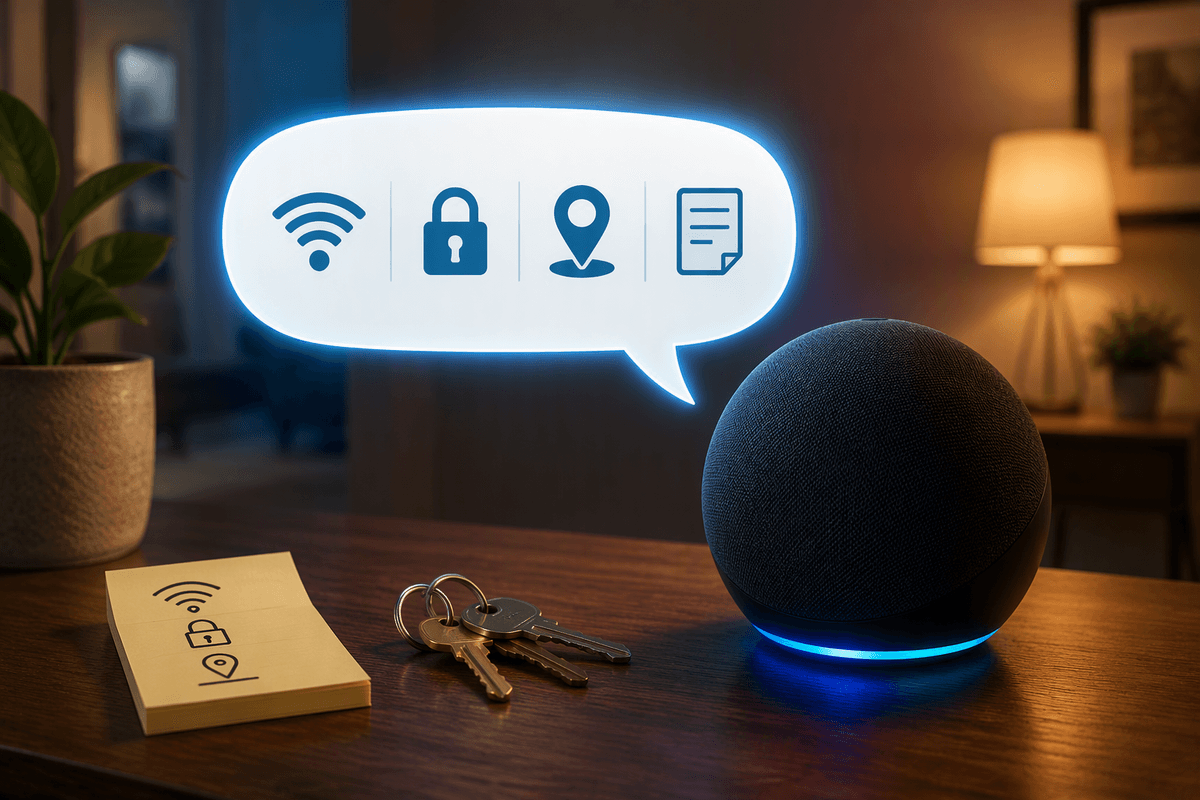
Your Wi‑Fi name is public—what it reveals to strangers
Walk down any apartment hallway or sit in a coffee shop and your phone will list nearby Wi‑Fi names automatically. That list is public by design: anyone within range can see your SSID, even if they can’t join. A name like “SmithFamily_5G” or “Apartment12B” quietly gives away that this is a home network and often which door to try.
Many default names also reveal the router brand or internet provider (and sometimes the model line), which helps a stranger guess what admin page you might use and which common weaknesses to test. Hiding the SSID usually doesn’t help much—devices still leak clues and it can create annoying connection quirks—so the practical move is choosing a name that doesn’t identify you or your gear.
What attackers look for when they see your network
Most drive-by attempts start with quick sorting: which networks look like they belong to a real person, which ones hint at weak settings, and which ones might reuse a default password. An SSID that includes a surname, unit number, or small-business name helps someone tie a signal to a specific door or storefront. That matters because it lowers their risk and effort—they can try a few guesses, listen for device names, or even attempt a chatty “hey, your Wi‑Fi is down” social-engineering angle with a believable target.
They also look for clues about the router and setup. Provider-branded names and obvious router brands suggest common admin URLs, common default credentials, and which features might be enabled out of the box. A “Guest” SSID can be fine, but it’s also a sign to test for isolation mistakes. And if they see older security modes (like WEP) or WPS activity, that’s a flashing sign that cracking access may be realistic—though it still takes time, proximity, and repeated attempts.
Wi‑Fi naming mistakes that make you easy to target
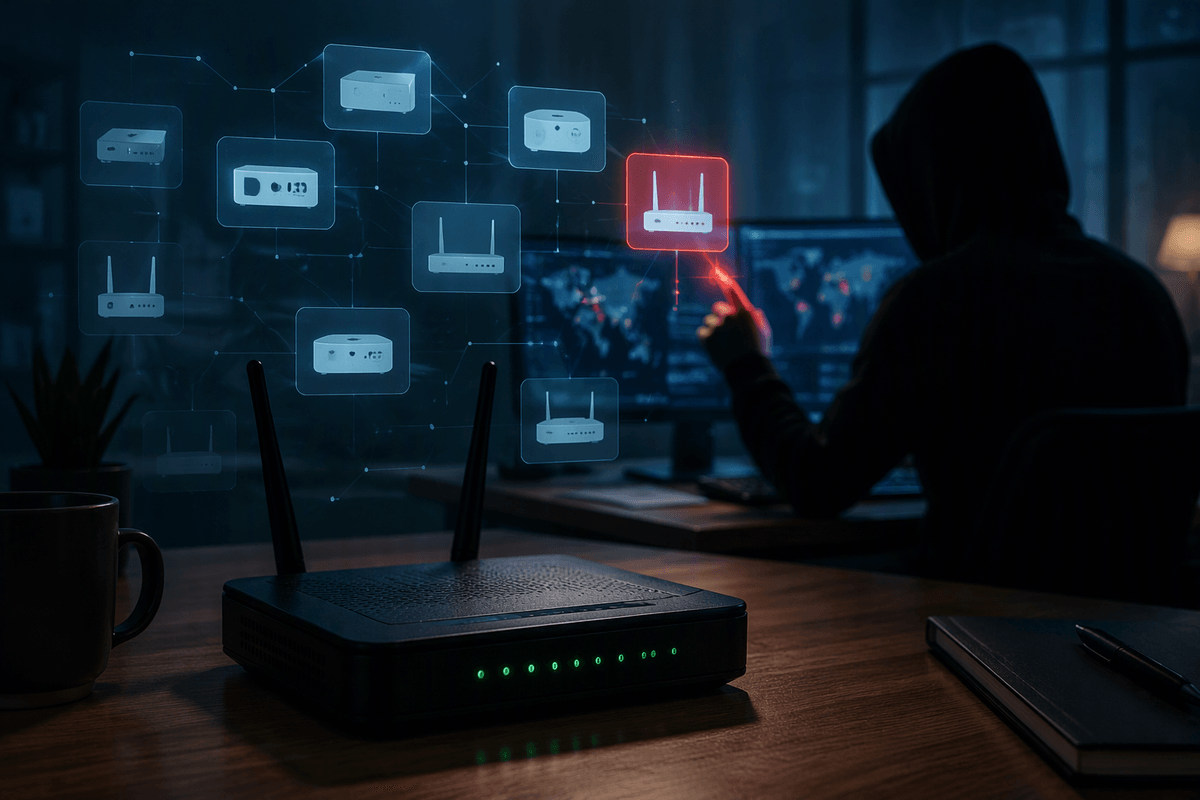
Most naming mistakes fall into two buckets: giving away who you are, or giving away what you run. Names like “JohnsonHome,” “Apt12B,” “DrLeeOffice,” or “PatelLawWiFi” don’t just feel personal—they make it easier for someone to pick the right door, or craft a believable “ISP support” story. Even “NurseryCam” or “KidsiPad” is a hint about what devices might be inside, which can shape what someone tries first.
The other common mistake is keeping the provider or router-branded default, especially when it includes a model line (“XfinityWiFi,” “TP-Link_5G,” “NETGEAR76,” “Arris-1234”). That narrows down likely admin pages, default features, and known weak setups to probe. Cute jokes or “FBI_Surveillance_Van” don’t create technical risk, but they do attract attention, which is its own cost when you’d rather be invisible in a crowded list.
A safer SSID strategy that still stays usable
A safe SSID is boring on purpose. Aim for something neutral that can’t be tied to your name, address, business, or router brand—think “BluePine” or “RiverLamp” instead of “Garcia_Unit3C” or “TP-Link_5G.” If you want multiple networks, use a simple pattern that helps you recognize them without leaking details: “BluePine” for your main network and “BluePine-Guest” for visitors is fine.
Keep it easy to type and say out loud. Long SSIDs and weird punctuation increase the chance you’ll mistype it when adding a new phone, TV, or smart device, and some older devices behave badly with special characters. If you run both 2.4 GHz and 5 GHz, don’t advertise it in the name; let band steering handle it, or label internally in the router while keeping the broadcast name the same.
Lock down the router so the name isn’t the weak link
You can pick a neutral SSID and still be exposed if the router itself is easy to take over. Start with the router’s admin account: change the default admin username (if your model allows it) and set a long, unique admin password that you do not reuse anywhere else. Then turn off remote administration from the internet unless you have a clear, specific reason to need it. If you do need remote access, use the vendor’s official app or an approach rather than opening a management page to the world.
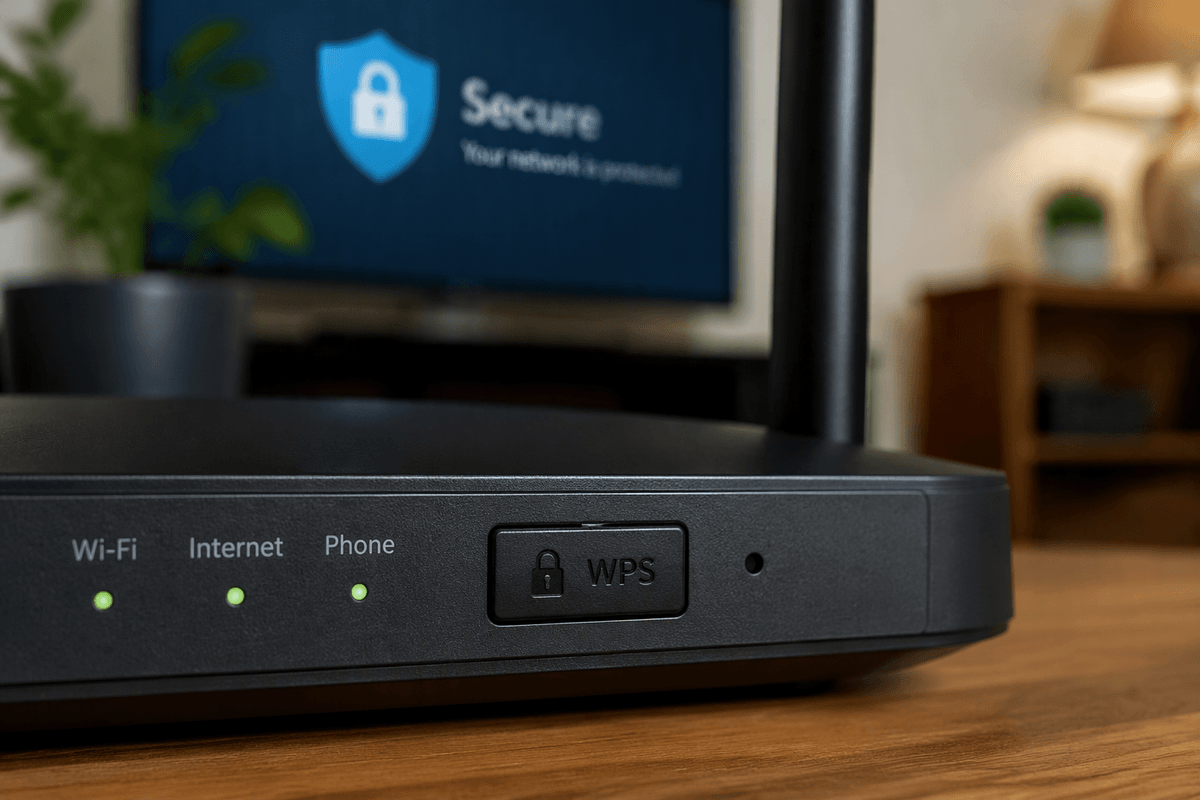
Disable WPS (Wi‑Fi Protected Setup). It’s convenient for quick connects, but it’s also a common weak point attackers look for because it reduces the problem to a short PIN or a push-button window. Update the router firmware and enable automatic updates if your router supports it; otherwise, put a repeating reminder on your calendar to check every few months. The practical cost here is time: updates can reboot the router, and occasionally a setting resets, so take screenshots of key pages before you change anything.
Finally, use a guest network for visitors and smart-home gadgets you don’t fully trust, and make sure guest mode is actually isolated from your main devices. That way your SSID can be boring, and your router won’t be the easy way in.
Make guessing and cracking your Wi‑Fi password unrealistic
The remaining win is making the Wi‑Fi password itself a dead end. Use WPA3-Personal if it’s available on your router and devices; otherwise use WPA2-AES (often shown as WPA2-Personal). Avoid “mixed” modes that enable older options unless you truly need them for a stubborn device. Then set a long passphrase that isn’t a phrase: 16–24+ characters, with several random words or a password-manager-generated string, and don’t reuse it anywhere else. Length is what turns guessing from “a few minutes of trying” into “not worth the time.”
Expect some friction: a truly strong password is annoying to type into TVs, printers, and smart-home gadgets. A practical workaround is printing a QR code for the Wi‑Fi credentials for guests (or using the phone’s “share Wi‑Fi” feature) while keeping the actual passphrase long and random. If you ever share it widely, rotate it—one leaked password is the same as no password.
A quick “keep them out” checklist you can redo yearly
Once a year (or after a move, breakup, or a “friend-of-a-friend” visit), do a 10‑minute reset: confirm your SSID is still neutral and doesn’t name you, your unit, or your ISP. Log into the router and verify WPA3-Personal (or WPA2‑AES), WPS off, and remote administration off. Change the router admin password if you can’t swear it’s unique, and rotate the Wi‑Fi passphrase if it’s ever been shared widely. Check firmware updates and reboot after applying them.
Finally, review your connected-device list and remove anything you don’t recognize, then confirm your guest network is enabled and isolated. The only real cost is brief downtime during a reboot and the annoyance of rejoining a few devices.