Get oriented: what “mastering PS4” actually means
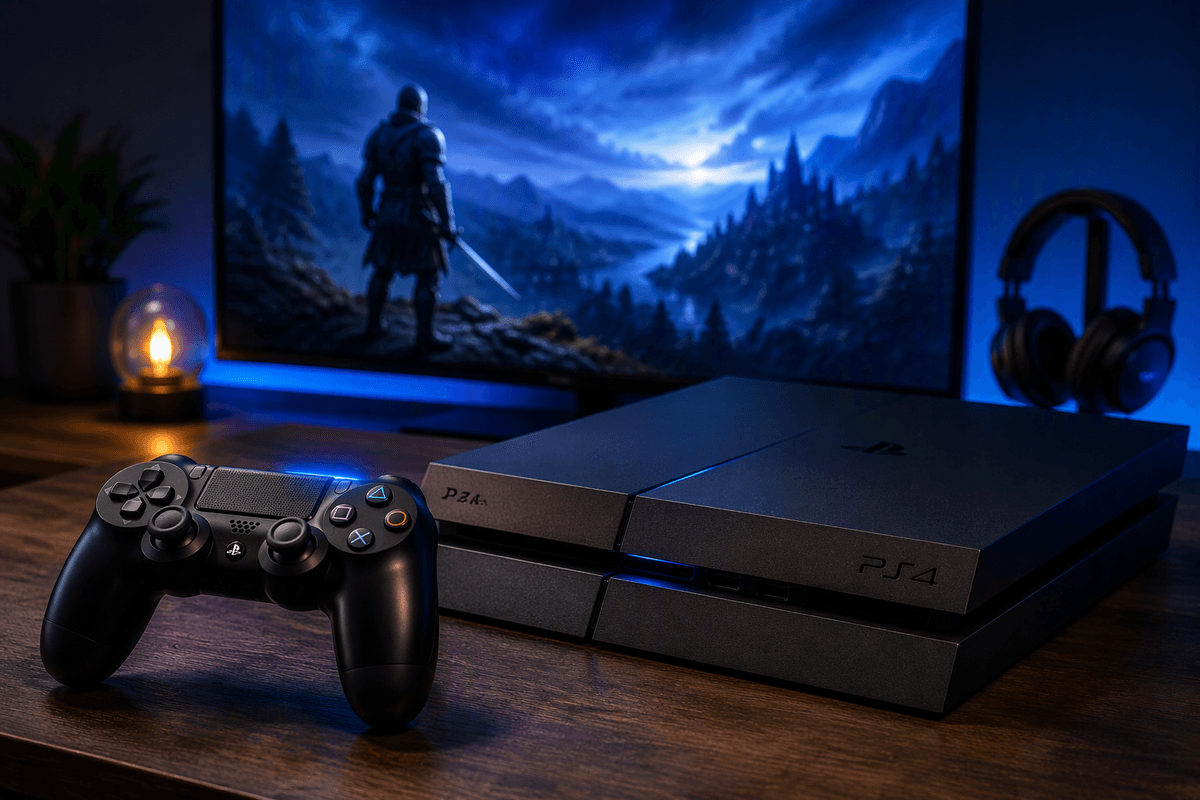
Most people “use” a PS4; mastering it means you spend less time waiting, hunting, and clearing space, and more time playing. The console’s best wins come from a handful of habits: keeping downloads predictable, keeping storage under control, and making the controller and menus do the repetitive work for you. None of this requires technical skills, but it does require a little consistency—especially if you share the system with family or bounce between big games.
Think of your PS4 like a small, busy computer with a game-first dashboard. When it feels slow, it’s usually because the storage is crowded, updates pile up at the wrong time, or the home screen gets cluttered. The goal is a setup that stays fast and tidy even after months of new installs, patches, and captures.
Make the DualShock 4 and Quick Menu work harder
You probably hit the PS button dozens of times a session, so it’s worth making that one button do more. In the Quick Menu, turn on “Close Application” and “Sound/Devices” as visible items, then use it as your pit stop: check controller battery, adjust headset volume, and close a game you’re done with (instead of leaving it hanging in the background). If you share the console, add “Power” so Rest Mode and “Log Out of PS4” are always one tap away.
On the controller side, set “Turn Off Device” to shut down the DualShock 4 when you grab a media remote or step away. If your controller drops out or feels laggy, try a better USB cable and switch the controller connection method to USB when you’re plugged in. It’s not magic—wired mode can be inconvenient across the room—but it’s a quick stability win.
Speed up the home screen without losing your library
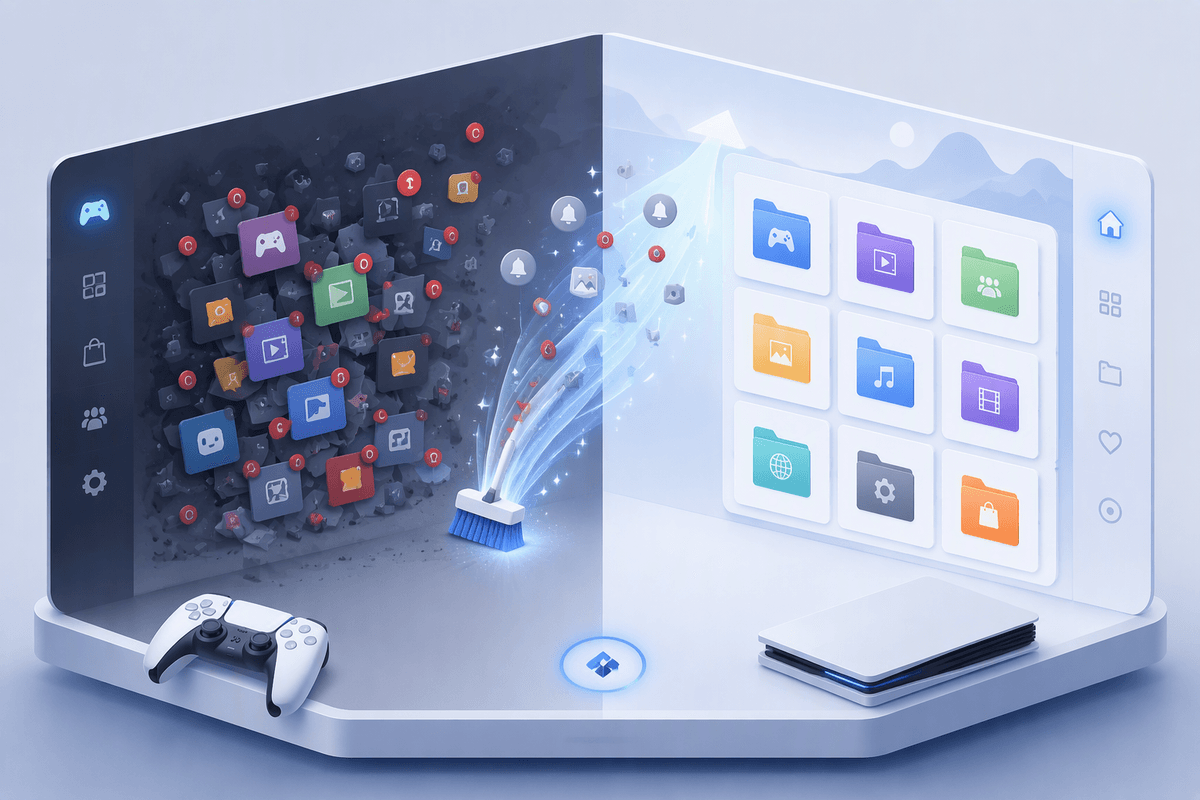
You notice it when you tap left and the tiles stutter, or when the Library takes an extra beat to open. The easiest speed win is to keep the home screen focused on what you actually launch. Create a few folders (Hold Options on a game > “Add Folder”) like “Now,” “Co-op,” and “Backlog,” then pin your regulars inside. A cleaner row means less scrolling and less time watching icons reload.
Then treat Notifications like a junk drawer. Clear old download alerts and trophy spam occasionally, and trim what can pop up during play. If you have a theme with lots of animation, try a simpler one; it’s a small change, but it can make menu movement feel snappier. The trade-off is you’ll lose some personality and flair, but you’ll get a dashboard that stays quick even after months of installs.
Downloads, updates, and Rest Mode: stop waiting to play
You know the feeling: you finally sit down to play, and the PS4 turns it into a patch-and-wait session. The fix is mostly about timing. Go to Settings > System > Automatic Downloads and enable system software updates and application update files. Then, in Settings > Power Save Settings > Set Features Available in Rest Mode, turn on “Stay Connected to the Internet” and “Supply Power to USB Ports” so downloads can run while you’re away and your controller can top off.
Rest Mode only helps if you actually use it. Make it your default instead of full shutdown, especially overnight. If your internet has data caps or gets sluggish at peak hours, set downloads before bed and pause anything you don’t need right now. Also, leave a little free space on the drive—when storage is nearly full, downloads and installs can crawl, and the PS4 will interrupt you more often to ask what to delete.
Storage choices that prevent the dreaded “not enough space”
You usually hit “not enough space” right when a big patch drops, and the fastest way to stop that cycle is to keep breathing room on purpose. Aim to leave at least 50–100GB free so updates and installs don’t constantly force a cleanup. When you need space, delete games you’re truly done with (Library > Applications), not saves—your saves are separate, and if you have PS Plus, turn on Auto-Upload for Saved Data so you’re not afraid to uninstall.
If you rotate through a lot of large games, an external USB 3.0 drive is the easiest upgrade: plug it in, format it as Extended Storage, and set it as the default install location. It’s cheaper than replacing the internal drive and keeps your library ready to play, but it’s one more box and cable, and a bumped connection can interrupt a session. Keep captures under control too—Gallery videos add up quietly. When storage still feels tight, rebuild your “installed” list into a small active lineup, and treat everything else as something you download overnight, not something you keep forever.
Better performance and fewer weird issues over time
Slowdowns and odd glitches usually come from two things: heat and messy storage. Give the PS4 some air—don’t wedge it into a tight shelf, and vacuum dust around the vents occasionally. If your fan gets loud fast, that’s your cue the console is working harder than it should, and performance can dip during long sessions.
On the software side, do a quick “health check” once in a while. Fully power off (not Rest Mode) and restart if menus feel sticky, downloads stall, or a game starts acting strange after an update. If the system feels cluttered even with free space, use Safe Mode and choose “Rebuild Database.” It doesn’t delete your games or saves, but it can take time—anywhere from minutes to over an hour—so do it when you’re not trying to play immediately.
If a specific game keeps misbehaving, uninstall and reinstall it before you start changing a bunch of settings. It’s boring, but it solves more “weird” issues than people expect.
Sharpen your play experience: audio, video, sharing, and safety
You can make the PS4 feel “new” again just by tightening your audio and video setup. In Settings > Sound and Screen, set your Resolution to Automatic (or 1080p if you get flickers), and run the RGB Range and HDR settings only if your TV actually supports them—wrong combinations are a common cause of washed-out blacks. If you use a headset, open Devices > Audio Devices and set Output to Headphones to “All Audio” when you want late-night play without TV sound. Keep in mind the DualShock 4 headphone jack isn’t as clean as a dedicated headset amp; volume and mic quality vary by headset.
For sharing, set your default screenshot/video length once so you’re not constantly trimming clips, and review who can message you and see your activity in Account Management > Privacy Settings. Add a passcode at login if you share the console, and turn on 2-step verification for your PSN account. It takes a few extra seconds to sign in on a new device, but it prevents the most common account-takeover headaches.
A simple checklist to keep your PS4 feeling new
Before you start a session: glance at storage free space (keep 50–100GB open), clear a few noisy Notifications, and close the last game if you’re switching titles. Each week: leave the console in Rest Mode overnight at least once so updates finish on your schedule, not yours; charge controllers; delete a couple of old captures. Each month (or when things feel “off”): fully power off and restart, check vents for dust and give it more breathing room, and rebuild the database if menus get sluggish. After any repeating game bug: reinstall the game before chasing random settings.