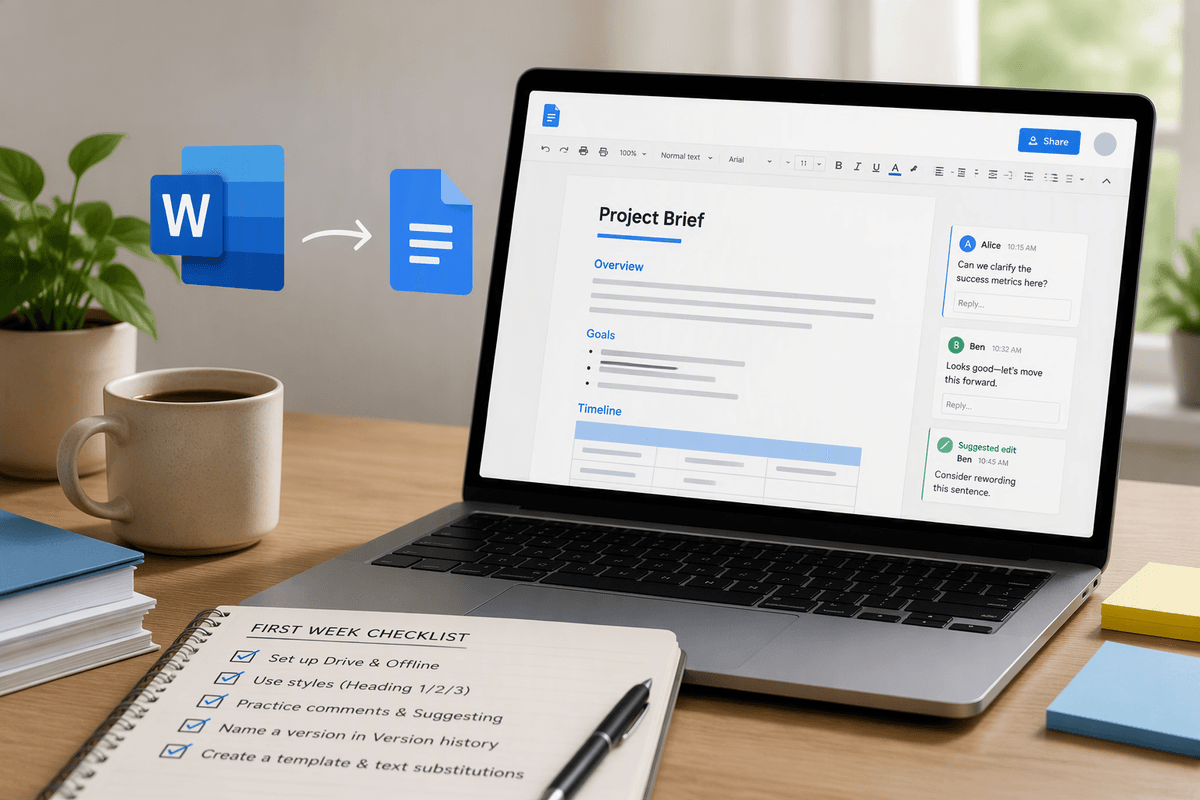
Why the switch feels awkward (and why it won’t last)
You open Google Docs and your hands still try to do Word: right‑click for the same menus, hunt for Page Layout, expect a “Save As” flow, and wonder why your carefully placed formatting behaves differently. That awkwardness is normal because your speed in Word mostly comes from habit, not from knowing every feature. Docs rearranges the same basic jobs—writing, formatting, reviewing, sharing—around a browser and a link-first mindset.
The first few days feel slower because small steps change: files live in Drive, sharing replaces emailing attachments, and “styles” matter more than manual tweaks. The good news is the gap closes quickly once you map your most-used Word actions to Docs equivalents. The main cost is a short dip in productivity while you rebuild muscle memory, especially if you rely on complex layouts or heavy templates.
Translate your Word muscle memory into Docs actions
You’ll feel faster in Docs once you stop searching for Word’s buttons and start matching the intent. Instead of “Save,” assume everything saves automatically; the closest habit replacement is naming the file early (top-left) and using File > Make a copy when you would’ve done “Save As.” For opening Word files, drag a .docx into Drive and open it with Google Docs; if the formatting is important, do a quick scan of headings, lists, tables, and page breaks before you send it to anyone.
A few Word reflexes translate cleanly: Ctrl+K still inserts a link, Ctrl+F still finds, and you can right-click for most common actions. Replace Word’s “Track Changes” with Suggesting mode (top-right pencil icon), and use Insert > Comment the way you’d add a margin note. One constraint: features like section breaks, complex headers/footers, and some fonts don’t carry over perfectly, so budget a couple minutes to clean up any file that started life in Word.
Get Drive and sharing right before documents pile up
The first place people lose time in Docs isn’t writing—it’s hunting for files and re-sharing the same document five different ways. Pick a simple Drive structure now: one top folder for the project or class, a “Working” folder for drafts, and an “Archive” folder for finished versions. Keep filenames consistent (date or version at the end) so Drive search actually helps when you’re under deadline. Star only what you truly need daily, or your Starred view becomes another junk drawer.
Sharing is where Docs beats attachments, but only if you set permissions deliberately. Default to “Restricted” and add specific people; use “Viewer” for stakeholders, “Commenter” for reviewers, and “Editor” only for people who will actively change text. If you must share a link, set it to “Anyone with the link” and choose the lowest permission that still works. The practical cost is permission cleanup when links get forwarded, so check Share > Manage access before a doc goes wide.
Formatting in Docs: styles first, then the fine tweaks
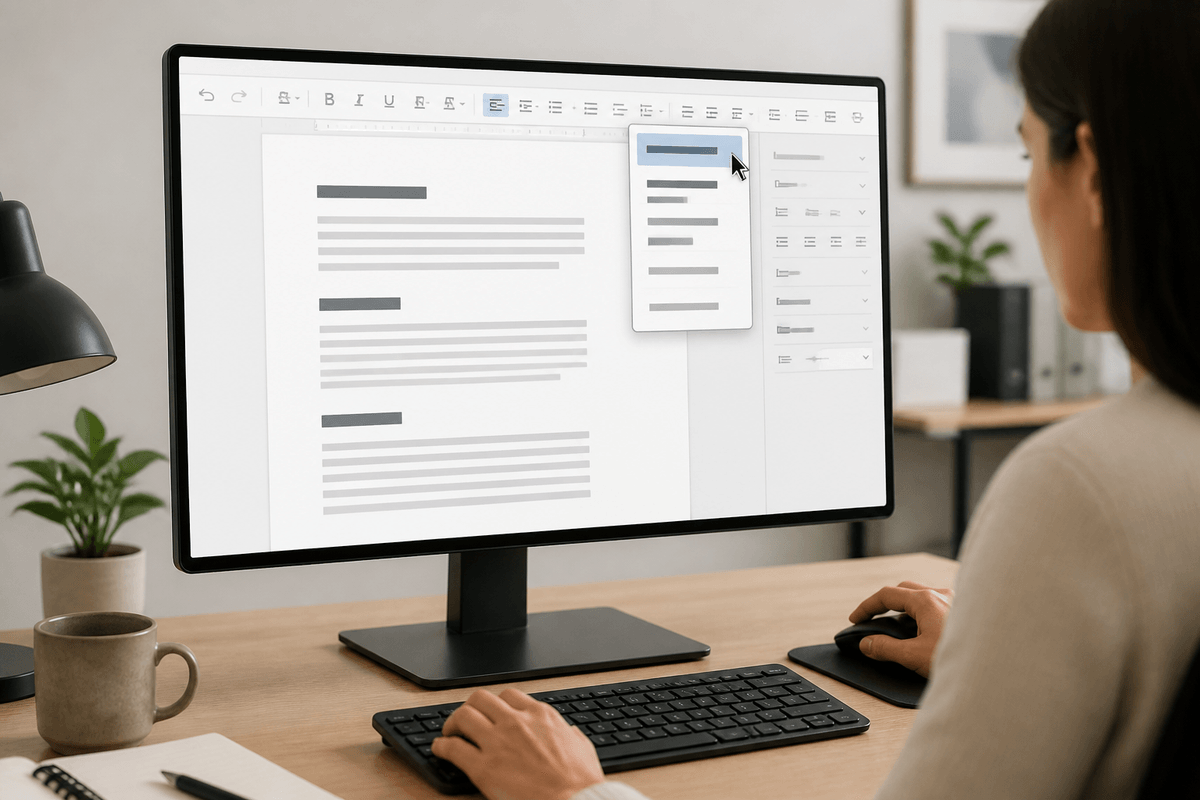
You can absolutely “make it look right” in Docs by bolding, resizing, and nudging spacing, but that’s the slow path—especially when someone else edits the file later. Start by locking in structure with styles: use Normal text for body copy, then apply Heading 1/2/3 from the Styles dropdown (left of the font). When headings are real styles, Docs can build a clean outline, make navigation easier, and keep spacing consistent without you reformatting every section by hand.
Once the styles are in place, do the small fixes that usually matter in real work: adjust line spacing, add a bit of space before/after paragraphs, and use Format > Align and indent for indents instead of tabs. If you like your setup, update a style to match (Format > Paragraph styles > Update) so future headings follow your rules. One practical limitation: Docs is less predictable than Word for complex page layout (multiple section formats, heavy header/footer tricks), so keep those documents simple or expect extra cleanup time.
Review and collaboration: comments, suggestions, and history
You’ll notice the biggest workflow shift when other people touch the same document. For quick feedback, highlight text and use Insert > Comment, then @mention someone to pull them in without sending a separate email. Treat comment threads like mini to-dos: reply, resolve, and reopen if the change didn’t land. If you’re used to Word’s Track Changes, switch the top-right mode (pencil icon) to Suggesting before you edit—your changes show as proposed edits that others can accept or reject. When you’re done, flip back to Editing so you don’t accidentally suggest everything for the rest of the day.
Version History is your safety net when collaboration gets messy. Use File > Version history > See version history to see who changed what and when, restore an older version, or name key milestones (“Sent to client,” “Final draft”) so you can roll back quickly. The trade-off is that heavy suggesting and large comment threads can make a doc feel noisy, so set a simple rule early: who edits in Suggesting, who comments only, and when threads get resolved.
Speed up daily work with templates and small automation
You’ll get your time back when you stop rebuilding the same document from scratch. Start from a template when the structure repeats: meeting notes, briefs, proposals, lab reports, or weekly updates. In Docs, you can grab something usable from the template gallery (File > New > From template), then immediately “Make a copy” and rename it like you would a Word master file. For a team, keep one “gold” template in a shared Drive folder and tell people to copy it, not edit the original—otherwise your template slowly drifts.
Small automation is mostly about fewer clicks. Use @-smart chips for people, files, and dates so you’re not pasting links and retyping names; type @today or @date for quick date fields. Build a few text snippets with Tools > Preferences > Substitutions (common phrases, your signature block, boilerplate paragraphs). The limitation is that these helpers won’t enforce complex layout rules, so if your process depends on strict formatting, expect a little manual cleanup or move that piece to a PDF form.
Offline, exporting, and compatibility with Word users
You’ll eventually hit the “no Wi‑Fi” moment—on a train, in a client building, during an exam—and that’s when offline setup matters. In Drive settings, turn on Offline on the computer(s) you actually use, then make sure the specific docs you need are available offline before you leave. Offline works best in Chrome and on a steady profile; the practical downside is it uses local storage, and if you bounce between browsers or accounts, you can think something is offline-ready when it isn’t.
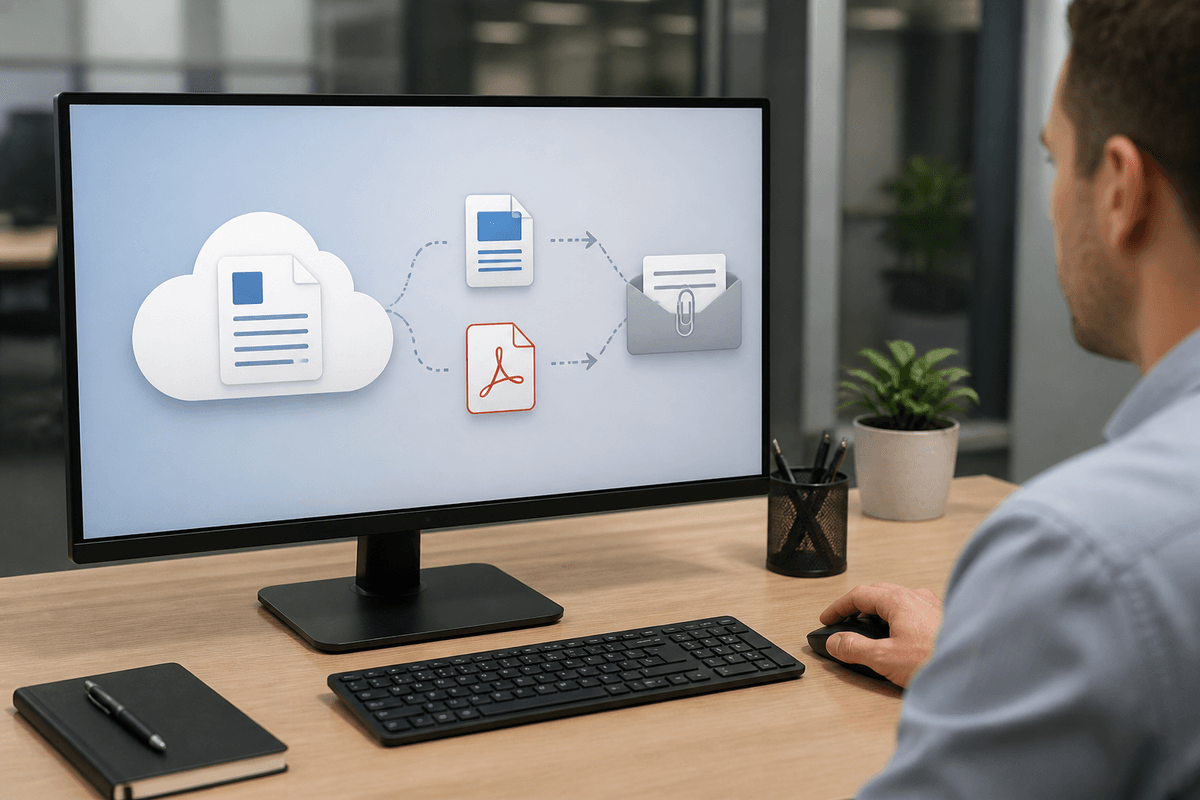
For Word-heavy coworkers, treat file exchange as a controlled handoff. Use File > Download > Microsoft Word (.docx) when they need to edit, and PDF when they only need to read or sign off. Expect small formatting shifts around page breaks, headers/footers, and tables, so do a quick final scan after exporting—especially if the document has strict margins or a “must-fit-one-page” requirement.
A simple first-week checklist to feel fluent in Docs
On day one, set up Drive so future-you can find things: create one main folder, two subfolders (Working/Archive), and turn on Offline for the computer you actually use. On day two, take one real Word document, open it in Docs, then fix it using styles (Heading 1/2/3) instead of manual formatting; export it back to .docx once to see what shifts. Midweek, practice collaboration on a low-stakes doc: add two comments, @mention someone, switch to Suggesting, then accept/reject changes and name a version in Version history. By Friday, make one template copy and add 3–5 text substitutions for phrases you type constantly.