Thinking About a Used Mac mini: What Matters Most
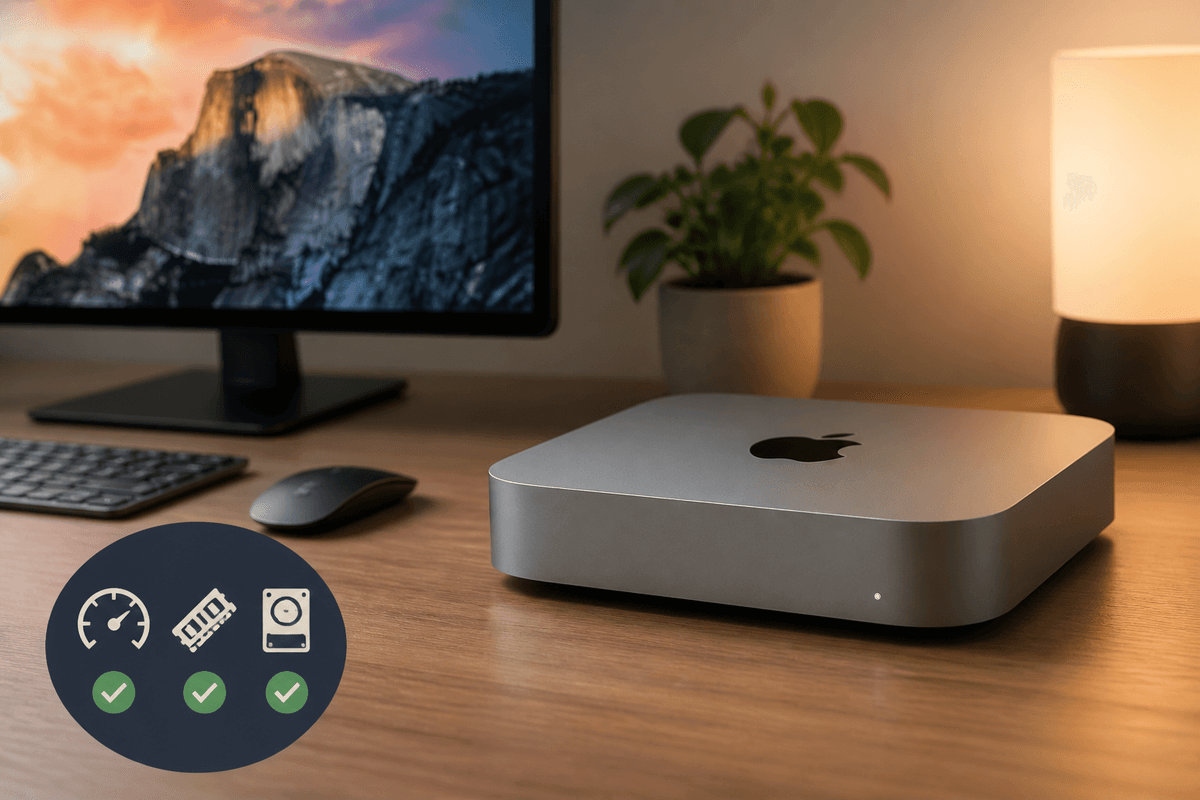
You’re usually considering a used Mac mini for one reason: it looks like the cheapest way to get a “real Mac” for a desk setup. The catch is that the Mac mini’s value is less about the sticker price and more about three practical limits: how long it will keep getting macOS updates, whether its RAM and storage match your day-to-day use, and whether its ports fit your setup without extra adapters.
Used can be an excellent deal for email, web, office apps, and light photo work, especially if you already own a monitor and keyboard. It can also turn into a slow, expensive compromise if you buy too old, too little RAM, or too small an SSD and then have to patch the gap with external drives, dongles, or repairs.
Start With Your Real Workload, Not the Price Tag
The easiest mistake is shopping by “lowest price that runs macOS,” then trying to make your work fit the machine. Start by listing what you do on a normal week: how many browser tabs, whether you live in Zoom calls, if you edit photos, or if you need Xcode, Lightroom, or simple iMovie projects. Those habits predict whether 8GB of RAM will feel fine or constantly tight, and whether 256GB of storage is realistic once you account for photos, messages, and app caches.
Then translate that workload into a minimum spec you won’t regret. For most home-office use, prioritize enough RAM and a comfortable SSD before chasing a newer chip. If your work is mostly web and documents, an older model with better memory can feel smoother than a newer one that’s swapping to disk. The practical constraint: you can’t cheaply “fix it later” on many Mac minis, so buying the wrong configuration often costs more in adapters, external storage, or replacement.
Which Mac mini Generations Are Still Good Buys?
In practice, the “good buy” line usually starts with Apple silicon. A used M1 Mac mini (2020) is often the value sweet spot for everyday work because it’s fast enough to feel modern, runs cool and quiet, and tends to have a longer remaining macOS support runway than Intel models at similar prices. If you do light creative work (big photo libraries, occasional 4K video exports, lots of browser tabs), an M2 Mac mini (2023) can be worth paying extra for—especially if you find one with 16GB of memory, since that matters more than a small CPU bump.
Intel Mac minis are a “buy only if the deal is truly cheap” category now. The 2018 Intel mini can still handle office tasks, but it’s more likely to be closer to the end of major macOS support, and it typically draws more power under load. Anything older than that is usually a false economy unless you have a very specific legacy need, because you’ll pay back the savings in slower performance, shorter software support, and more adapter hassles.
The Upgrade Trap: RAM, Storage, and Port Limits
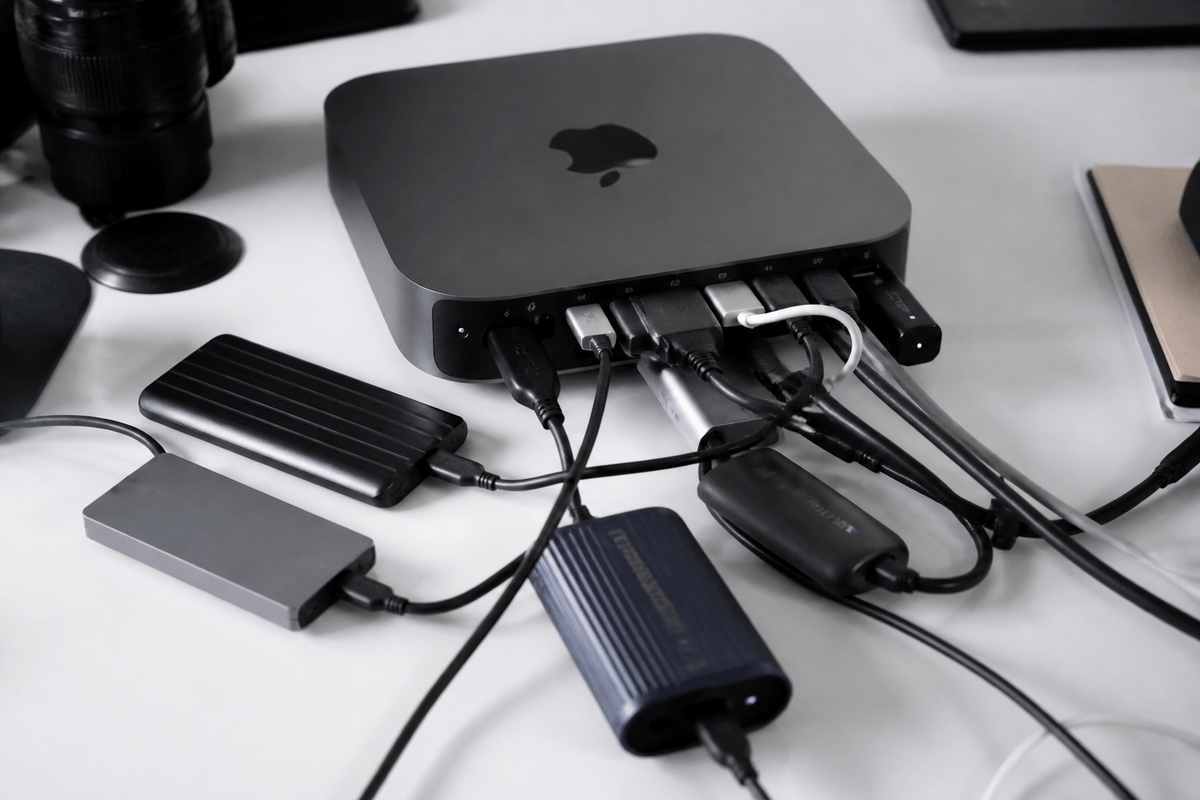
The most common used-Mac-mini regret is assuming you can “upgrade later.” On Apple silicon (M1/M2), the memory is unified and not upgradable, so 8GB is a hard ceiling. It can be fine for basic work, but it gets cramped fast with lots of tabs, big photo libraries, or multiple monitors, because macOS will lean on swap when RAM runs out. That works, but you feel it as stutters and slow app switching.
Storage has the same trap: the internal SSD isn’t a simple, cheap swap on these models, so 256GB can turn into a constant juggling act once you factor in macOS, apps, and system data. External SSDs help, but they add cost and desk clutter. Port limits are the quieter gotcha: older minis may force dongles for USB-C, fast storage, or certain display setups. Budget for adapters up front and treat 16GB/512GB as the “buy once” baseline if you plan to keep it for years.
Hidden Costs: Repairs, Accessories, and Software Support
A used Mac mini can look like a bargain until you price the “everything else.” Repairs are the big wildcard: a worn power supply, flaky ports, or liquid damage can cost enough to erase the savings, and Apple silicon models don’t offer many cheap third-party fixes. If you can’t test it under load (video playback, file copies, USB devices, Wi‑Fi), you’re guessing.
Accessories add up fast because the mini is rarely truly “just the box.” Budget for a reliable USB-C hub or display adapter, a decent keyboard/mouse, and often an external SSD if the internal drive is 256GB. Those purchases aren’t wasted, but they change the real price.
Software support is the quiet clock you’re buying. Older Intel models may stop getting major macOS releases sooner, which can affect app compatibility and security updates. If you want several more years of painless updates, factor that into what “cheap” actually means.
Where to Buy Used Safely and What to Check
The safest places to buy used are the ones that give you a real return window and a paper trail. Apple’s refurbished store (when a Mac mini appears) is usually the lowest-risk option, and reputable refurbishers or big retailers with tested listings are next. Person-to-person marketplaces can be cheaper, but the discount needs to be large enough to “pay for” the extra risk—because once you hand over cash, a hidden defect becomes your problem.
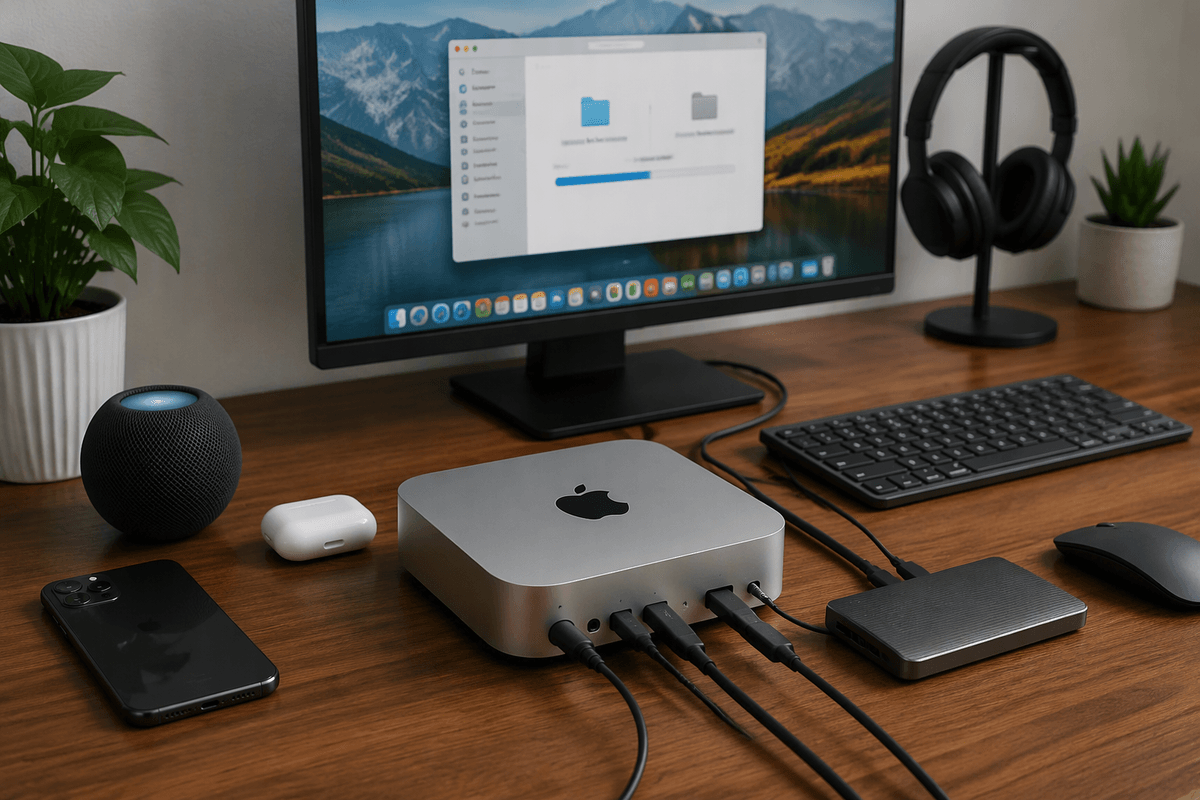
Before you buy, confirm the exact model and configuration from “About This Mac” (chip, memory, storage) and match it to the listing. Make sure Activation Lock is off: the seller should sign out of iCloud, erase the Mac, and leave it at Setup Assistant so you can activate it with your own Apple ID. Test the ports you’ll actually use (USB-A/USB-C/Thunderbolt, HDMI, audio), Wi‑Fi and Bluetooth, and plug in a monitor at your target resolution. Copy a large file to an external drive to check for flaky connections, and run a quick sustained task (4K video playback or a simple benchmark) to listen for odd noises or sudden shutdowns. If you can’t test, insist on a return policy.
A Simple Checklist to Decide in 10 Minutes
You’re deciding whether this is a “buy” by answering a few yes/no questions fast. Is it Apple silicon (ideally M1 2020 or newer), and is the price still a deal after you add an external SSD, a hub/adapter, and sales tax or shipping? Does it have the memory and storage you can live with for years (ideally 16GB and 512GB if you multitask or store media), knowing you can’t upgrade them later? Can you verify Activation Lock is off, and do you have a real return window?
If any answer is “no,” walk. The time you save buying cheap often turns into time spent troubleshooting, juggling storage, or reselling.