Your smart speaker is capable of more than music
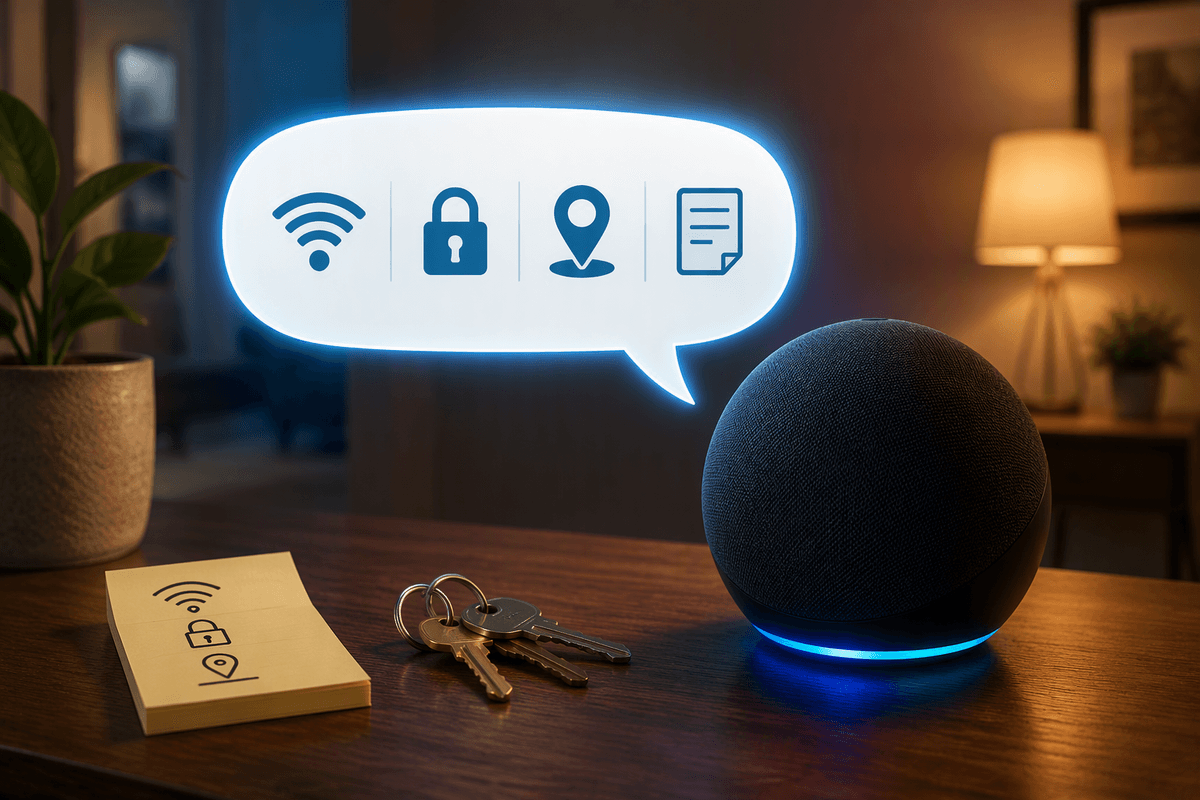
Most people use a smart speaker like a hands-free jukebox, then forget it’s also a fast shortcut to small, repeatable tasks. The high-impact features are usually already built in: routines (one phrase triggers several actions), voice profiles (so it knows who asked), whole-home audio (play everywhere without pairing), intercom/broadcast (reach rooms or the whole house), smarter reminders and shared lists (that pop up on phones too), and room-based smart-home control (so “turn off the lights” targets the right place). The trade-off is setup time and a quick privacy check—especially mic history and personalization settings.
Routines that remove tiny chores from your day
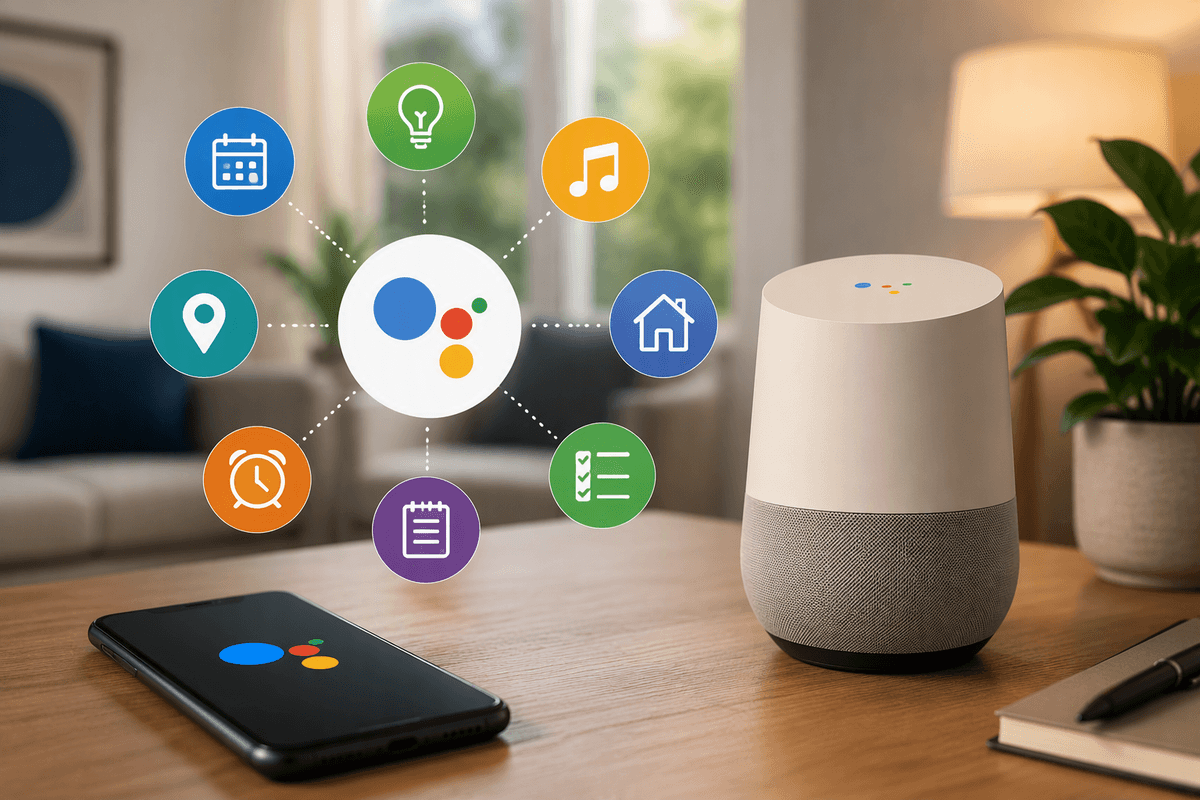
You know the moments: you walk in with groceries and want lights on, a timer started, and music going—without doing three separate commands. Routines solve that by bundling actions behind one phrase (or a schedule). Create a “Good morning” routine that tells you today’s calendar, reads the weather, turns on a kitchen light, and starts a news brief. Add an “I’m leaving” routine that turns off selected lights, sets the thermostat to eco, and announces if a door sensor is still open.
Keep routines boring and specific. The ones that stick are tied to real triggers: a time (“weekdays at 7:00 AM”), a button/door sensor, or a short phrase you’ll actually say. Start with two routines and refine them for a week; if it’s finicky, it won’t get used. Also note the cost: routines often depend on compatible devices and permissions (calendar, location), so take a minute to review what you’re granting.
Voice profiles for more personal, less messy results
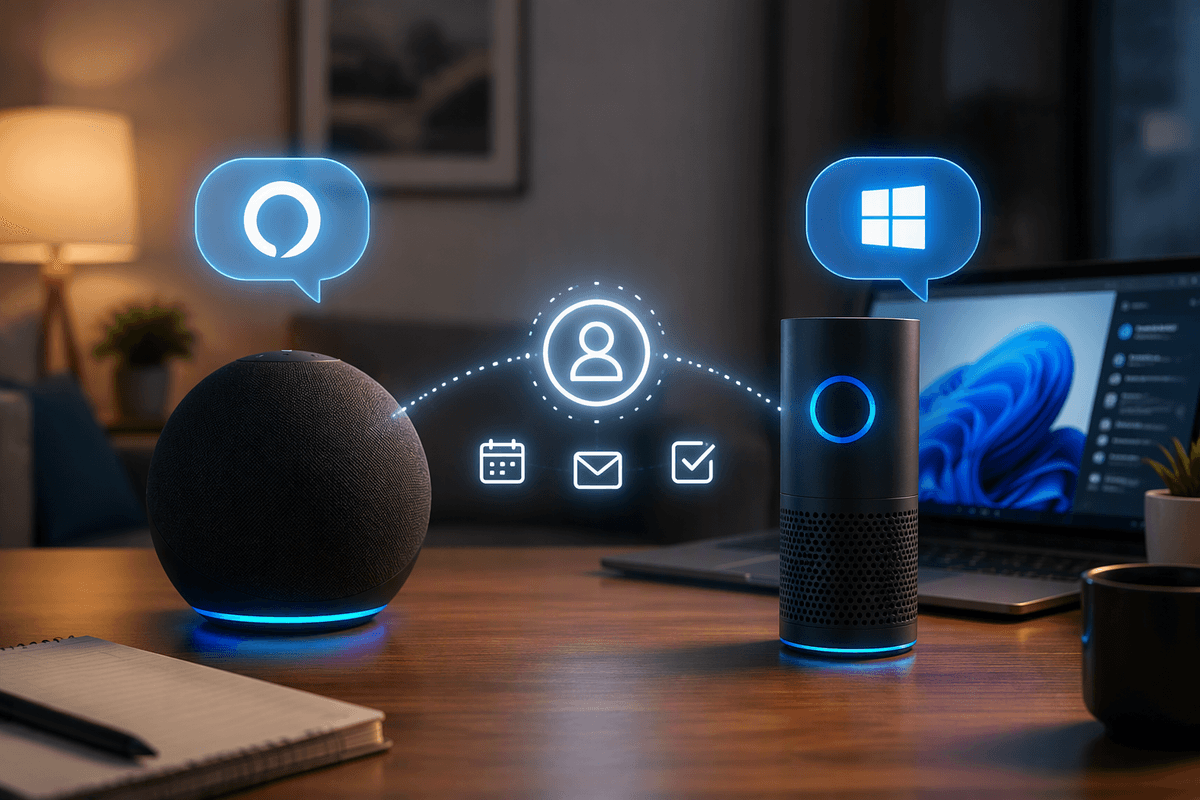
You’ve probably seen the “wrong person” problem: you ask for your day’s calendar and it reads your partner’s, or a kid asks for music and it hijacks your playlist. Voice profiles (Alexa Voice ID, Google Voice Match, and HomePod’s Personal Requests) fix a lot of this by linking a voice to the right account. That means more accurate calendars and reminders, personalized commute times, and music that stays in the right library—without everyone changing settings.
Setup is usually a 2–3 minute voice training flow in the app, then you enable personal results/personal requests. The practical constraint is accuracy: background noise, guests, or a hoarse voice can still confuse it, so keep a simple fallback phrase like “use my account” or turn off personal results on shared speakers in high-traffic rooms.
Whole-home audio without fiddling with Bluetooth every time
If you’ve ever started music in the kitchen, walked to the living room, and realized it’s stuck on one speaker (or your phone auto-paired to the wrong thing), multi-room audio is the cure. Instead of Bluetooth, you create a speaker group in the app—“Downstairs,” “Everywhere,” or “Bedrooms”—then say “play jazz on Downstairs.” It’s also great for podcasts while you move around, or for parties where you want the same playlist in sync.
The setup is mostly naming and grouping, but there are real constraints. Some services don’t support multi-room playback on every platform, and mixing brands can be hit-or-miss (AirPlay/Chromecast help, Bluetooth usually doesn’t). If audio drifts, keep groups to similar speaker models and place at least one speaker within strong Wi‑Fi range; multi-room audio is only as stable as your network.
Intercom and broadcast features for real household coordination
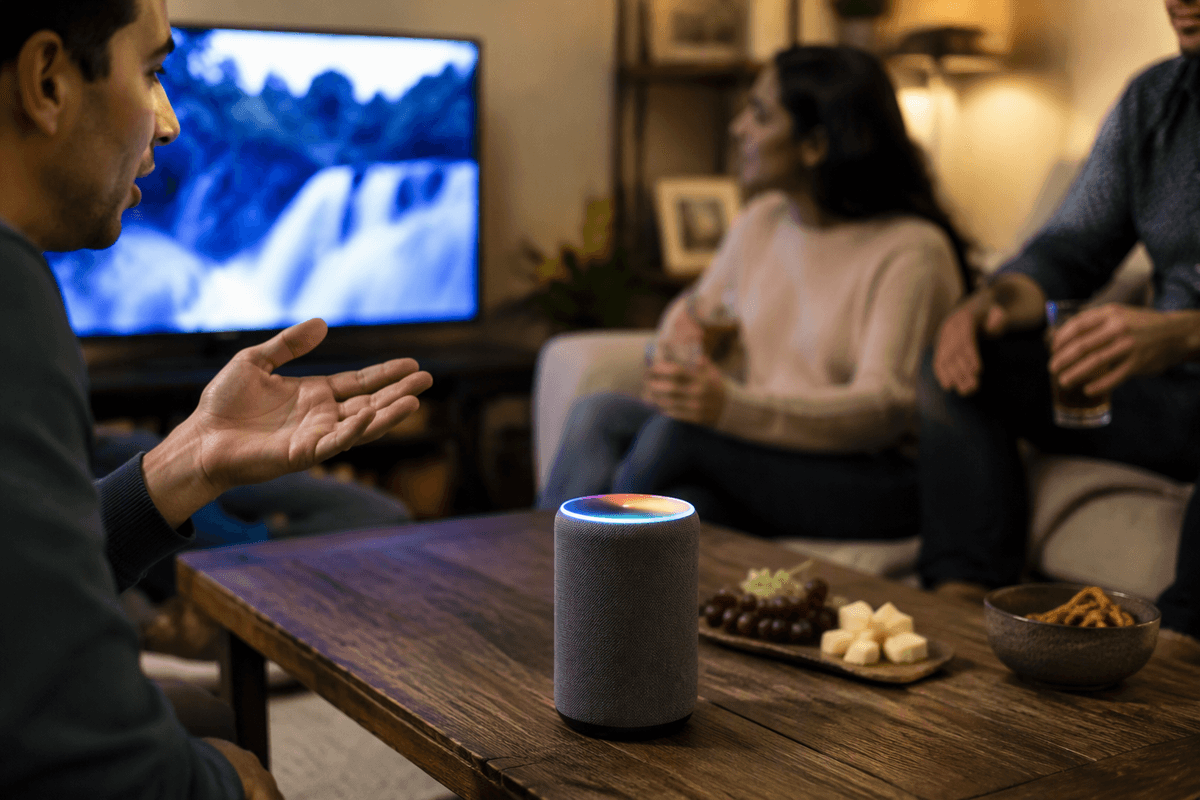
You’ve probably done the “text everyone in the house” routine, then watched nobody look at their phone. Intercom and broadcast features solve that with one voice command: “announce dinner’s ready,” “broadcast we’re leaving in five,” or “drop in on the nursery.” Alexa has Announcements and Drop In, Google has Broadcast, and HomePod can send intercom messages to other HomePods and Apple devices.
The trick is to name rooms clearly and keep it practical: ask a specific room for help (“Intercom to Kids’ Room: bring your shoes”) instead of blasting the whole house every time. Set permissions carefully. Drop-in style calling is convenient, but it’s also the most sensitive feature—disable it on bedrooms, require approval for contacts, and remember guests may hear broadcasts if they’re in range. There’s also a real cost: a noisy room or weak Wi‑Fi can make messages garbled.
Smarter reminders, lists, and calendar habits that stick
You’ll actually keep using reminders and lists when they’re frictionless. The pattern that works is “capture now, sort later”: “remind me to switch the laundry in 35 minutes,” “add dishwasher pods to the shopping list,” or “when I get home, remind me to bring in the packages.” Put one shared grocery list on the household speaker and keep personal lists (like gifts) tied to voice profiles so you don’t accidentally announce surprises.
Make calendars behave by being explicit. Try “what’s on my calendar today,” “add a 30-minute walk at 6 PM,” and “move my 2 PM meeting to 3 PM” (support varies by platform and calendar service). The practical constraint is permissions and accounts: you’ll need to link Google/Microsoft/Apple calendars and allow personal results, and that also means events and reminder content may show on phone notifications or smart displays. If you want less exposure, use vague reminder titles or disable lock-screen previews.
Better smart-home control with rooms, groups, and defaults
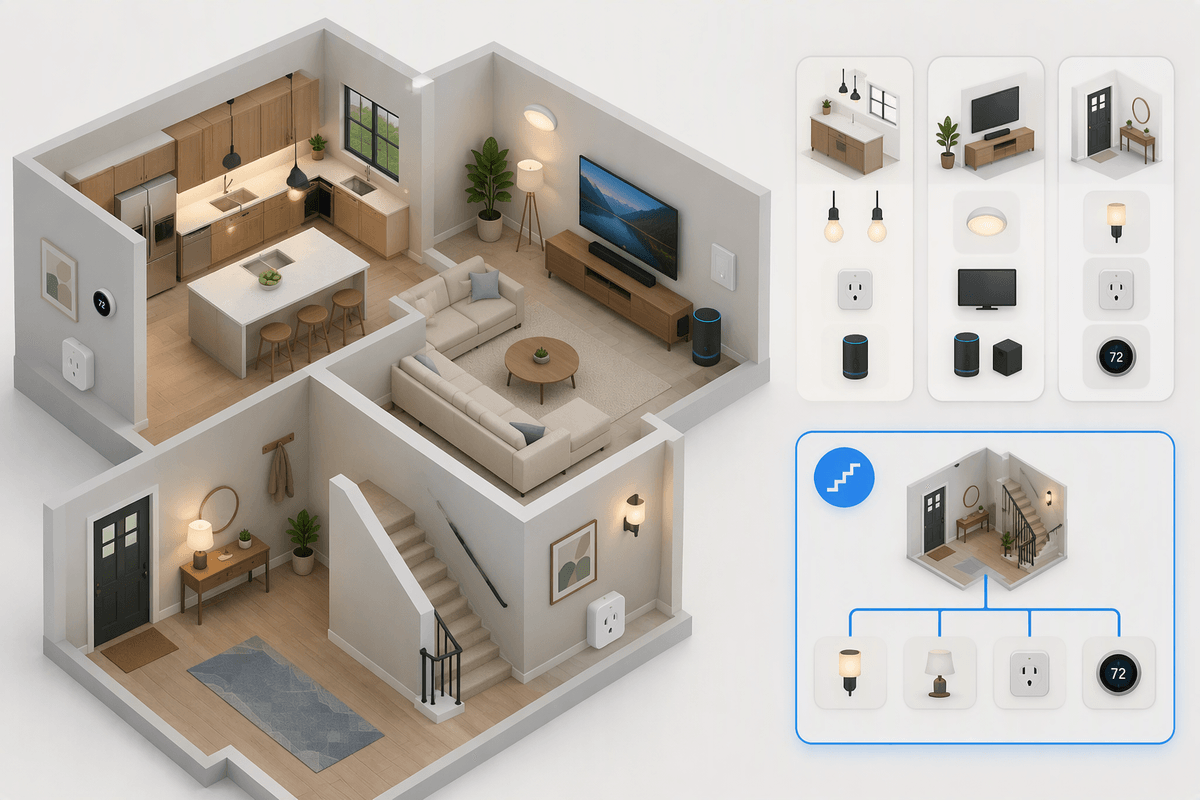
You’ve probably said “turn off the lights” and watched the wrong room go dark. Fixing that is mostly about organization, not more gadgets. In your assistant app, assign each device to a room (Kitchen, Living Room) and make sure the speaker in that space is also in that room. Once that’s set, the same command becomes context-aware: “turn on the lights” in the kitchen affects kitchen lights, while “turn on the living room lights” works from anywhere.
Go one step further with groups and defaults. Create a group like “Downstairs” for lights, plugs, and thermostats you often change together, then set a default speaker and default TV in the living room so “play music” or “turn on the TV” doesn’t ask follow-up questions. The constraint is time and naming discipline: you’ll spend 20–40 minutes cleaning up device names (“Lamp 1” becomes “Sofa Lamp”), and a sloppy setup makes voice control feel unreliable.
Privacy controls you can actually use day to day
You’ll use your speaker more when you’re not quietly wondering what it saved. Do two quick habits: review and delete voice history, and set it to auto-delete (monthly is a good balance). Also learn the “mute mic” button and use it during sensitive calls or when guests are over. Tighten personalization where it matters: disable personal results on shared speakers (entryway/kitchen), but keep them on in private rooms so calendars and reminders still work. Finally, scan third‑party skills/actions and remove anything you don’t recognize; stale integrations are the most common privacy leak, and cleaning them up takes 5 minutes.