Start with the fastest checks before you dig deeper
You’re usually trying to fix this with minutes to spare, so start with the checks that change the outcome fastest. First, look for the obvious “hardware” blockers: if you’re on a laptop, make sure the physical camera shutter switch (or sliding cover) isn’t closed, and unplug/replug an external webcam so it re-detects. Then do a quick “power reset” of the call: leave the Meet tab, close it, and rejoin (or refresh the page). If video is still black or frozen, fully quit Chrome/Edge (not just the tab) and reopen it—this clears a lot of stuck camera sessions.
Before you change settings, do one quick reality check: does your camera work anywhere else? On Windows, open the Camera app. On a Mac, open FaceTime or Photo Booth. If it’s broken there too, Meet isn’t the problem, and you’ll save time by restarting the computer right away. If it works in those apps but not in Meet, your best “fast fix” is to try a Private/Incognito window and join the meeting again. If that works, something in your normal browser profile (often an extension) is interfering, and you can keep the call moving while you troubleshoot after.
Is your camera actually in use somewhere else?
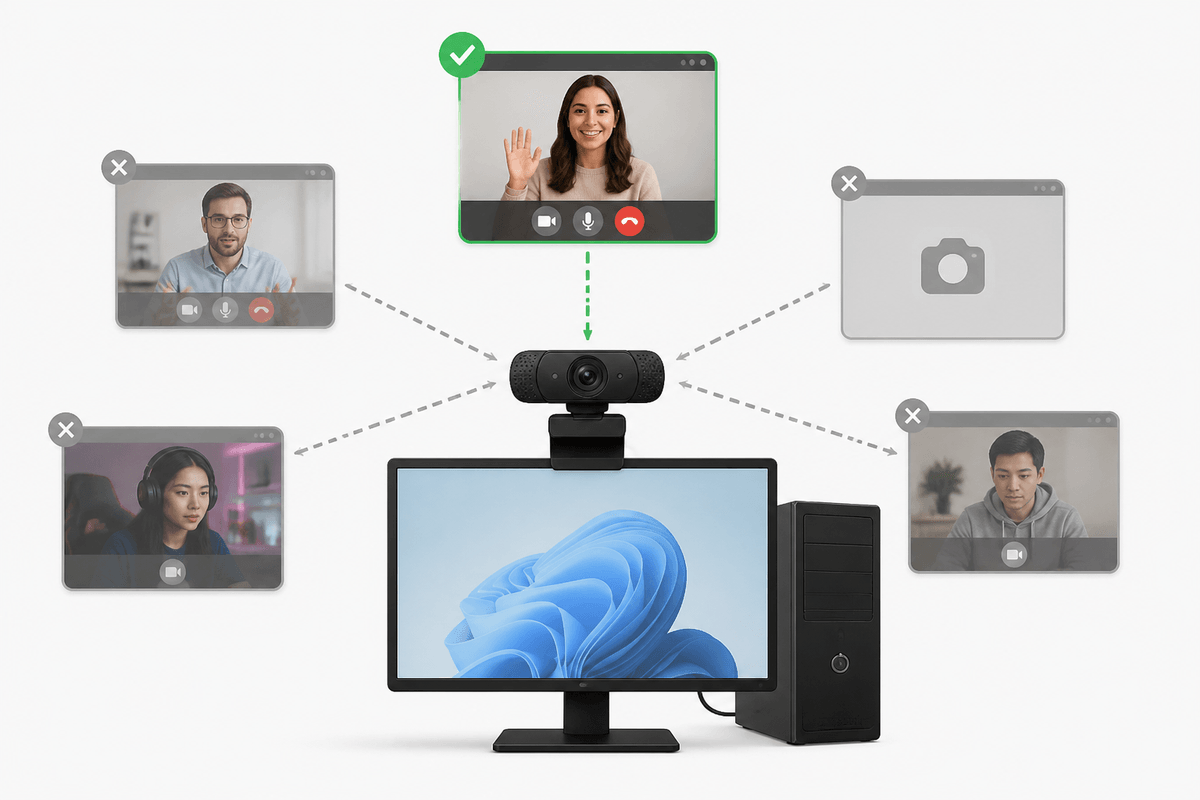
A camera can only be “owned” by one app at a time. If Zoom, Teams, Slack, Discord, OBS, Loom, or even a browser tab that asked for camera access is already using it, Google Meet may show a black screen or an error like “camera is already in use.” Close anything that might be grabbing video, including background tray apps (Windows: check the system tray near the clock; Mac: check the menu bar). If you’re not sure, take the blunt approach: save your work, quit those apps completely, then try Meet again.
If it still looks busy, restart the computer. That sounds basic, but it’s the fastest way to clear a camera session that didn’t release properly. For USB webcams, also unplug and replug after the restart, ideally into a different USB port (avoid unpowered hubs). The practical downside is you may lose a minute re-opening apps, but it often saves ten minutes of guessing.
Pick the right camera in Meet (and test it)
It’s common to have more than one camera available (a built-in laptop camera, an external USB webcam, or even a virtual camera from software like OBS). In the Meet call, open the three-dot menu, go to Settings, and check the Video tab. Make sure the correct camera is selected, then give it a few seconds to “wake up” after you switch—some webcams briefly go black while they reconnect.
Don’t rely on the tiny self-view alone. Use the “Test” preview when you can (by opening Meet in a separate tab before joining, or by using the preview screen if you’re not in the call yet). If the preview works but your live video is frozen, turn your camera off and back on once. The limitation: changing the camera can briefly interrupt your video for everyone, so do it quickly and stick with the first option that gives a stable image.
Permissions: the one setting that breaks everything
You’ll sometimes do everything “right” and still get a black preview because the browser or the operating system is quietly blocking access. In the Meet tab, click the padlock icon next to the web address and confirm Camera is set to Allow (not Block). If you see a “camera blocked” icon in the address bar, click it and allow access there too, then refresh the page. If you’re using multiple Google accounts or profiles, double-check you changed the permission for the same profile that’s joining the meeting.
If the browser permission looks correct, check the system permission. On a Mac: System Settings > Privacy & Security > Camera, then make sure your browser is enabled. On Windows: Settings > Privacy & security > Camera, turn on Camera access and let desktop apps access your camera. One practical catch: after changing OS permissions, you often have to quit and reopen the browser (or restart) before Meet can see the camera again.
Browser fixes that clear glitches and conflicts quickly
When permissions and the right device are set but the picture is still black or stuck, treat it like a browser “state” problem. Start by refreshing the Meet tab, then try leaving and rejoining once. If that doesn’t change anything, fully quit the browser (Chrome/Edge: close every window, then confirm it’s not still running in the background) and reopen. On Windows, also check Task Manager for leftover chrome.exe/msedge.exe processes; on Mac, use Force Quit if it won’t fully close.
If the issue only happens in your normal profile, extensions are the usual culprit. Keep the call moving by joining from an Incognito/Private window, then later disable extensions that touch video, privacy, screen recording, or ad blocking until Meet works normally. If you’re on Chrome, also try clearing site data just for meet.google.com (not your whole history), because a corrupted site cache can break camera startup. The trade-off is you may need to sign in again and re-allow the camera, but it’s often faster than chasing random settings.
System-level causes: drivers, updates, and privacy tools

Sometimes Meet is fine and your system is what’s in the way. A common pattern is the camera works yesterday, then after an OS update it shows up as a black screen or disappears from the list entirely. On Windows, open Device Manager, find Cameras (or Imaging devices), and look for a warning icon. If you see one, restart first, then run Windows Update (including “Optional updates” for drivers when available). If the camera recently started failing, rolling back a driver or uninstalling the device and rebooting can force a clean reinstall—useful, but it can take time and may require admin rights.
On macOS, camera issues are more often permission or background process related. Make sure your browser still has Camera access in System Settings, then fully quit the browser and any video apps. Privacy tools can also block access while looking “normal”: antivirus webcam shields, corporate endpoint software, and browser “privacy” extensions may silently deny the camera. The practical constraint is you may not be allowed to change these on a work or school device, so if you’re managed, involve IT sooner rather than burning meeting time.
When nothing works: a 3-minute fallback plan
You’ve done the right checks and it’s still not stable. Give yourself three minutes to get back on the call. Minute 1: join from a different browser (Chrome if you weren’t already, otherwise Edge) or an Incognito/Private window, and re-allow the camera when prompted. Minute 2: if video still won’t start, switch to “Join without video,” stay on audio, and use chat to explain you’re troubleshooting. Minute 3: try the Google Meet mobile app on your phone (same meeting link), or call in by phone if the meeting offers it. If none of that works, it’s usually a device/IT restriction worth escalating.