Why USB‑C ports look identical but behave differently
You plug a USB‑C cable into one port and everything works: the laptop charges, a monitor lights up, files copy fast. You plug that same cable into a different USB‑C port on the same device and it only charges—or it charges slowly—or the display never appears. The confusing part is that USB‑C describes the shape of the connector, not the features behind it.
Manufacturers can wire USB‑C ports for very different combinations of power (basic charging vs USB Power Delivery), data speed (older USB 2.0 vs faster “SuperSpeed” modes), and video output (DisplayPort/HDMI Alt Mode), and some ports also support Thunderbolt or USB4. Adding to the mess, the port may be physically identical even when the internal controller is cheaper, shares bandwidth with other devices, or is limited by firmware, so guessing can lead to buying the wrong hub, cable, or charger.
Start with what you actually need from the port
Before you hunt for tiny symbols, get clear on the job you’re asking the port to do. Are you trying to charge a laptop quickly, connect a monitor, move lots of photos to an external SSD, or run a dock that does all three at once? Each goal stresses a different capability: charging needs enough wattage and USB Power Delivery support, displays need a video “Alt Mode” path, and fast storage needs higher USB data rates (and a cable rated for them).
Real-life mix-ups are common: a “charge-only” cable will power your phone but never show a drive; a USB‑C port that supports charging and data may still not output video; and a cheap hub can bottleneck an otherwise fast port. Starting with the task narrows what markings actually matter.
Where manufacturers hide the clues (on-device and in software)
When the port itself isn’t labeled, the clues often move to places you don’t think to check. On laptops, look along the chassis edge for tiny icons printed near each USB‑C cutout, and check the underside regulatory text or a nearby sticker where manufacturers sometimes list “PD,” “DP,” or “Thunderbolt.” On tablets and phones, the packaging spec line can be more honest than the device: it may say “USB 2.0” (slow data) even though the connector is USB‑C.
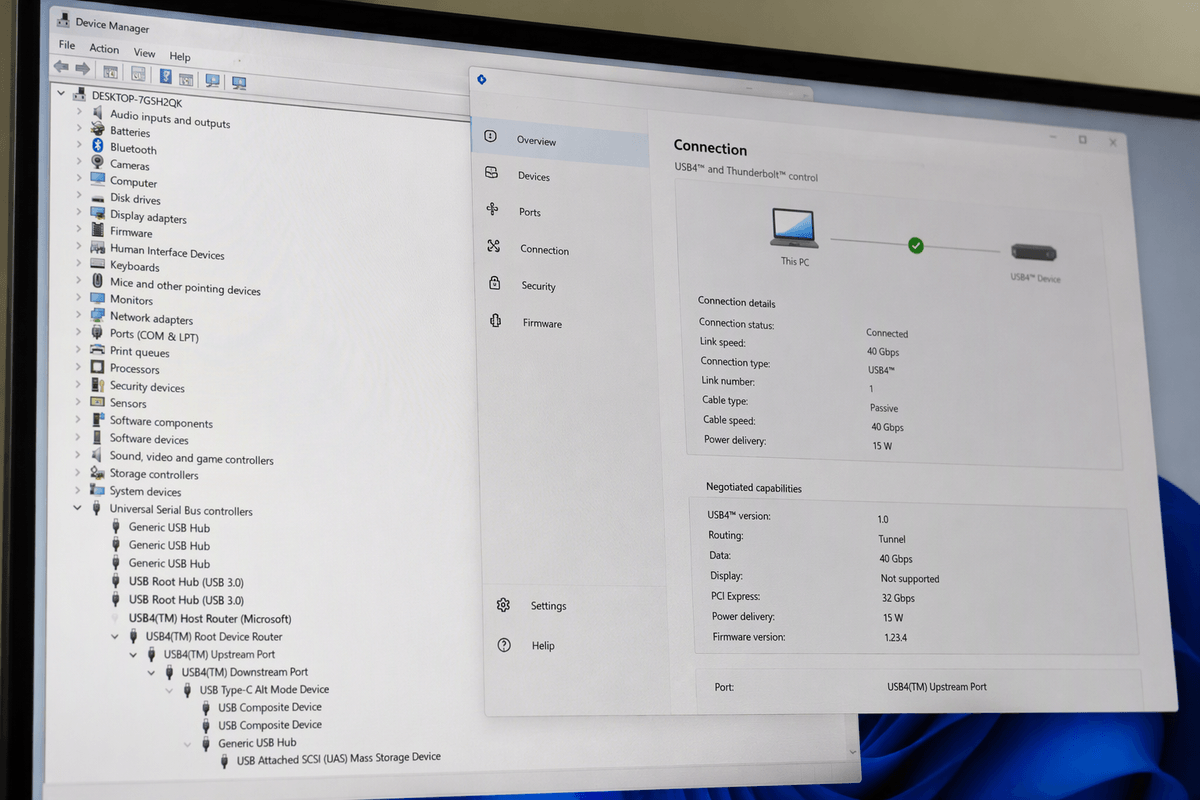
Software can confirm what the hardware supports. In Windows, Device Manager and the USB4/Thunderbolt control apps can reveal whether a port is USB4/Thunderbolt-capable and what’s negotiated. On macOS, System Information shows Thunderbolt/USB controllers and connected link speeds. The catch is that names are inconsistent, and some details only appear after you plug in a compatible dock, drive, or display.
Symbols that tell you USB data speed (trident, SS, and numbers)
You’ll sometimes see a plain USB “trident” symbol near a USB‑C port. Treat that as “USB works here,” not “fast USB works here.” If the port (or the device’s spec sheet) adds “SS,” that’s the key hint for SuperSpeed—meaning it’s faster than old USB 2.0. Some manufacturers print an actual number, like “5,” “10,” or “20,” which usually refers to the maximum USB data rate in gigabits per second (5Gbps, 10Gbps, 20Gbps). When you see “SS 10,” that’s a strong sign you’ll get good external SSD performance, assuming your cable and drive can keep up.
Many phones and plenty of budget laptops still ship USB‑C ports that are only USB 2.0 for data (often with no speed marking at all), so file transfers can feel strangely slow even though charging works fine. And even on a fast port, a USB 2.0-only cable or hub can silently drag the whole connection down.
Symbols that signal video output (DisplayPort, monitor, HDMI)
You notice video support the moment you try a USB‑C to HDMI adapter and nothing happens. That’s because video over USB‑C requires an “Alt Mode” path, and many USB‑C ports simply don’t have it. The most useful marking to look for is the DisplayPort “DP” logo (often a D with a P inside), sometimes paired with the word “Alt Mode.” If you see that near the port—or in the specs—it’s a strong indicator the port can drive an external monitor through a USB‑C to DisplayPort cable, or through a dock that converts DP to HDMI.
Some devices use a small monitor icon instead of “DP,” which usually means “this port can output a display,” but it doesn’t tell you resolution or refresh rate. An HDMI logo near USB‑C is less common, but when it appears it typically points to HDMI Alt Mode or an included HDMI-capable adapter. The constraint: even with the right symbol, a cheap hub may only support 4K at 30Hz, and some ports disable video when the system is on battery saver modes.
The lightning-bolt family: Thunderbolt and USB4 hints
A lightning-bolt icon beside a USB-C port usually signals Thunderbolt support, rather than simply meaning “fast.” Thunderbolt 3 and 4 ports support high-speed data, displays, and docks, with PCIe and DisplayPort carried alongside USB traffic. That extra bandwidth and functionality explains why the same dock may provide full features on one USB-C port but behave like a basic hub on another.
USB4 makes the labeling less straightforward. Devices may mark ports as USB4, sometimes with 20Gbps or 40Gbps, and some USB4 ports also use bolt-style branding. The catch is that USB4 covers several configurations, so the label alone doesn’t guarantee the display lanes, dock features, or maximum speed expected. For demanding setups, Thunderbolt or 40Gbps markings remain a safer choice, particularly with full-featured docks and fast external SSDs.
Charging symbols: Power Delivery, wattage, and “charge-only” ports
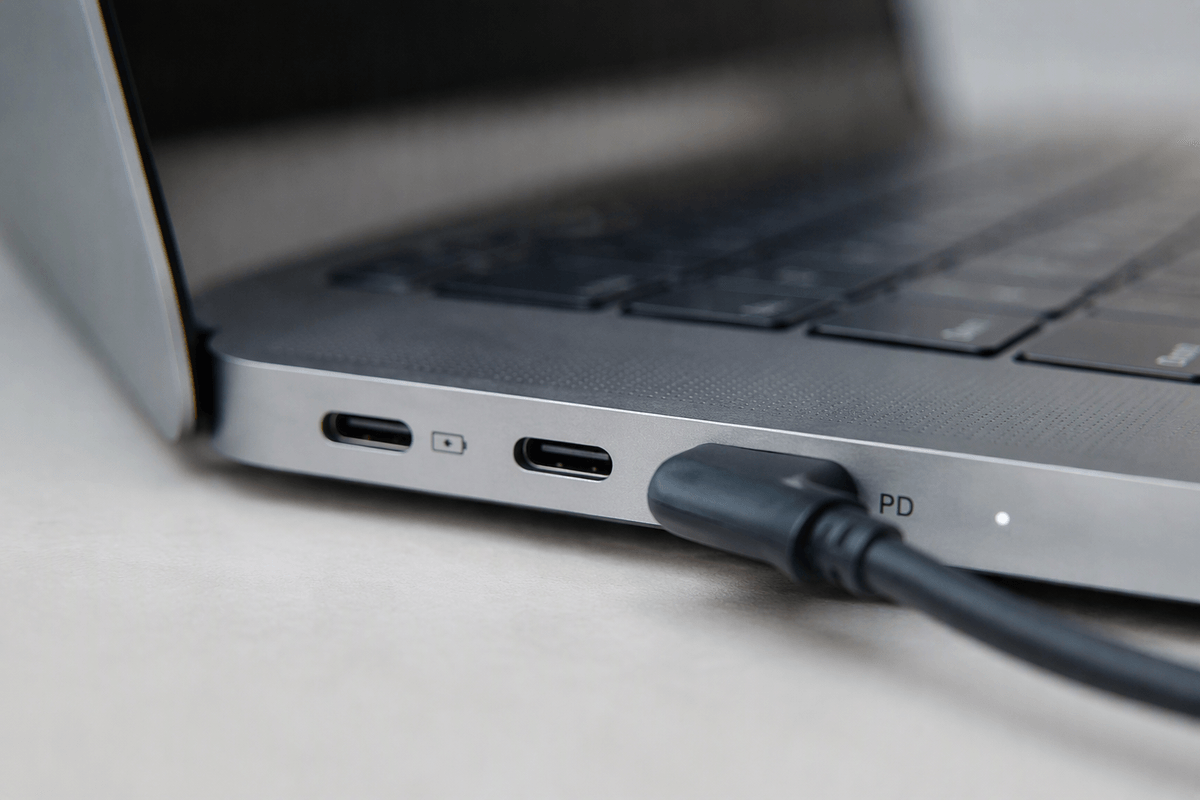
You’ll run into charging markings more often than performance markings, because they reduce support calls. A battery icon or a plain “charge” label usually means the port can take power in, but it doesn’t promise fast charging. The more meaningful clue is “PD” (USB Power Delivery). PD is what lets a USB‑C charger and device negotiate higher voltages and wattage, which is why one USB‑C port can keep a laptop topped up while another slowly loses battery during use.
If a manufacturer prints a watt number near the port (for example, 65W or 100W), treat it as the ceiling for charging into that device on that port. If there’s no number, you may have to rely on the spec sheet or a USB‑C power meter. Also watch for “charge-only” ports and cables: they’ll power phones and accessories but may have little or no data wiring, so drives won’t appear and docks can act dead even though the device shows it’s charging.
When symbols aren’t enough: a quick verification routine
The fastest way to stop guessing is to test one capability at a time with known-good gear. First, plug in the charger you trust and confirm the device reports “charging rapidly” or the expected wattage (macOS battery menu; Windows Settings or your vendor utility). Second, test data with a fast external SSD and copy a large file; if speeds look like USB 2.0, swap to a certified 10Gbps/20Gbps cable. Third, test video with a direct USB‑C to DisplayPort cable (not a cheap multiport dongle). If results change by port, label the good one and move on.