What “remember this” means on Alexa in practice
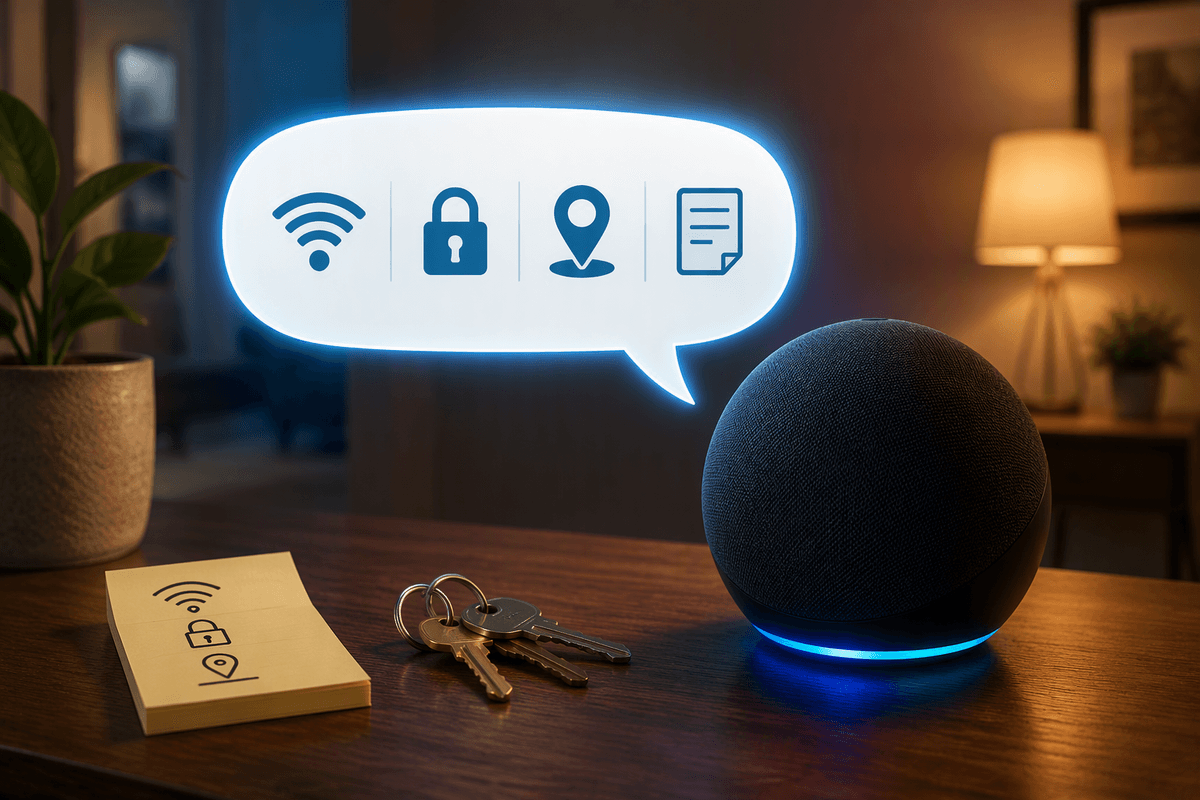
You say “Alexa, remember this…” when you want to park a small fact somewhere you can ask for later, like “The Wi‑Fi password is on the fridge” or “My locker code is 19-34-7.” Alexa treats it like a saved note, not a timed action, so it won’t pop up automatically the way a reminder does.
In practice, it’s best for quick, low-stakes details you’d otherwise scribble on a sticky note. It’s not great for long messages, sensitive info, or anything that must fire at a specific time. Also, if Alexa mishears one number, the saved note can be wrong until you check it in the Alexa app.
Check the basics before you start saving memories
The first time you try “remember this,” the basics can make or break it: use the Alexa profile you normally speak from, and make sure you’re talking to the right device in the right room. If multiple people share the same Echo, Voice ID helps keep your saved notes from getting mixed into someone else’s history, but it isn’t perfect in a noisy kitchen or with guests talking over you.
Before you trust it for anything important, do a quick test loop. Say one short fact with a number in it, then immediately ask Alexa what she remembered. If it comes back wrong, fix the situation (move closer, slow down, reduce background audio) before you start saving more. Also check that the Alexa app is signed into the same Amazon account as your Echo; otherwise you’ll “save” something and then wonder why you can’t find it later. Remember that even small notes can be inconvenient to clean up if you save them sloppily.
Simple phrases that reliably make Alexa remember things
You’ll get the best results when you keep the “memory” short and structured: “Alexa, remember that my parking spot is B12,” “Alexa, remember my locker code is 19 34 7,” or “Alexa, remember that Dr. Patel’s office number is 555 0123.” Start the note with a clear label (spot, code, number, email, model) and say digits individually, with a brief pause between groups. For names that are easy to confuse, add a hook: “Alexa, remember that our neighbor is Megan, spelled M‑E‑G‑A‑N.”
Avoid filler like “you know, the thing for…” because Alexa may save the ramble instead of the point. If the detail is long, split it into two separate saves so one misheard word doesn’t ruin the whole note. Also avoid sensitive data (account logins, SSNs, alarm codes). Even if you trust your household, voice notes can still be surfaced or played back in ways you didn’t intend.
Choosing between reminders, lists, and saved notes
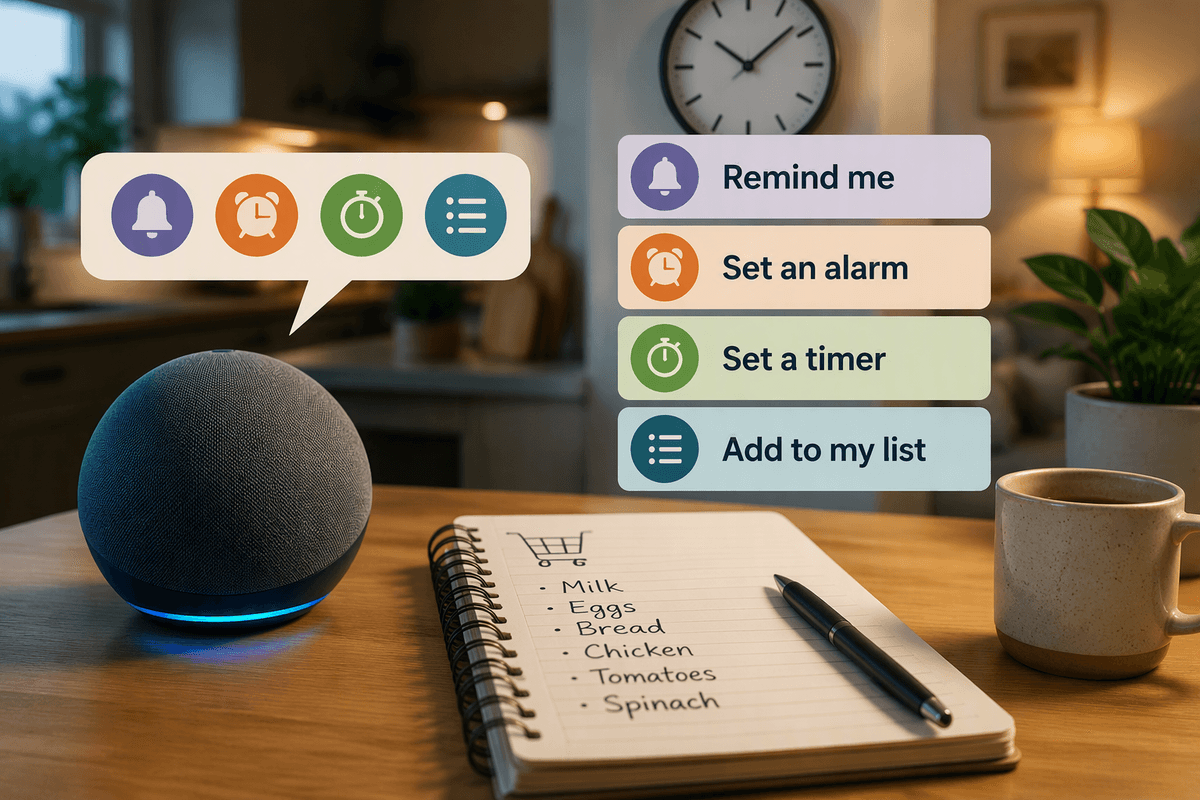
The choice comes down to whether you need something to happen later, keep a running collection, or stash a single fact. If you need a nudge at a time or place—“take the trash out at 8 PM” or “submit the form tomorrow morning”—use a reminder. Reminders are meant to interrupt you (and can also ping your phone), which is exactly why they’re unreliable for quiet households unless you confirm the notification settings in the Alexa app.
For groceries, packing, chores, and shared “don’t forget” items, a list is usually the cleanest fit. “Alexa, add batteries to my shopping list” is easy to repeat, easy to edit, and other household members can contribute without overwriting a single saved note. Lists also stay useful when the details change often.
Saved notes (“remember this”) work best for stable facts you’ll ask for on demand: gate codes, room numbers, a friend’s address, or “the spare key is in the blue planter.” The downside is maintenance—if the fact changes, Alexa won’t warn you, so you have to update or delete it yourself.
How to ask Alexa what you saved later
The moment you need the detail back, keep your question as direct as your save. If you said “Alexa, remember that my parking spot is B12,” ask “Alexa, what’s my parking spot?” or “Alexa, what did you remember about my parking spot?” If you can’t recall your exact label, try “Alexa, what did you remember?” to get the full list of saved notes, then narrow down with a follow-up question. For numbers, it helps to ask for the “code” or “number” explicitly so Alexa reads it back in a way you can verify.
When Alexa answers, do a quick accuracy check—especially for digits and names. If it sounds off, don’t keep re-asking in different ways; that wastes time and can confuse who said what in a shared home. Open the Alexa app and confirm the saved text there, because playback can mask small errors (like “15” vs “50”) if you’re listening while distracted.
Edit, delete, and organize so your memory stays useful
The first time a saved note changes, deal with it immediately or it will bite you later. Open the Alexa app, go to More, then Settings, then your Alexa Privacy area and review your voice history to find the exact “remember” request. From there you can delete the recording (and the saved note if needed), then re-save the corrected version with a cleaner label. Voice editing is hit-or-miss, so assume you’ll do most cleanup in the app.
Keep your saved notes searchable by starting with the same few labels every time: “Wi‑Fi password,” “locker code,” “parking spot,” “spare key,” “doctor number.” If you have multiple versions, add a location tag you’ll actually say out loud (“Wi‑Fi password upstairs,” “spare key garage”). The practical constraint is time: once you have 20+ vague saves like “remember this,” finding the right one becomes slower than just looking at a sticky note, so prune aggressively.
Common failures: mishearing, privacy concerns, and workarounds
The most common failure is simple mishearing, especially with numbers, letters, and similar-sounding names. If you’re saving anything you’ll rely on later, build in a quick verification habit: save it, then immediately ask for it back. Speak digits individually (“five five five…”) and group them (“555… 0123”). For letters, say “B as in Bravo” or spell the name once, because “Megan” and “Maygan” look identical when Alexa reads them aloud.
Privacy is the other frequent problem, and it’s usually about who can hear (or retrieve) what you saved. Treat “remember this” as household-visible unless you’ve tested Voice ID on your busiest, noisiest day. Don’t store alarm codes, logins, banking info, or anything you’d regret being read out loud during a party. If you need voice convenience without exposure, save a hint instead (“Wi‑Fi password is on the fridge”), or put the real detail in a password manager and use Alexa only to remember where it lives.
When Alexa is unreliable, the workaround is switching tools, not repeating yourself louder. Use a reminder for time-based tasks, a list for shared running items, and “remember this” only for stable facts you can afford to double-check.
A practical routine for getting reliable “Alexa memory”
A workable routine is: pick one label style you’ll reuse, save the fact in one sentence, then verify it immediately. For example: “Alexa, remember that the spare key is in the blue planter,” followed by “Alexa, what did you remember about the spare key?” If the playback is even slightly off, fix it in the Alexa app right then or delete and re-save—waiting is how bad notes pile up.
Once a week, take two minutes to prune: delete outdated items, tighten vague labels, and move anything time-based into reminders. The real cost is maintenance; if you won’t review it, keep “remember this” to a small set of stable, low-sensitivity facts.