What “safe enough” means for your passwords
You probably already know the real goal isn’t “unhackable.” It’s making it hard enough that the most likely attacks on you fail. For most people, that means unique passwords for every site, saved in a way that you can actually stick with day to day. If a tool is secure but you stop using it and start reusing “good enough” passwords, you’re worse off.
“Safe enough” depends on what you’re protecting and what would hurt if it leaked. A shopping account is different from your primary email, bank, or work logins. It also depends on your threat model: are you mainly worried about random credential-stuffing, or targeted takeover after someone gets into your Google account or your phone?
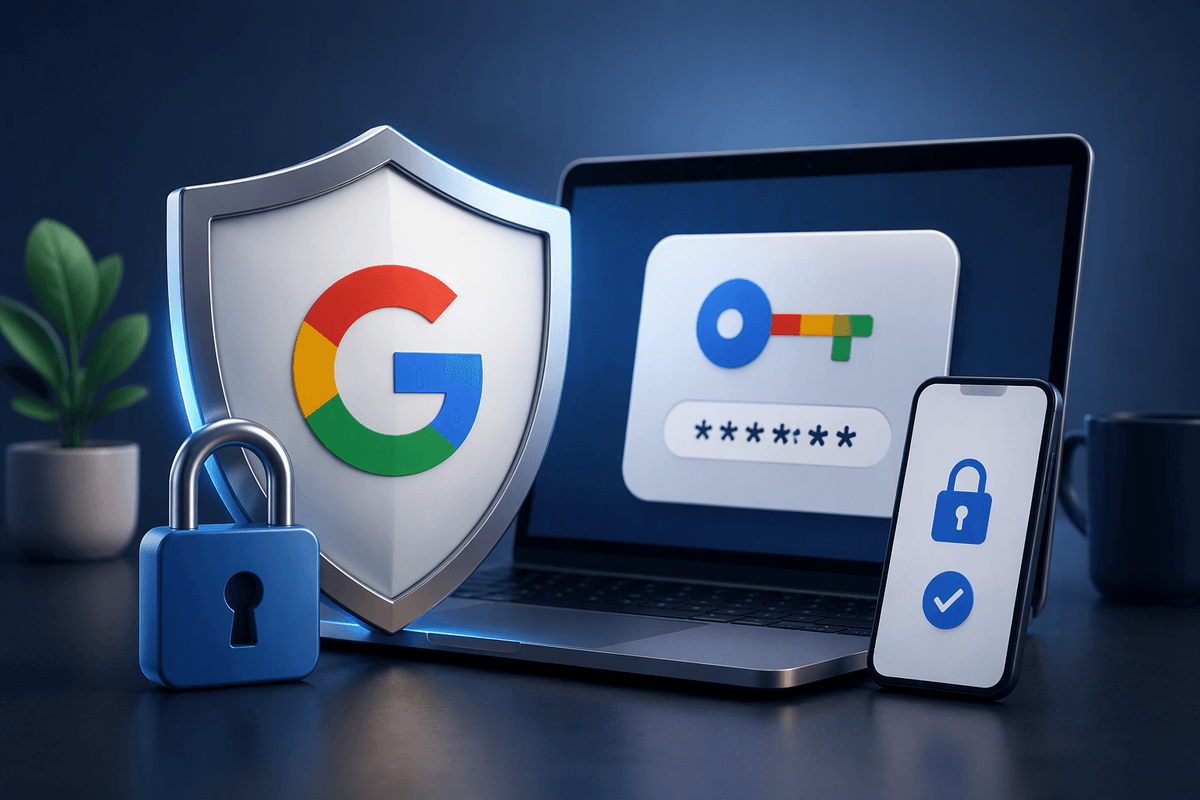
That’s the practical trade-off for Google Password Manager: it’s convenient and widely available, but it concentrates risk in your Google account and devices. You can raise the bar a lot with strong sign-in security and good device hygiene, but there are limits—like fewer advanced controls and sharing options than dedicated managers—so the right answer is partly about what you’ll actually maintain.
When Google Password Manager is a good fit

If you live mostly inside Google—Chrome on your laptop, Android on your phone, and Gmail as your “main” inbox—Google Password Manager can be a solid default. It removes the biggest day-to-day failure mode: reusing passwords because creating and typing new ones is annoying. Autofill also tends to work smoothly across your devices without extra apps or subscriptions, which matters if you’re trying to get family members to actually use a manager.
It’s a particularly good fit when your biggest risk is credential-stuffing from old breaches, and you’re willing to keep your Google sign-in locked down with strong 2-step verification or passkeys. It’s less ideal if you need more control—separate vaults, detailed sharing, stronger auditing, or a “break-glass” recovery plan beyond your Google account—because those gaps are hard to work around later.
How Google stores and syncs passwords in practice
In day-to-day use, Google Password Manager treats your saved logins as data tied to your Google Account. When you save a password in Chrome or on Android, it’s stored with that account and can show up anywhere you’re signed in with the same Google profile (for example, your phone and your laptop), which is why it feels “automatic” compared with installing a separate manager.
That convenience comes from syncing: your devices upload and download your saved credentials as part of Google’s account-based storage. You can also add an extra protection layer by using a Chrome sync passphrase/on-device encryption, which is designed to keep synced data unreadable without something only you can provide. The practical catch is recovery: if you forget a custom passphrase, Google can’t retrieve it for you, and new devices may not be able to decrypt older synced data.
For passkeys, Google also leans on device security: creating or using them requires a screen lock, and they’re designed to sync across your devices for backup and upgrades.
The biggest risk is your Google account, not Chrome

The moment your passwords live in Google Password Manager, your Google account becomes the master key. If someone can sign in to your Google account, they may be able to view saved passwords, add a new device, or quietly sync your vault to themselves. That’s a very different risk than “Chrome got hacked.” In practice, the most common paths are reused or guessed Google passwords, successful phishing that steals a login session, or an attacker who gets into your email and uses it to reset your Google credentials.
This is why the boring account defenses matter more than debating the manager itself: a strong, unique Google password; passkeys or a high-quality 2-step method; and tight recovery settings (backup codes stored safely, up-to-date recovery email/phone). The trade-off is convenience: stronger sign-in and recovery checks can add friction when you get a new phone, travel, or lose access to your number, so you need to plan for that ahead of time.
Device-level threats: lost phones, shared PCs, and malware
You can do everything “right” on your Google account and still get burned by a weak device. A lost phone with no strong screen lock, a laptop that stays signed into Chrome, or a family PC where profiles get mixed can turn autofill into an unintended handoff. The risk isn’t just someone guessing passwords; it’s someone opening settings and viewing saved credentials, or using an already-signed-in session to access accounts without ever seeing the password.
Malware is the harder case because it can sidestep the whole “vault” question by watching what you type, stealing cookies, or grabbing data from the browser profile. Google Password Manager can’t fully solve that—your practical defenses are device encryption, a strong lock screen, separate OS/Chrome profiles on shared machines, and being willing to sign out and wipe a lost device even if it’s inconvenient.
How it compares to dedicated password managers
If you already use Chrome and Android, Google Password Manager’s biggest advantage over a dedicated manager is that it’s “already there.” You don’t have to install anything, teach it new habits, or pay for a family plan, and autofill usually feels seamless across your signed-in devices. For many people, that ease is the difference between truly using unique passwords and quietly falling back to reuse.
Dedicated password managers tend to win on control and “what if something goes wrong.” They commonly offer clearer vault separation (personal vs. work), more flexible sharing and emergency access, stronger cross-browser support, and deeper admin and audit tools. They also reduce how much your password life depends on a single identity provider; your Google account can still be important, but it’s not the one master key by default. The trade-off is cost and setup friction, plus another account you must protect and recover—if you lose that, you can lock yourself out just as effectively.
A quick checklist to make it safer to use
You’ll get the biggest safety bump by treating your Google account like your “vault key.” Use a long, unique Google password, turn on 2‑step verification (or passkeys), and review recovery options so you’re not forced into weak fallbacks when you change phones or travel. Store backup codes somewhere offline, and remove old devices from your Google account when you stop using them.
Then tighten the devices that actually expose passwords. Require a strong screen lock, enable full-disk encryption (default on most modern phones), and avoid staying signed into Chrome on shared or work machines. Use separate Chrome profiles for shared PCs, and turn off autofill for payment methods if other people use the device.
Finally, use safer autofill habits. Don’t rely on autofill as “phishing detection,” and pause before filling on lookalike domains or links from messages. If you want the extra protection of a sync passphrase/on-device encryption, set it only if you’re confident you can store and recover it—losing it can strand older saved passwords.
So, is it safe enough for you?
If your main goal is “stop reusing passwords” and you’re already a Chrome/Android person, Google Password Manager is usually safe enough—provided you’re willing to harden your Google sign-in. Think of it as moving risk away from hundreds of weak site passwords and into one place you can actually defend well.
It’s a less comfortable fit if a Google account takeover would be disastrous (primary email, finances, work admin), if you share devices, or if you need stronger controls like vault separation, advanced sharing, or emergency access. The practical deciding test is simple: can you commit to strong Google authentication, locked-down devices, and a recovery plan? If not, a dedicated manager may be the safer “system” for you.